
MCP server
Connect Claude, ChatGPT, Cursor and other AI assistants to your Denser chatbots
Denser's MCP server lets an AI assistant work with the chatbots in your workspace. Once it is connected, you can ask Claude or ChatGPT things like "what are my chatbots?", "which questions did visitors rate badly this week?" or "what does our help center say about refunds?", and it answers from your Denser data.
The server address is:
https://mcp.denser.ai/mcpIt works with any assistant that supports remote MCP servers with OAuth sign-in (the Streamable HTTP transport). You sign in with your Denser account; there is no API key to copy. MCP is available on every plan, including Free.
Connect your assistant
Claude
In Claude (on the web or the desktop app), open Customize → Connectors, click + Add and choose Add custom connector.
Name it Denser, paste https://mcp.denser.ai/mcp as the URL and click Continue.
Keep the authentication Claude detects (sign in with OAuth). If it asks how to register the OAuth client, choose Register automatically. Click Add.
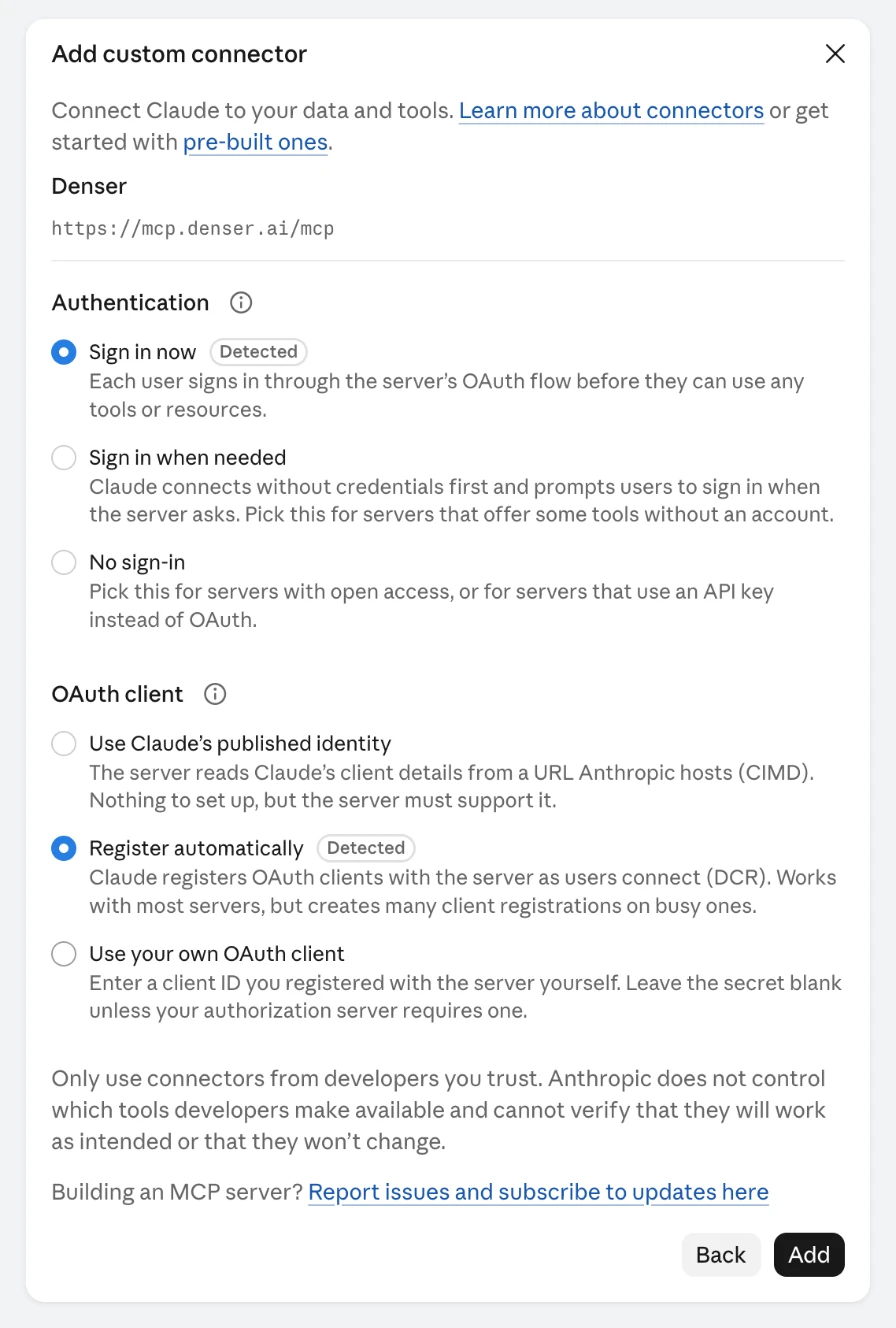
Connect it: Claude opens the Denser sign-in, and you continue with Approve the connection.
To use it in a chat, click + at the bottom left of the message box, open Connectors and turn Denser on.
The first time Claude wants to use a Denser tool in a chat, it stops and asks you. Click Allow once, or Always allow to stop being asked for that tool. To change these choices later, open Customize → Connectors → Denser: each tool can be set to always allow, ask, or never.

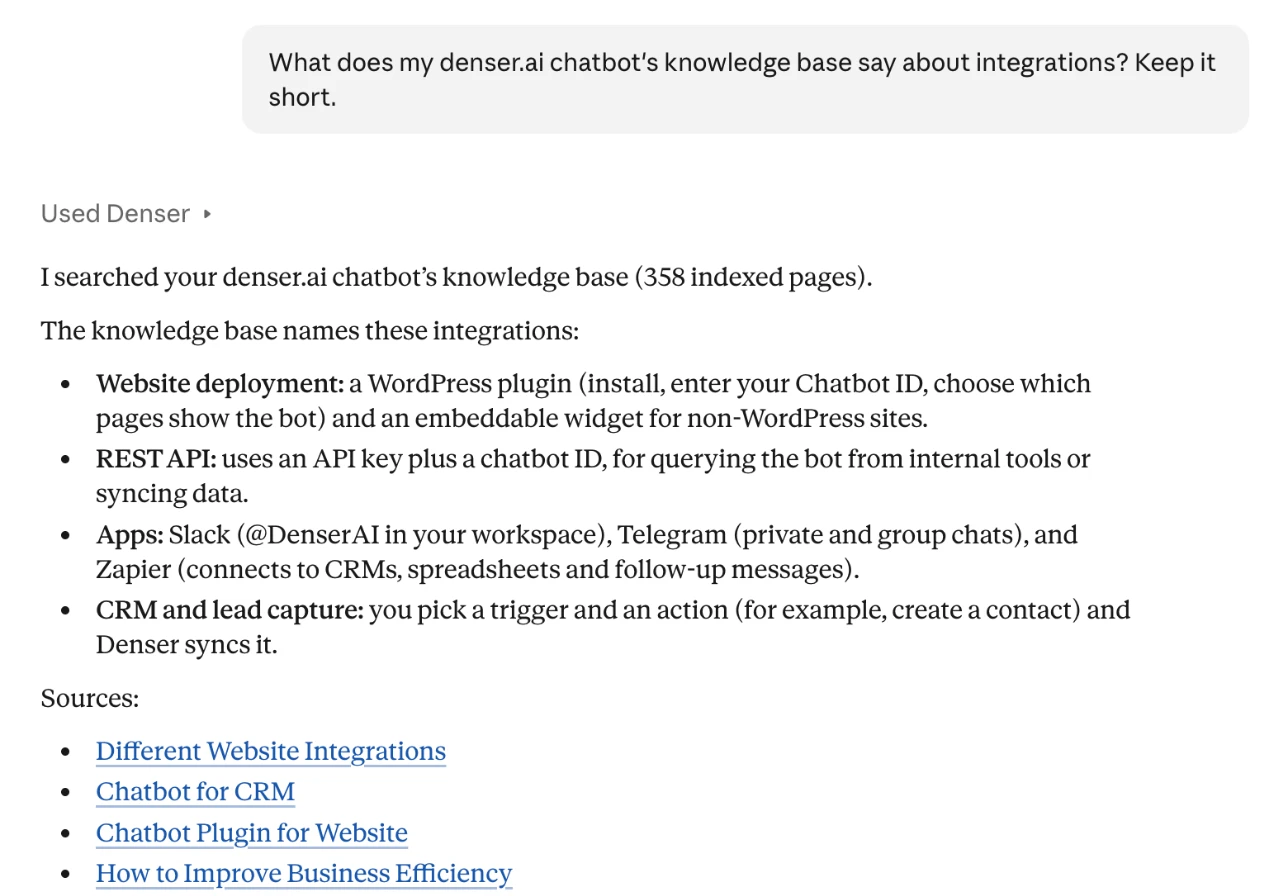
- Free plan: Claude allows one custom connector.
- Team and Enterprise: members can't add custom connectors themselves. An owner adds it first under Organization settings → Connectors → Add → Custom → Web, with the same name and URL. Each member then finds Denser under Customize → Connectors and clicks Connect to sign in with their own Denser account.
Claude Code
claude mcp add --transport http --scope user denser https://mcp.denser.ai/mcp--scope user makes Denser available in every project; leave it out to add it to the current project only. Then run /mcp in Claude Code, select denser and finish the sign-in in your browser. You can also sign in from the shell with claude mcp login denser.
ChatGPT
Open ChatGPT Plugins, click Add at the top right and choose Add custom MCP server.
Name it Denser, and under Connection paste https://mcp.denser.ai/mcp as the Server URL. Keep OAuth for authentication.
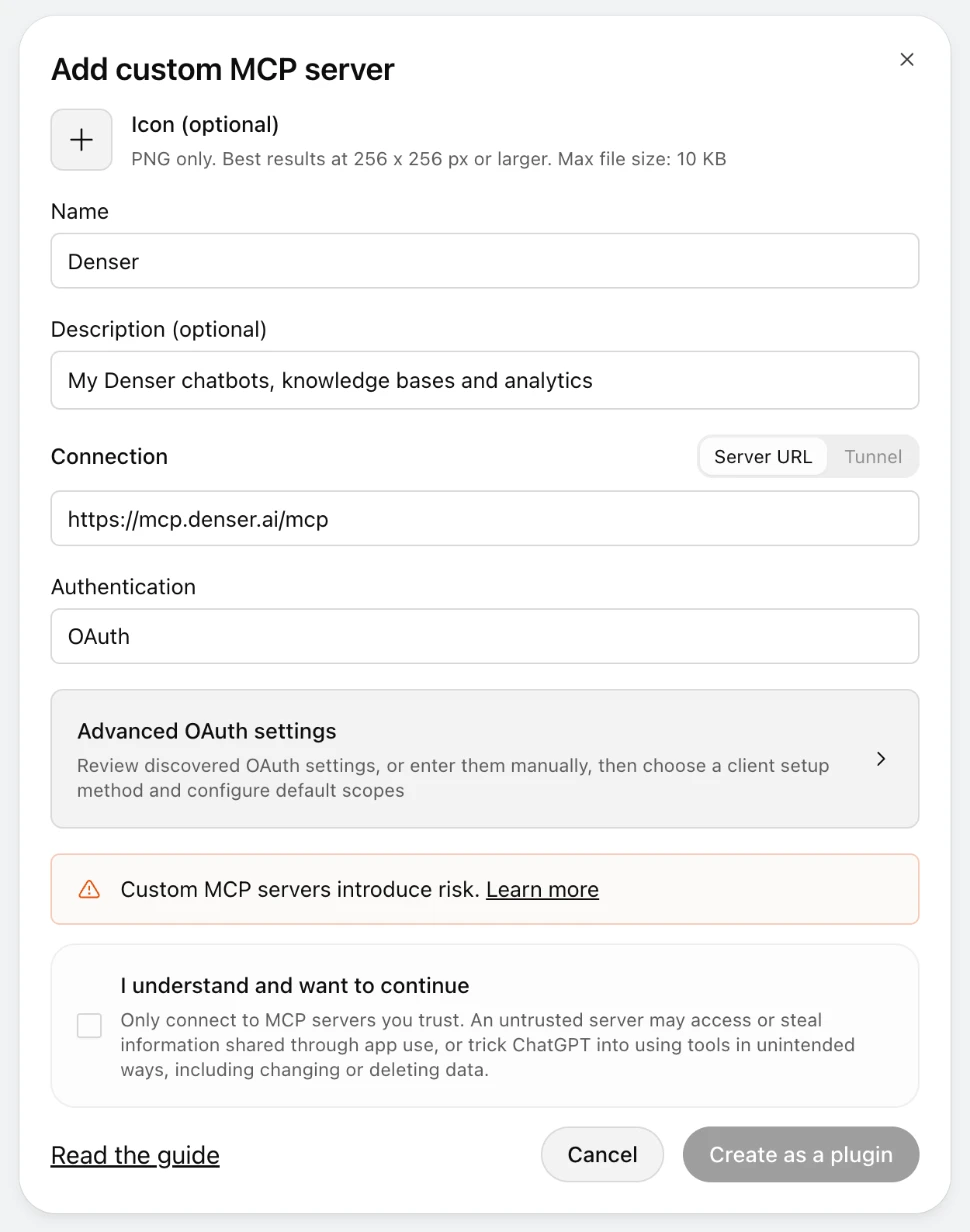
Tick I understand and want to continue, click Create as a plugin and review the tools it found.
Install it and sign in to Denser when ChatGPT asks. In a chat, type @ and pick Denser.
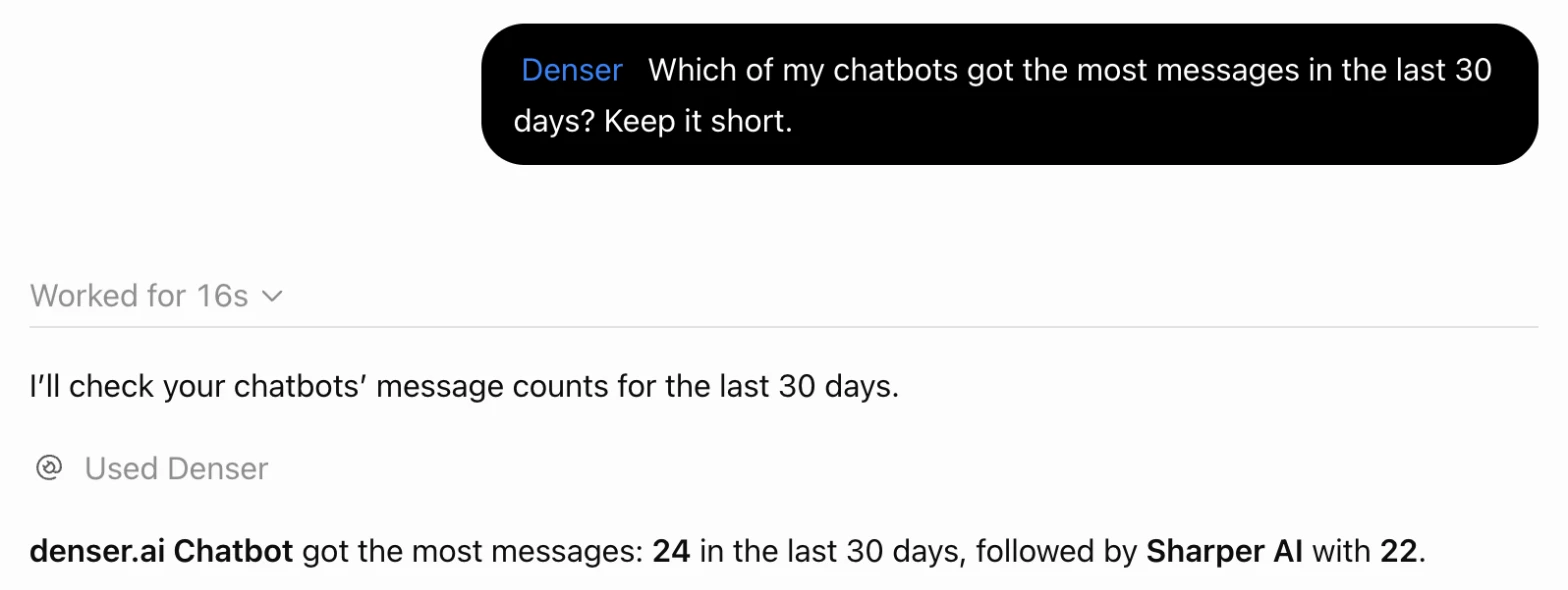
Custom MCP servers are available on ChatGPT's paid plans, not on Free. In a Business, Enterprise or Edu workspace, an admin has to allow creating plugins with MCP servers, or add Denser for the workspace.
Cursor
Add Denser to ~/.cursor/mcp.json to use it in every project, or to .cursor/mcp.json in one project:
{
  "mcpServers": {
    "denser": { "url": "https://mcp.denser.ai/mcp" }
  }
}
Then open Customize in Cursor's sidebar, find denser, turn it on and sign in when prompted.
VS Code
In GitHub Copilot's agent mode, run MCP: Add Server from the Command Palette, choose HTTP, paste https://mcp.denser.ai/mcp and name it denser. Or add it to .vscode/mcp.json yourself:
{
  "servers": {
    "denser": { "type": "http", "url": "https://mcp.denser.ai/mcp" }
  }
}
Start it with MCP: List Servers → denser → Start Server, and sign in to Denser in the browser window that opens.
Other assistants
Add a remote MCP server (Streamable HTTP) with the URL https://mcp.denser.ai/mcp. The assistant registers itself and finds the sign-in on its own; no client ID or secret is needed.
Approve the connection
The first time you connect, the assistant sends you to Denser:
Sign in to Denser if you are not already.
If you belong to several workspaces, pick the one the assistant should use. A connection reads one workspace; connect again to use another.
Choose what the assistant may do, then click Allow. You are sent back to the assistant.
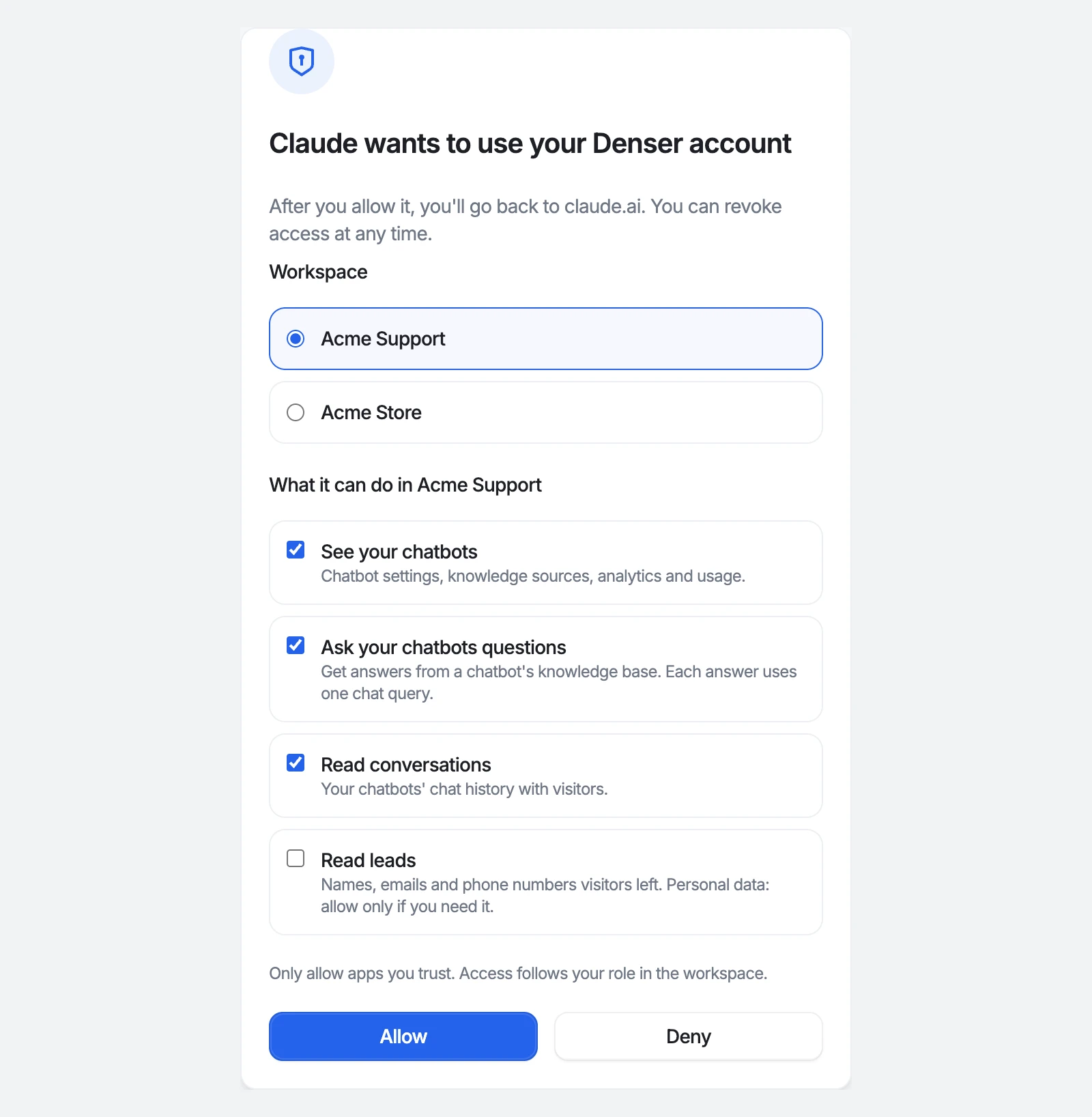
| Permission | What it allows | On by default |
|---|---|---|
| See your chatbots | Chatbot settings, knowledge sources, passages, analytics and usage | Yes |
| Ask your chatbots questions | Ask a chatbot and search its knowledge base. Asking uses chat queries | Yes |
| Read conversations | Your chatbots' chat history with visitors | Yes |
| Read leads | The contact details visitors left in a lead form | No |
The assistant can never see more than you can in Denser: your role in the workspace still applies to every request, and if you leave the workspace the connection stops working.
What the assistant can do
No tool changes a chatbot, source or setting. All of them only read, except ask_chatbot, which adds its conversation to the chatbot's Chat logs, so Claude and ChatGPT may ask you before using it.
| Tool | What it does |
|---|---|
list_chatbots | Lists the workspace's chatbots with their IDs and status |
get_chatbot | One chatbot's profile, instructions, channels and integrations |
ask_chatbot | Asks a chatbot a question and returns its answer with sources. Uses one chat query |
search_knowledge_base | Finds the best-matching passages in a chatbot's knowledge base, without writing an answer |
list_sources | A chatbot's knowledge sources and their indexing status |
get_source_status | One source's indexing progress, or why it failed |
view_passages | A source's indexed passages, as the chatbot sees them |
review_conversations | Recent conversations, or one conversation's messages with ratings and sources |
get_analytics | Messages, conversations, ratings and leads over a period |
list_leads | Captured leads, newest first (needs Read leads and the chatbot's admin role) |
get_usage | The workspace's queries used and left, and its plan's limits |
You don't need to know chatbot IDs: the assistant looks them up with list_chatbots.
Chat queries
ask_chatbot uses one of your plan's chat queries per question, like a visitor's question would, and the conversation appears in the chatbot's Chat logs. Every other tool is free. When the workspace is out of queries, the assistant is told so and can still search the knowledge base.
Limits
Each connection can make up to 60 tool calls a minute and 2,000 a day. Over the limit, the assistant is told how long to wait.
See and remove connections
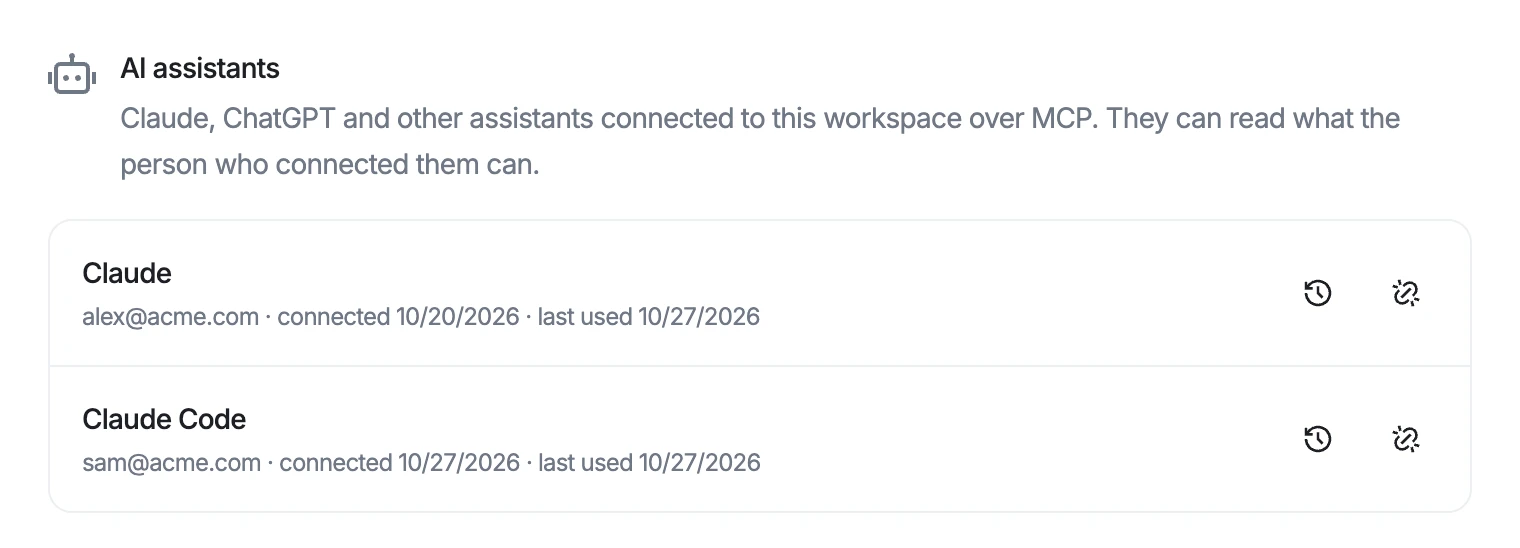
Workspace admins see every connected assistant under Settings → Connected accounts → AI assistants, with who connected it and when it was last used.
-
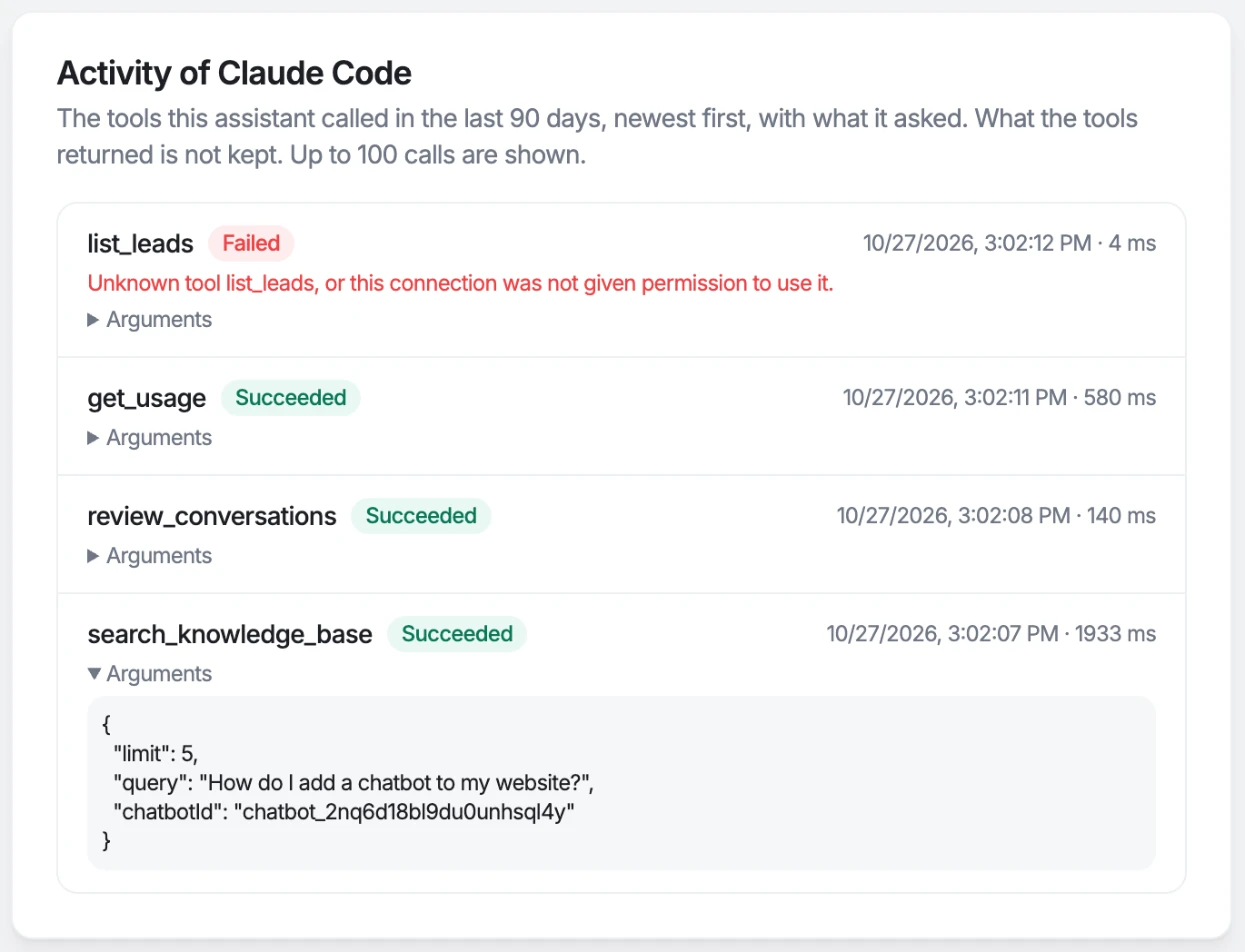
Activity shows the tools it called in the last 90 days and what it asked. What the tools returned is not stored.
-
Disconnect ends its access immediately. Whoever connected it can connect it again.
You can also remove Denser from the assistant's own connector settings.
Troubleshooting
- The sign-in page says the request expired. The approval has to happen within 10 minutes. Start the connection again from the assistant.
- The assistant says it has no access to a chatbot. Your role in the workspace may not include that chatbot, or the connection was approved for another workspace. Disconnect and connect again to choose the workspace.
list_leadsis missing. The connection was approved without Read leads. Disconnect it and connect again with that permission ticked.- The assistant asks you to sign in again. Its connection was disconnected or has not been used for 90 days. Sign in again to reconnect.