Website
Crawl your website to train your Denser chatbot, and re-crawl to keep content fresh.
Crawling a website pulls your live pages — marketing pages, help centers, docs, and more — into your chatbot's knowledge base. Denser discovers pages, cleans the HTML, and indexes the content.
Best for website chatbots
Crawling is the typical starting point for a website chatbot that you embed publicly on your site. You can still combine a website source with files, Drive, or Q&A in any chatbot.
What you can crawl
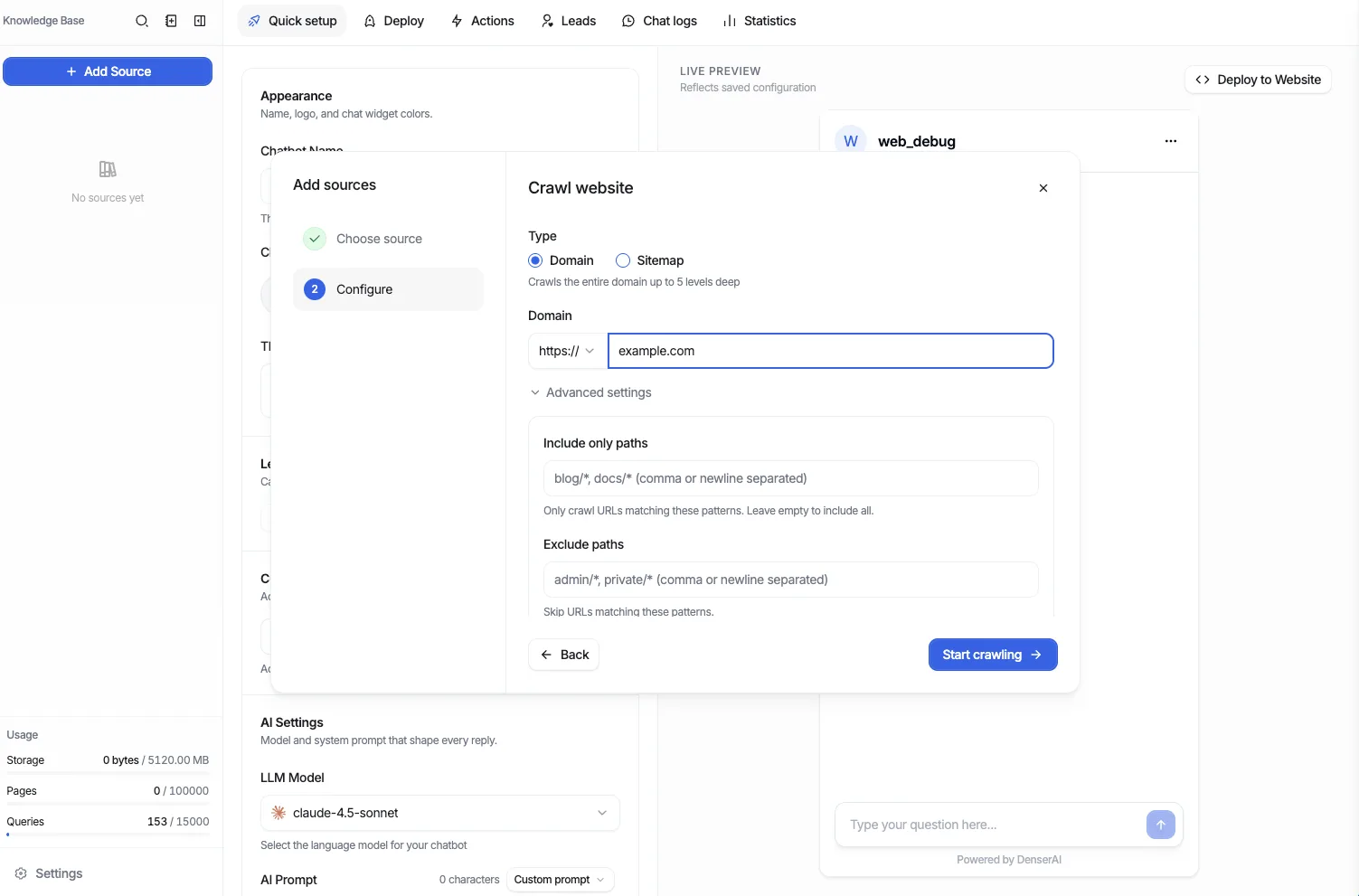
- An entire domain, a single URL, or a sitemap
- Your choice of http or https
- Include paths (a whitelist) to restrict crawling to specific sections
- Exclude paths (a blacklist) to skip sections you don't want indexed
Website sources count against your crawl quota, measured as the number of links. Quotas vary by plan — see Plans & Billing.
Add a website
In the Data Store, open the Website tab.
Enter the website to crawl: a full domain, a single URL, or a sitemap. Select http or https as appropriate.
Optionally set include paths (whitelist) and exclude paths (blacklist) to control which pages are crawled.
Start the crawl. Denser discovers the matching links and processes each one.
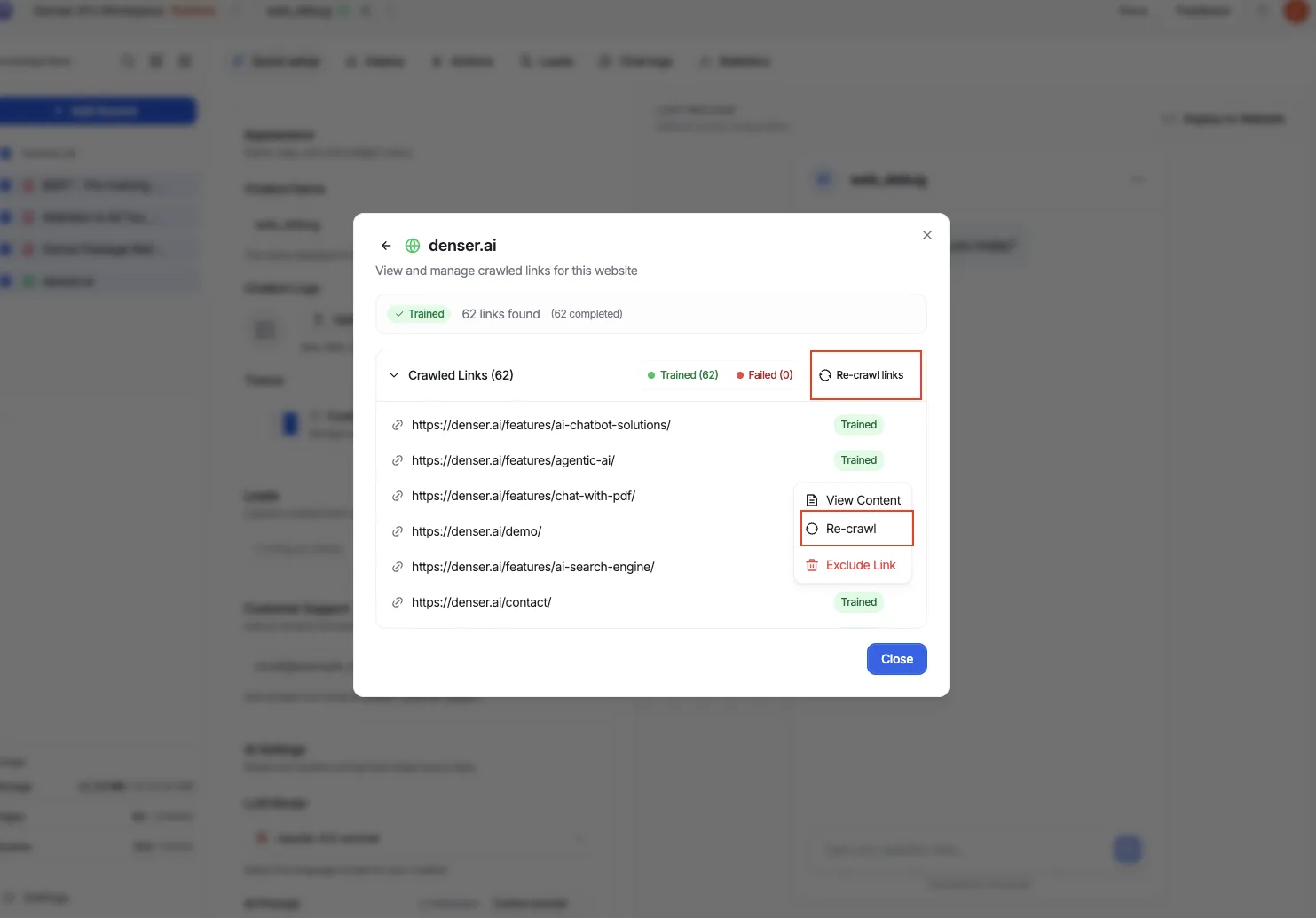
Watch the link list and confirm links reach Completed before relying on them.
Link status
After a crawl, each link shows one of these statuses:
- Crawling — Denser is fetching the page.
- Crawl failed — the page could not be fetched.
- Crawl timed out — the page took too long to fetch.
- Ready for indexing — the page was fetched and is queued for indexing.
- Completed — the page is indexed and ready for your chatbot to use.
You can filter the link list by Trained or Failed status to quickly review which pages succeeded, and search links by name.
Re-crawl and refresh
When your site changes, re-crawl to update the indexed content.
To refresh one page, re-crawl a single link from its row in the list.
To refresh everything, choose re-crawl all links. This is guarded by a confirmation because it re-fetches every link in the source.
Re-crawling all links re-fetches every page and counts toward your crawl quota. Re-crawl a single link when you only need to update one page.