
Build a knowledge base chatbot
Upload your documents or connect Google Drive to build a private AI assistant your team can query.
A knowledge base chatbot answers questions from your own documents — PDFs, Word, Excel, slides, and Google Drive files. It's ideal for internal teams who need fast, cited answers without digging through folders.
Before you start
- Create an account at denser.ai.
- Gather the files you want to train on. Supported: PDF, DOCX, XLSX, PPTX, TXT, HTML, CSV, TSV, XML.
1. Create the chatbot and add documents
Sign in to denser.ai and select Create Chatbot.
Choose the File source tab, then drag and drop your documents. You can upload multiple files at once.
To pull from Google Drive instead, choose the Google Drive tab and connect your account. See Data Store → Google Drive.
Click Create Chatbot to index your documents and build the knowledge base.
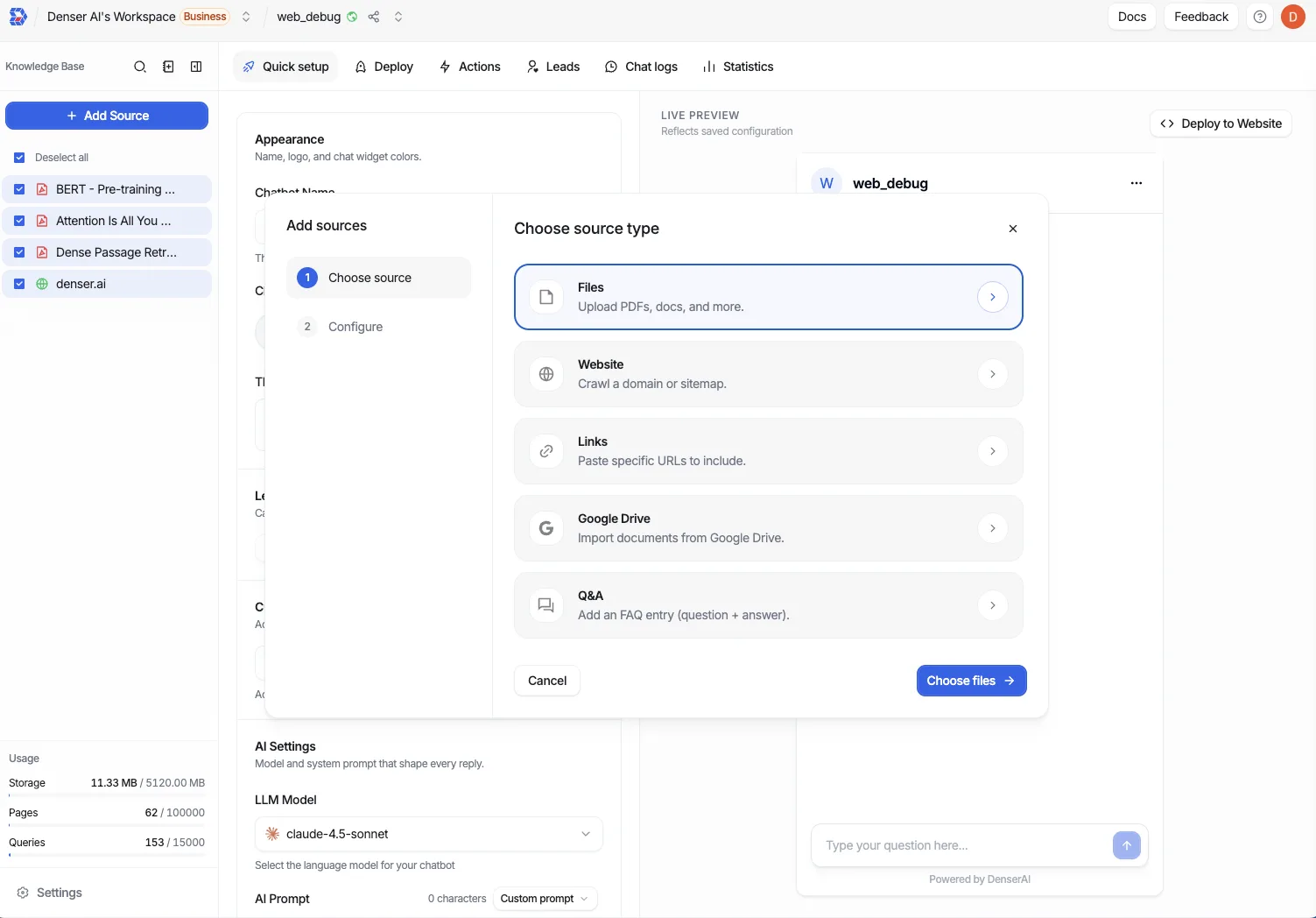
For all source types and limits, see Data Store → File upload.
2. Test your answers
Ask questions that span several documents. Click the citation on each reply to jump to the exact source passage. This is the fastest way to confirm coverage and spot gaps.
3. Check knowledge base health
When you bring many documents together, they can disagree — an old policy vs. a new one, two different prices. Run KB Health to scan for contradictions and surface them with a confidence score before your team acts on a wrong answer.
4. Keep it private (or publish)
Knowledge base chatbots are often internal. Control who can reach yours under Security → Visibility:
- Private — only members of your workspace
- Public — anyone with the link or embed
5. Customize and deploy
- Appearance and Messages & prompts to set tone and branding
- Deploy to Slack for your team, or embed it on an internal page — see Deploy overview