
File
Upload documents to train your Denser chatbot's knowledge base.
Uploading files is the most direct way to ground your chatbot in your own documents. Denser extracts the text, splits it into chunks, and indexes it so your chatbot can answer from the content.
Best for knowledge base chatbots
File upload is the typical starting point for a knowledge base chatbot built from your own documents. You can still mix files with other source types in any chatbot.
Supported files
- Formats: PDF, DOCX, XLSX, PPTX, TXT, HTML, CSV, TSV, XML
- Size: up to 150 MB per file
- Quantity: upload multiple files at once
Files count against your storage quota. Quotas vary by plan — see Plans & Billing.
Add files
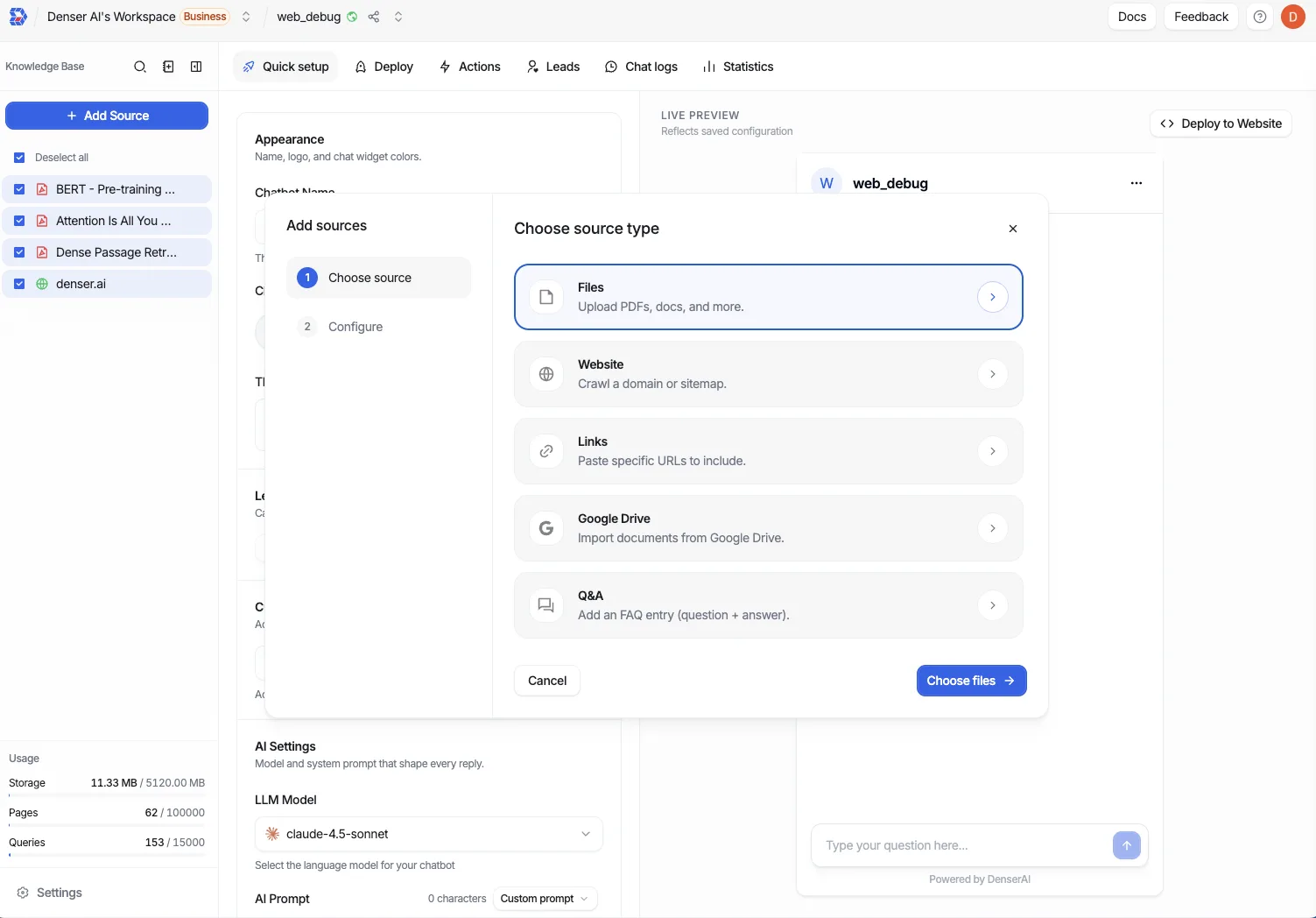
In the Data Store, open the File tab.
Add files by selecting them from your device or dragging and dropping. You can add several files in one batch.
Wait for each file to finish processing. Watch the status column to confirm every file reaches Completed.
File status
Each file moves through this lifecycle:
- Uploading — the file is being transferred.
- Processing — Denser extracts text, chunks it, and indexes it.
- Completed — the file is ready for your chatbot to use.
If a file ends in Failed or Timeout, remove it and re-upload. Large or complex files are more likely to time out — try splitting them or reducing their size.
Manage files
- Search files by name to find a specific document.
- Filter the list by status to surface anything that failed or is still processing.
- Batch delete to remove several outdated files at once.