
Google Drive
Connect Google Drive and sync selected files into your Denser chatbot's knowledge base.
Connect Google Drive to train your chatbot on documents you store there, without downloading and re-uploading them. You select which files to sync, and Denser indexes them into your knowledge base.
Best for knowledge base chatbots
Google Drive is a common source for a knowledge base chatbot built from internal documents. You can mix Drive files with other source types in any chatbot.
Supported files
Google Docs, Google Sheets, Google Slides, Word, Excel, PowerPoint, PDF, plain text, HTML, XML, and CSV.
Synced Drive files count against your storage quota. Quotas vary by plan — see Plans & Billing.
Read-only access
Authorizing Denser grants read-only access to your Google Drive. Only the files you explicitly select are accessed and indexed. Denser's Google OAuth integration has been reviewed and approved by Google.
Connect and sync
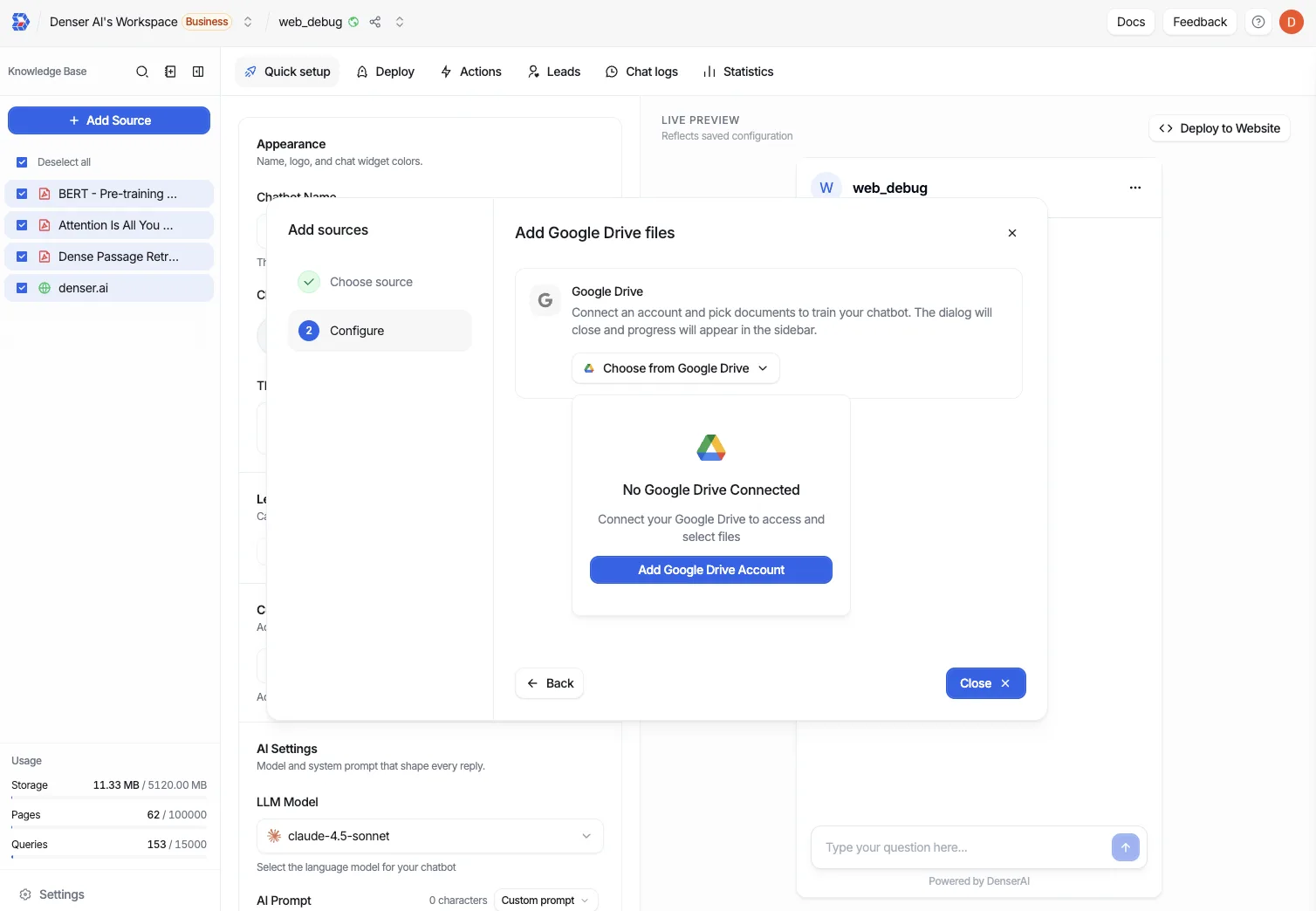
In the Data Store, open the Google Drive tab and start the connection.
Complete the Google OAuth flow with the account that owns the files you want to sync. Denser requests read-only access.
Choose the connected account and select the files to sync.
Start the sync. Denser pulls in each file and then indexes it. Watch the status to confirm files finish processing.
Refresh content
When the source files change in Drive, re-sync to pull the latest versions and re-index them.
Manage files
- Search synced files by name.
- Filter by status to surface anything that failed or is still processing.
- Batch delete to remove several files at once.