
Connected Accounts
Manage connected accounts for your workspace
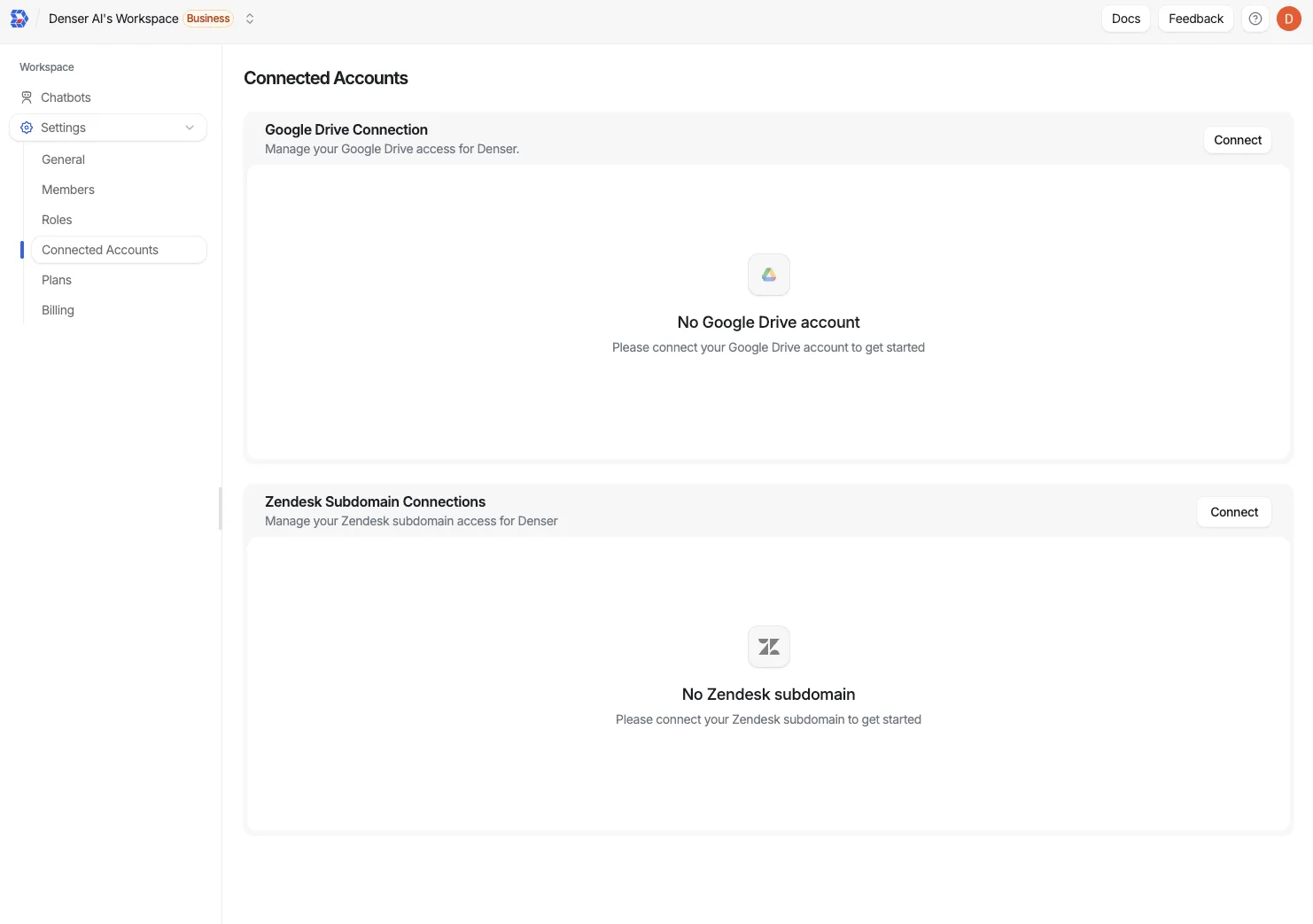
Connected Accounts centralize third-party integrations--like Google Drive--so you can reuse them across multiple chatbots without reconnecting each time.
Where to manage accounts
In the workspace sidebar, click Connected Accounts. You'll see every integration currently linked to your workspace.
Connect a new account
Click Connect, follow the provider's OAuth flow, and authorize DenserAI with the recommended read-only scopes.
Review existing connections
Audit which chatbots use each integration so you know where data is flowing.
Disconnect when needed
Use the Trash icon to revoke access. DenserAI forgets the credentials immediately, and affected chatbots will prompt you to reconnect.
Keep integrations tidy
Remove unused accounts regularly to ensure only approved sources have access to your workspace content.