
Slack Integration
Connect your Denser chatbot to Slack. Ask questions from a channel and get answers as threaded replies — ideal for internal knowledge base chatbots.
Bring your chatbot into Slack so teammates can ask questions without leaving their workflow. Replies arrive as threaded messages right in your channels. This is a great fit for a knowledge base chatbot that stays private to your workspace.
Before you connect
Make sure you're an admin in the Slack workspace you want to connect.
Connect to Slack
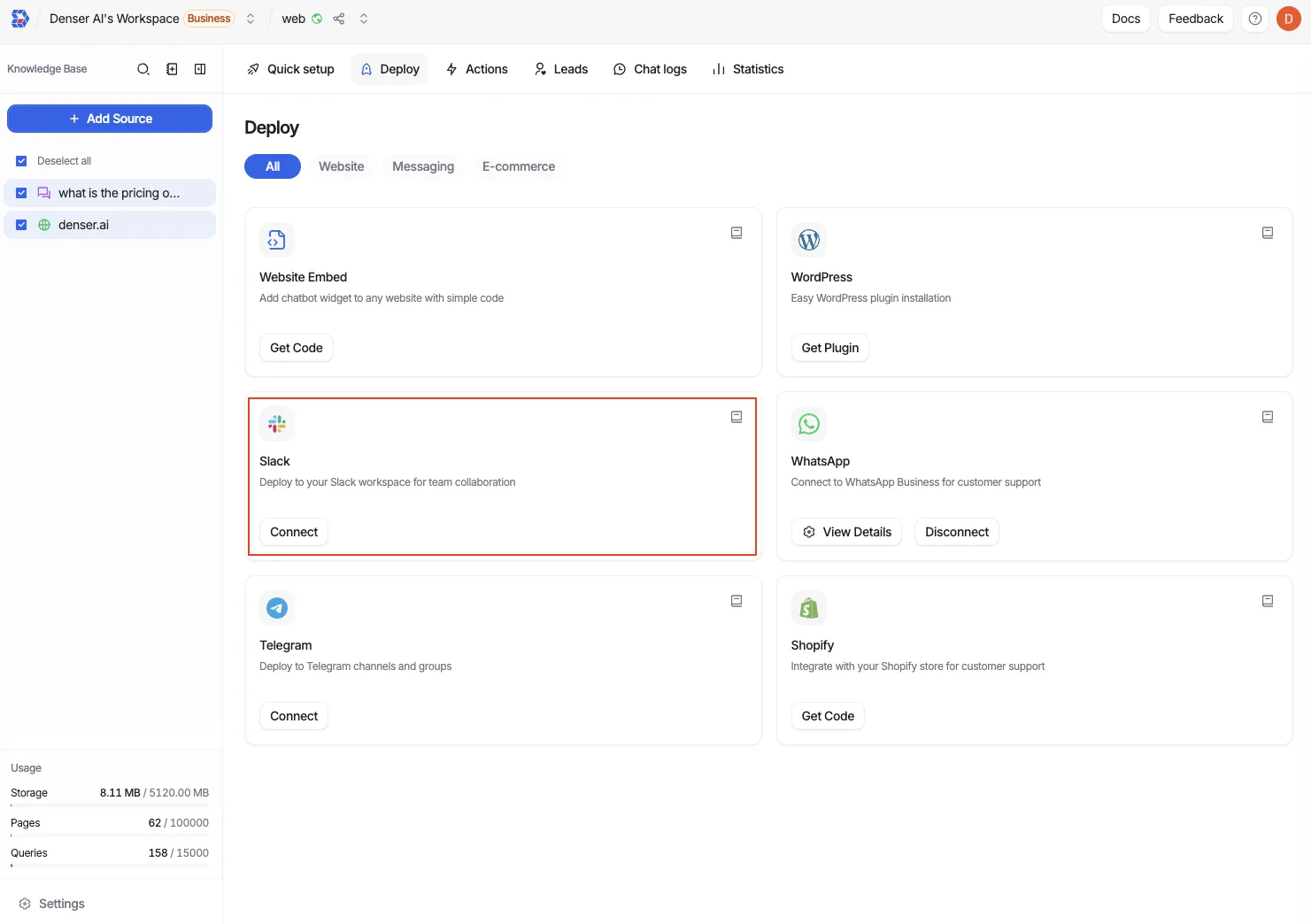
In your chatbot dashboard, open Deploy and click Connect on the Slack card.
You're taken to Slack's authorization page. Choose the Workspace you want to connect from the dropdown and sign in if prompted.
Under Review app permissions, the DenserAI app asks to perform actions in channels & conversations. Click Allow to finish and return to Denser.
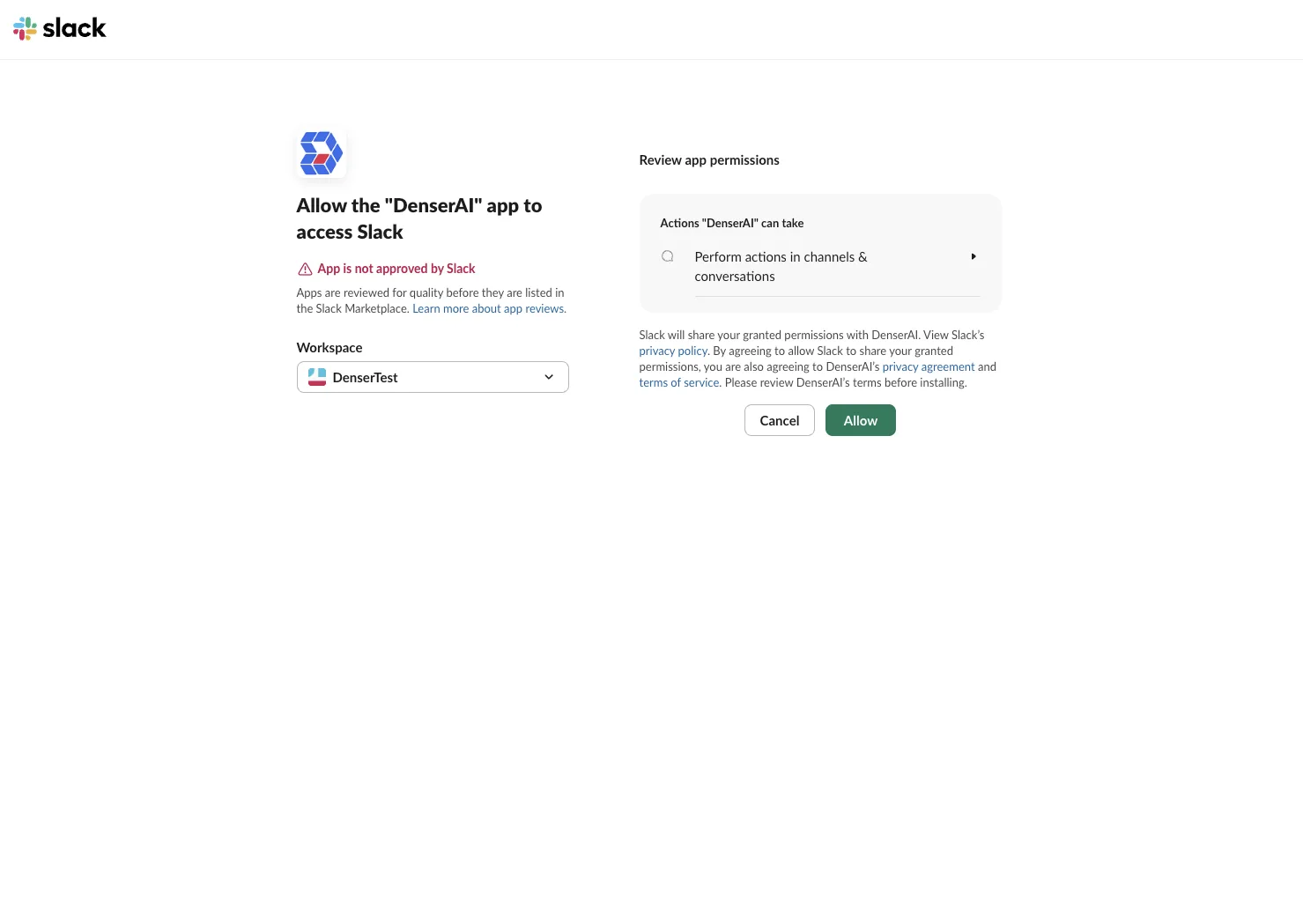
App not approved by Slack
Slack shows an "App is not approved by Slack" notice because the DenserAI app isn't listed in the Slack Marketplace. It's safe to continue — review the permissions and click Allow.
Test the integration
Back in Denser, the Slack card shows the connected workspace name, confirming the integration is active.
Optionally create a dedicated Slack channel for testing so you don't disturb other members.
In that channel, mention @DenserAI followed by your question. After a few seconds, the chatbot's answer appears in the thread.
Need to disconnect?
Click Disconnect on the Slack card to revoke the token immediately. Denser doesn't store Slack messages beyond processing each request.