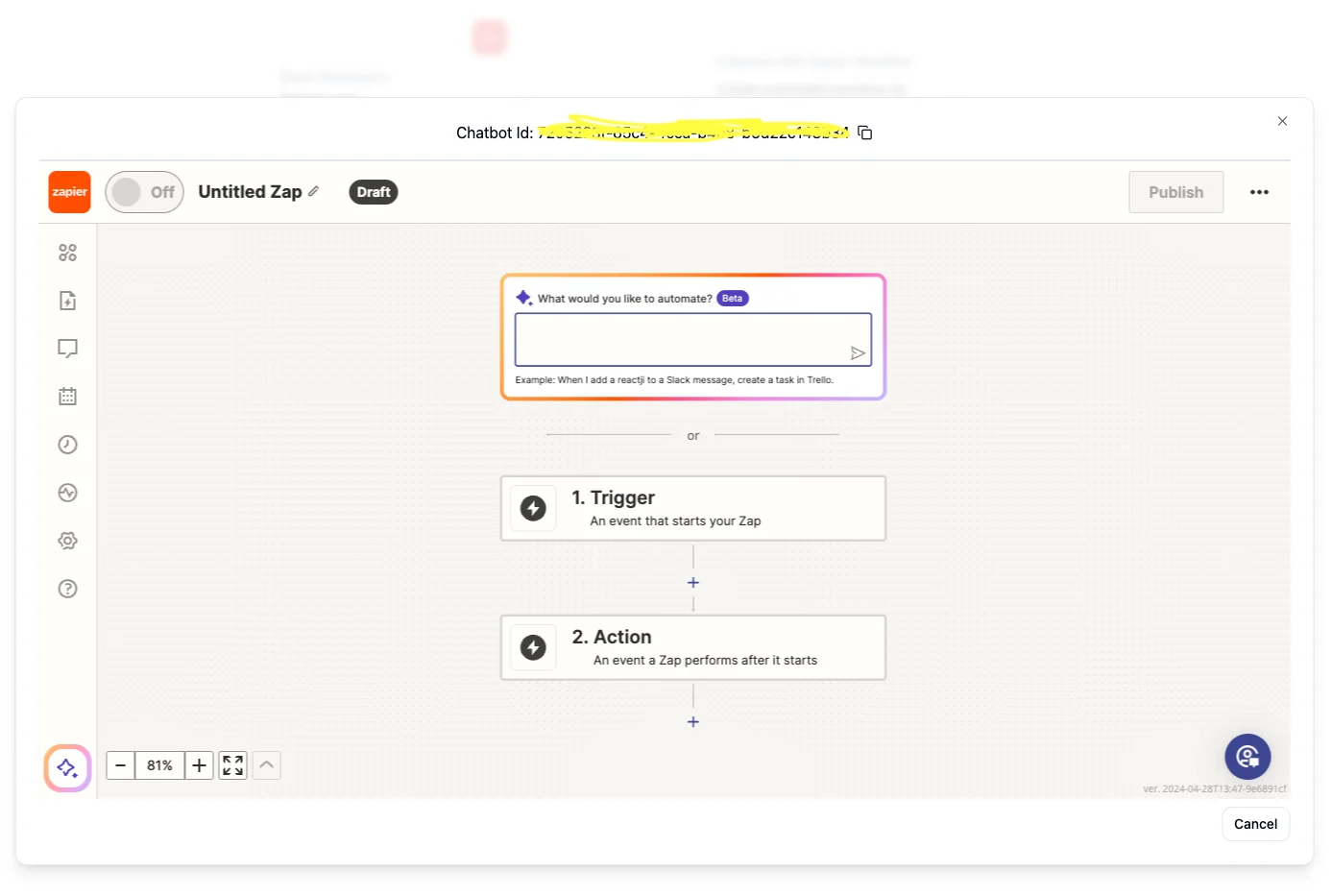
Zapier Integration
Connect your Denser chatbot to Zapier and automate workflows across 6,000+ apps. Use your chatbot as a trigger or an action.
Build automations powered by your chatbot in Zapier's ecosystem of 6,000+ apps. Whether you're logging answers to Google Sheets or posting them back to Slack, you can set everything up in minutes.
What to prepare
- A Zapier account.
- Your chatbot ID and REST API key (see the API quick start).
- Credentials for any downstream apps you plan to use (for example, Google Sheets or Slack).
Start a Zap
A Zap is an automated workflow that connects multiple apps. Each Zap has a trigger and one or more actions. Your Denser chatbot can act as either a trigger or an action.
Create a new Zap
In Zapier, click Create → New Zap and give it a name that reflects your workflow.
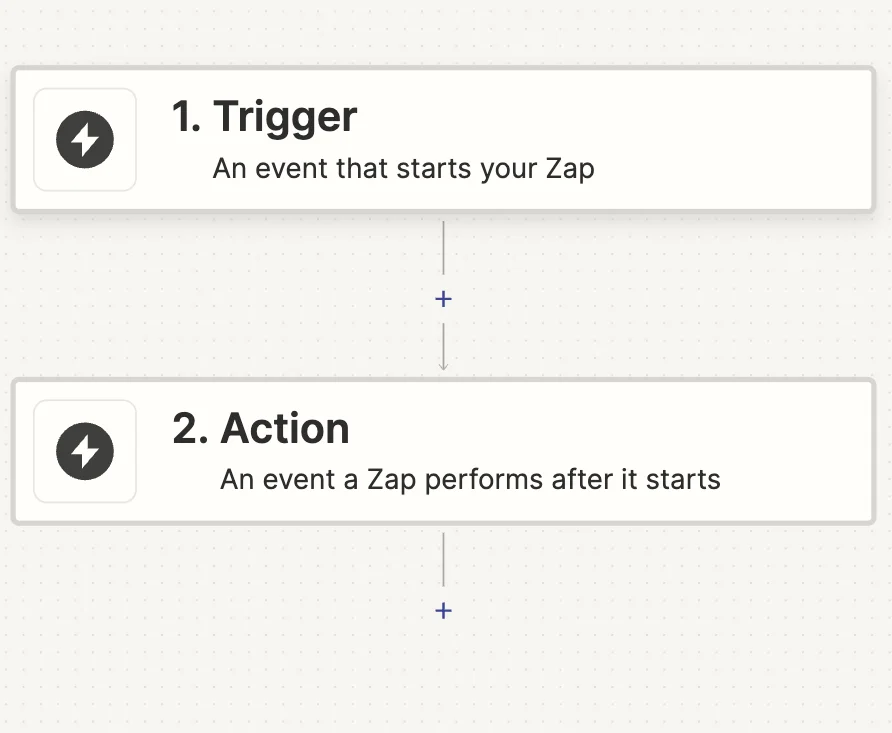
Connect DenserAI
When prompted to authenticate, enter your chatbot ID and API key. Zapier stores them securely for future steps.
Build your flow
Choose the trigger and actions you need. The two patterns below cover the most common setups.
Common workflow patterns
Use the chatbot as a trigger to capture every question and answer in a spreadsheet for reporting or QA.
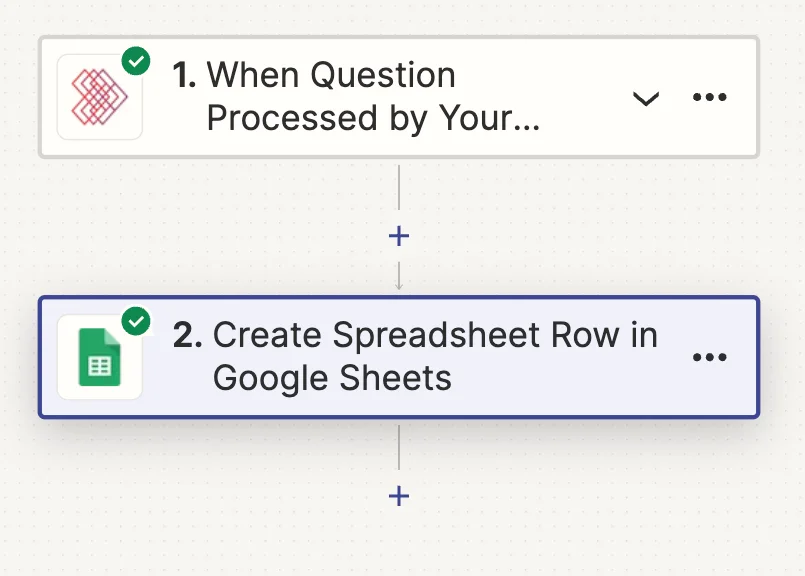
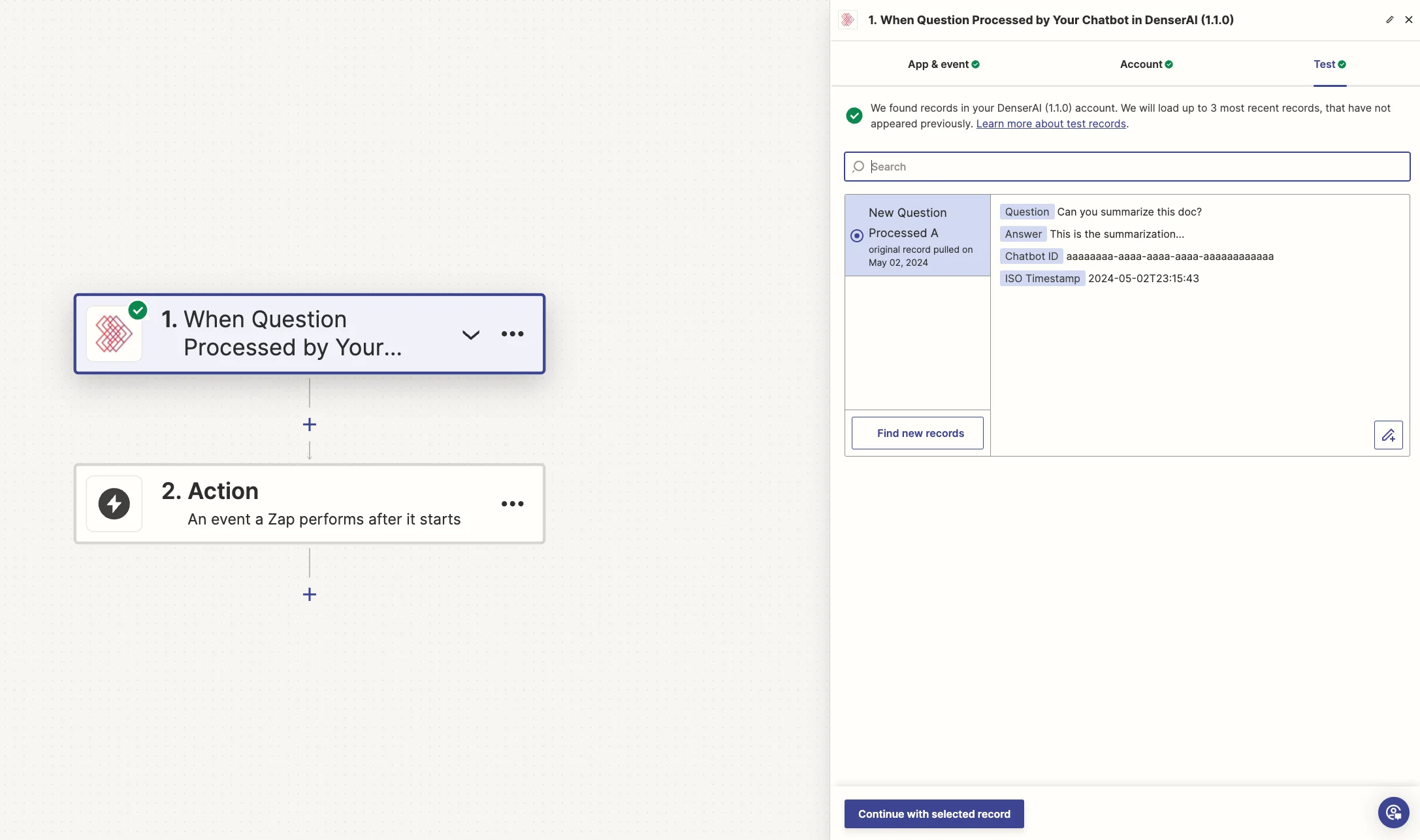
Configure the trigger
- Select DenserAI as the trigger app.
- Choose the event When Question Process by Your Chatbot.
- Authenticate with your chatbot ID and REST API key.
- Test the trigger and keep the sample output.
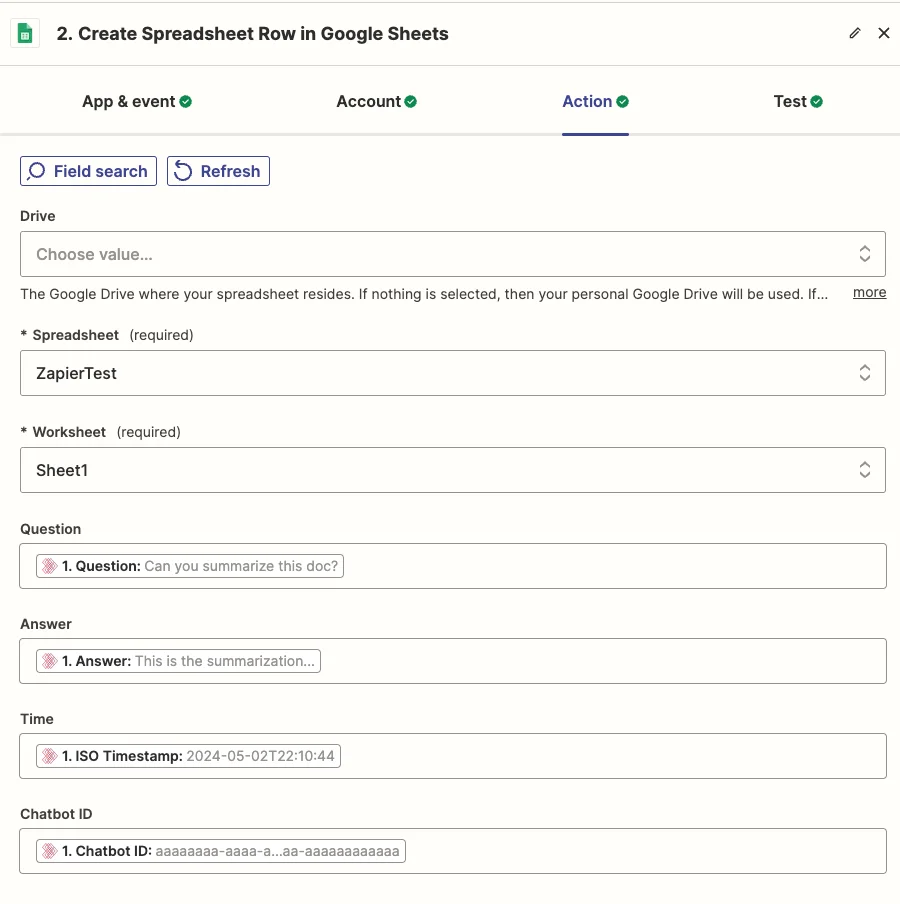
Add Google Sheets as the action
- Select the Create Spreadsheet Row event.
- Connect your Google account.
- Map the chatbot outputs to the columns you prepared in Sheets.
- Run a test to confirm the data lands correctly.
Publish the Zap
Turn it on — every new chatbot interaction now logs directly into Google Sheets.
Zapier inside Denser
You can launch the Zapier editor directly from Deploy → Zapier in the Denser dashboard. Sign in to Zapier when prompted and you'll get the same workflow builder — no context switching required.