
WhatsApp Integration
Connect your Denser chatbot to WhatsApp through a WhatsApp Business account so customers get answers right in their chats.
Deploy your chatbot to WhatsApp so customers can ask questions and get answers in the app they already use every day. Messages sent to your WhatsApp Business number are answered automatically by your chatbot.
What you need
- A Meta Business portfolio (formerly Business Manager).
- A WhatsApp Business account you can share with Denser.
- A phone number for WhatsApp — a new one, or an existing number that isn't already tied to a personal WhatsApp account.
- Admin access to that business so you can authorize the connection.
Connect WhatsApp
Connecting runs through Meta's guided signup, so you authorize Denser and pick your WhatsApp number without leaving the dashboard.
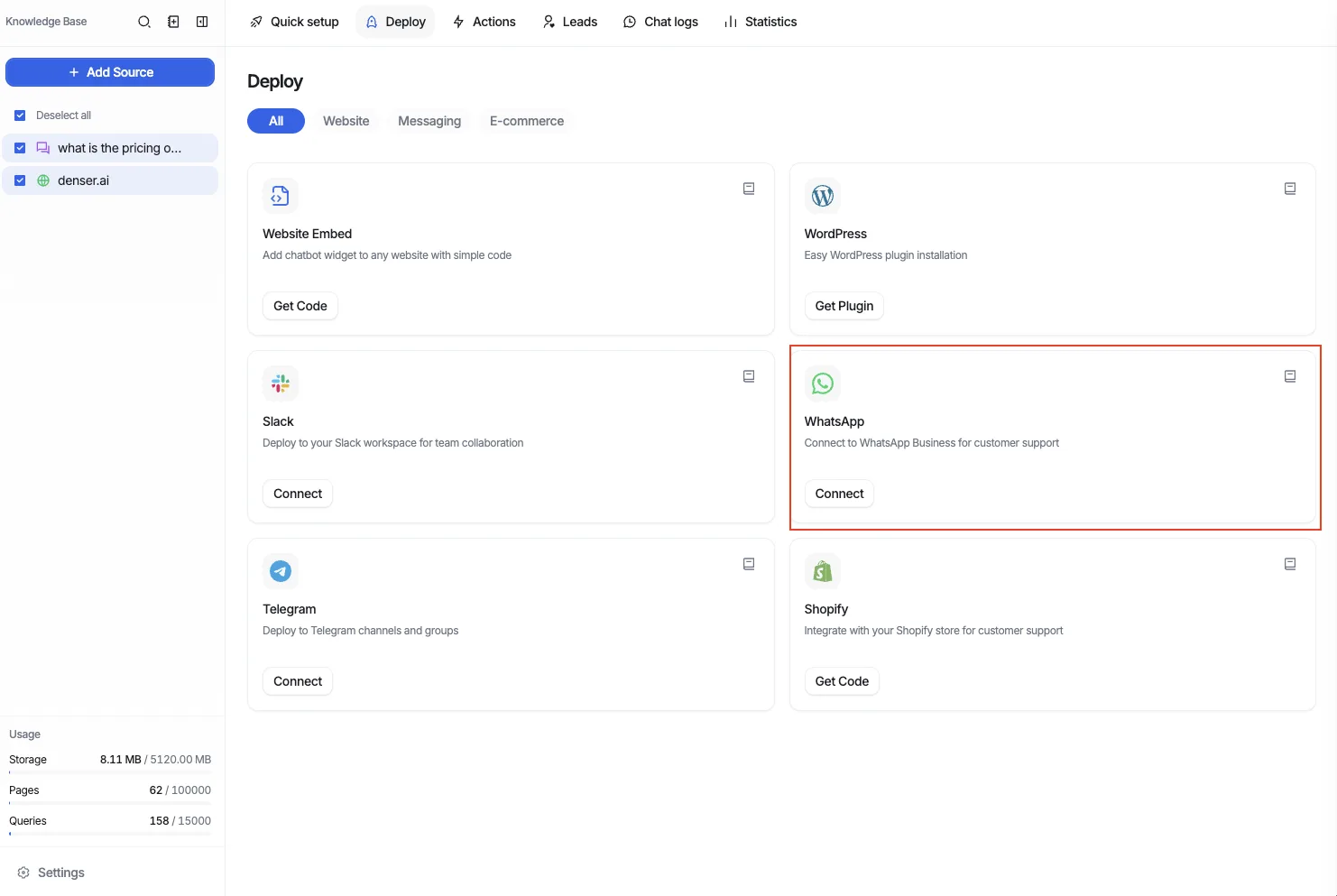
Open the WhatsApp card. In your chatbot dashboard, open Deploy and click Connect on the WhatsApp card.
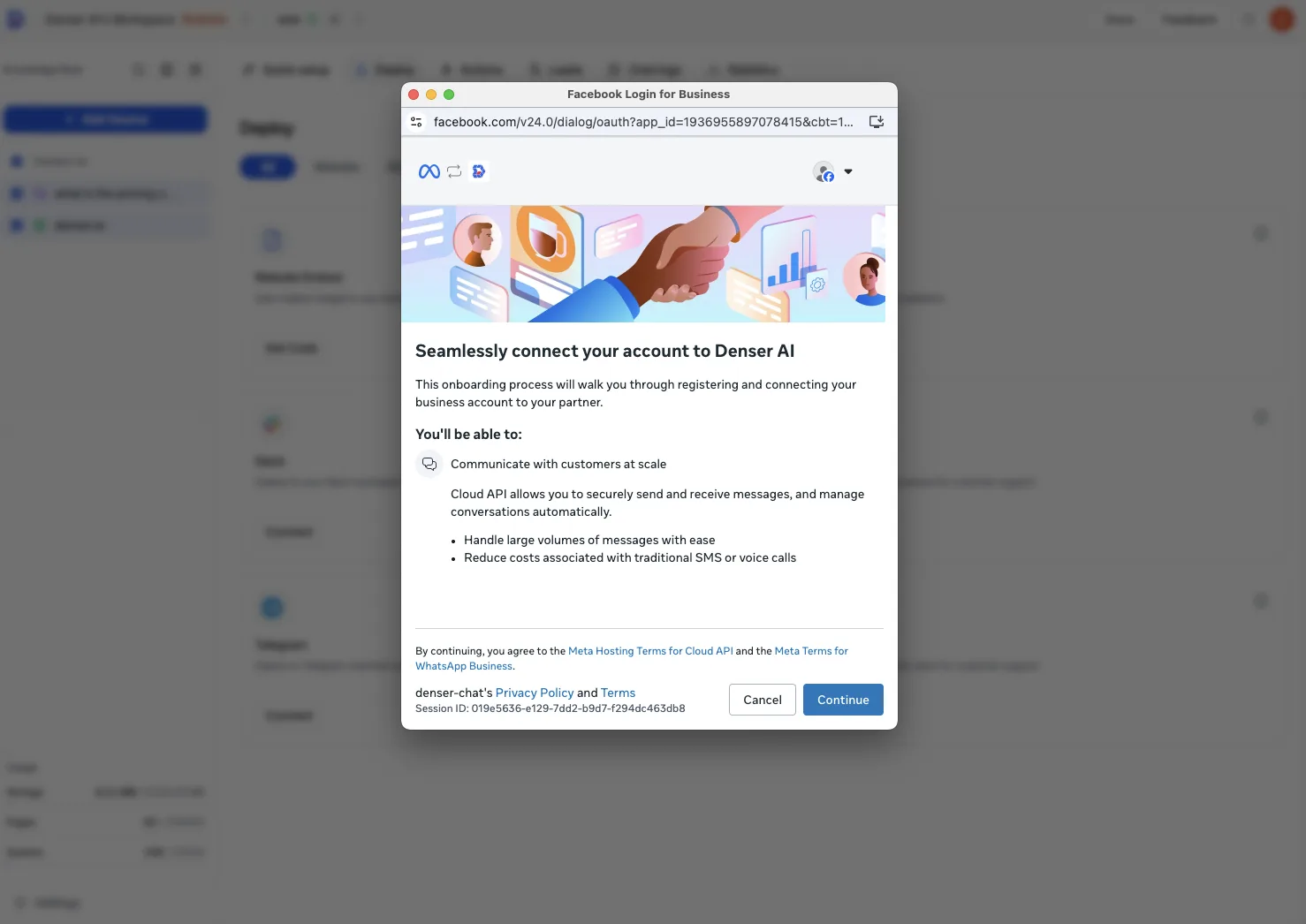
Start the guided signup. A Login for Business window from Meta opens and explains what Denser will be able to do. Sign in to your Facebook/Meta account if prompted, then click Continue.
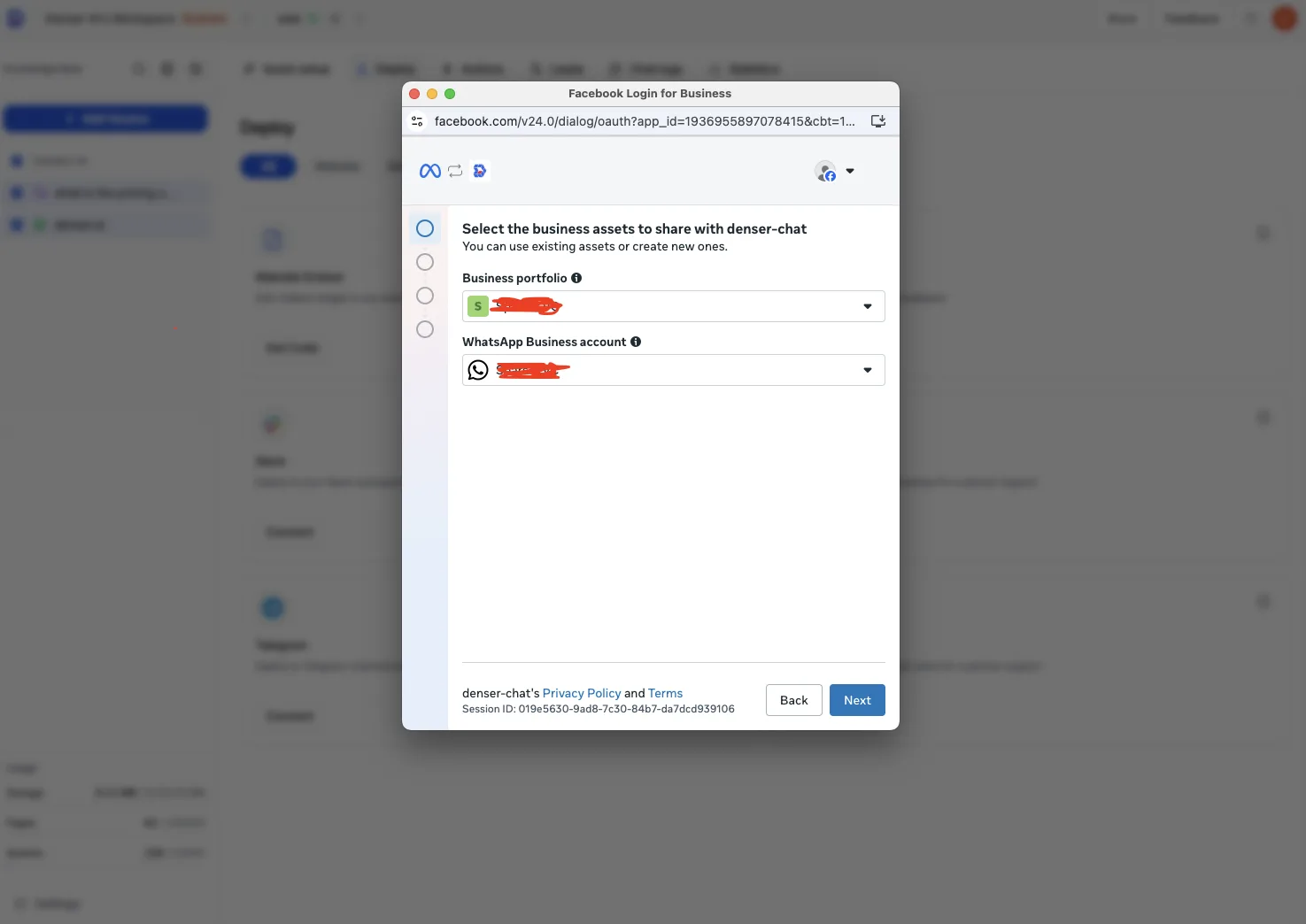
Choose your business assets. Select the Business portfolio and the WhatsApp Business account you want to share with Denser — or create new ones — then click Next.
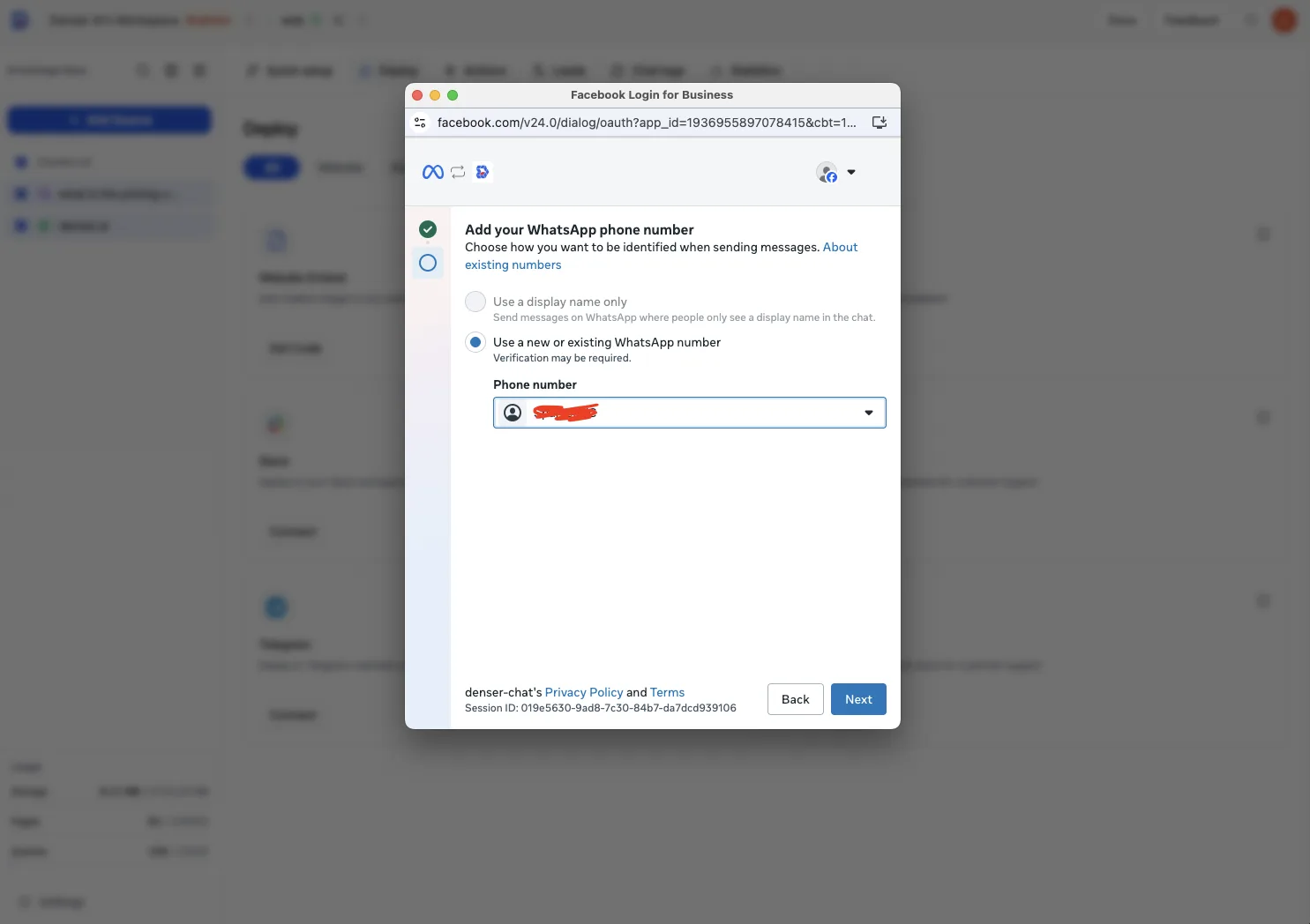
Add your WhatsApp phone number. Choose Use a new or existing WhatsApp number, select the phone number the chatbot should answer from, then click Next. Verification may be required.
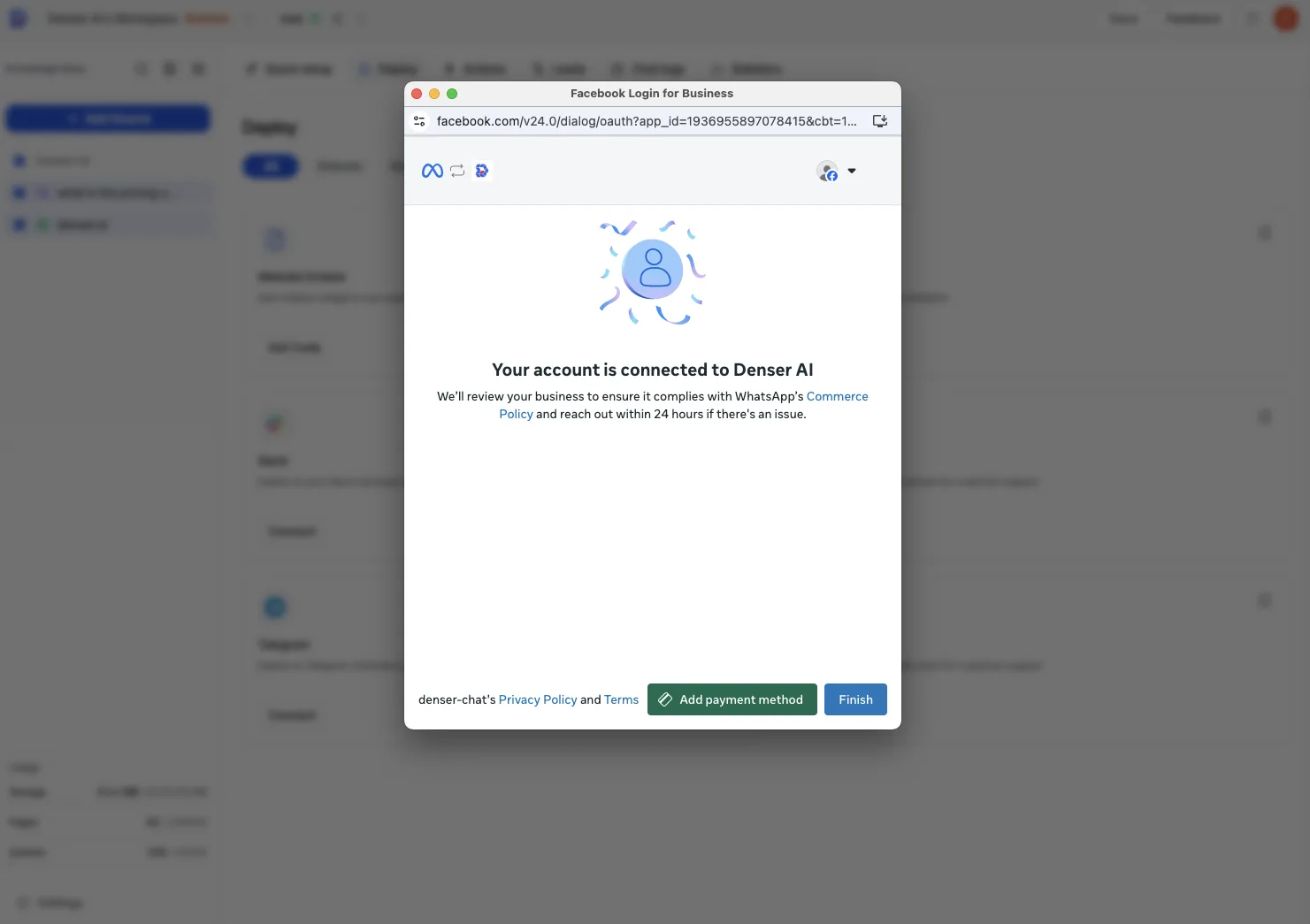
Finish the connection. When you see Your account is connected to Denser AI, click Finish. Meta reviews your business against its Commerce Policy and follows up within 24 hours if there's an issue.
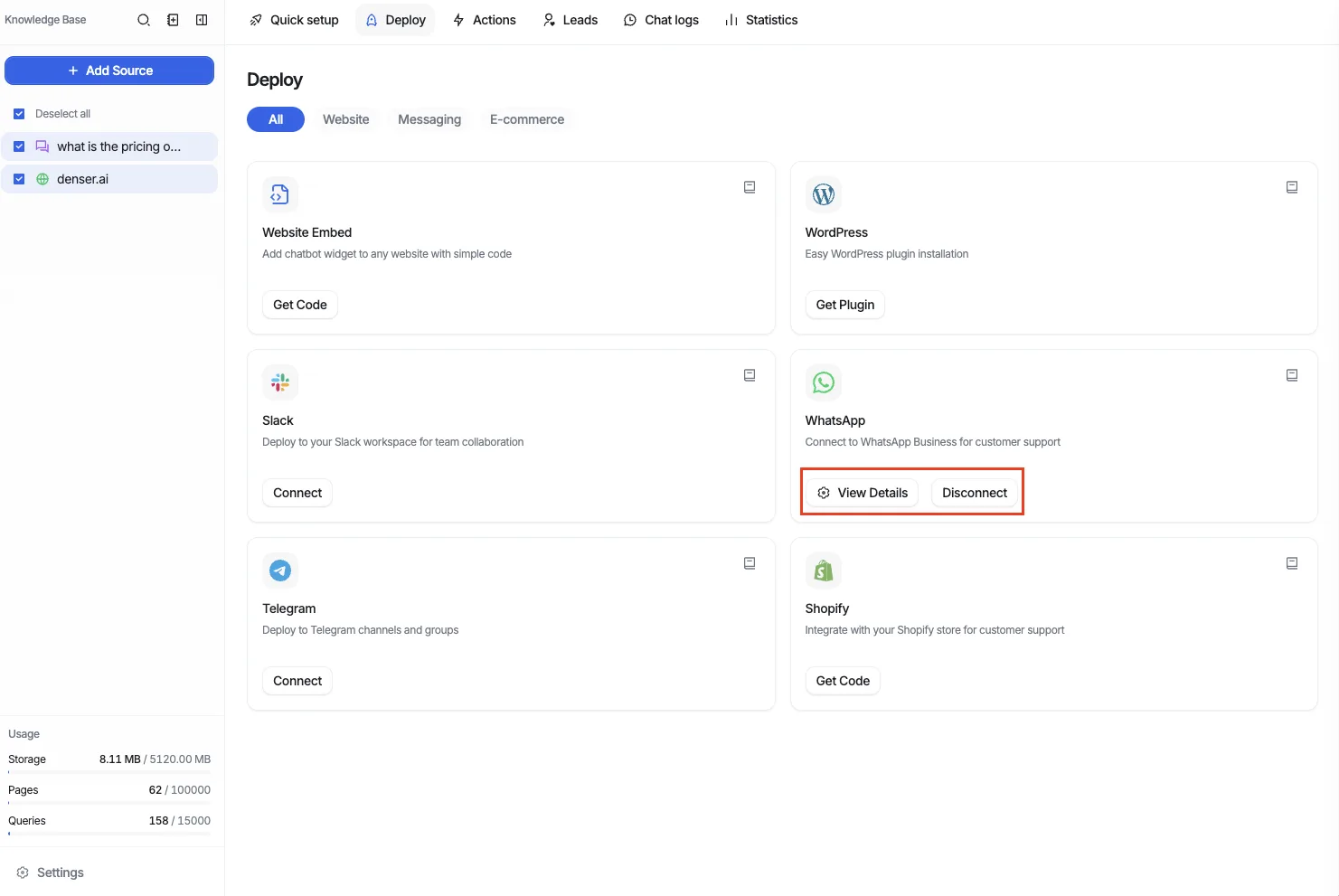
Confirm it's live. Back on the Deploy page, the WhatsApp card now shows View Details and Disconnect — your chatbot is connected and answering on WhatsApp.
Test the integration
From a different phone, send a message to your WhatsApp Business number.
Wait a few seconds — your chatbot processes the message and replies in the same conversation, just like it would on your site.
Need to disconnect?
Use the Disconnect option on the WhatsApp card to stop the chatbot from answering and revoke access.