
Playbooks
Tell the agent how to handle a situation step by step: what to ask, which action to run, and what to do next.
A playbook tells the agent how to handle one situation, step by step, the way you'd brief a new team member: what to ask, which action to run, and what to do when things go one way or the other. The agent follows the steps in its own words, runs real actions along the way, and records how each conversation ended.
Use a playbook when the order matters. A single action can look up an order. A playbook can look it up, check it against your return policy, and only then start the return.
Create a playbook
Open your chatbot and go to Playbooks. There are three ways to start:
- Describe it to Ask AI. For example, "When someone wants a refund, look up the order, refund it if it arrived in the last 30 days, and hand off to a person otherwise." Ask AI asks for anything it needs and proposes each change as a card you review and apply. If the playbook needs an action you don't have yet, such as a call to your API, Ask AI proposes that too. A new playbook starts switched off.
- Start from a template. Templates are grouped into Support, E-commerce, Sales and Billing. A template that needs something first, such as a connected Shopify store or a Stripe action, says what to set up.
- Start from blank.
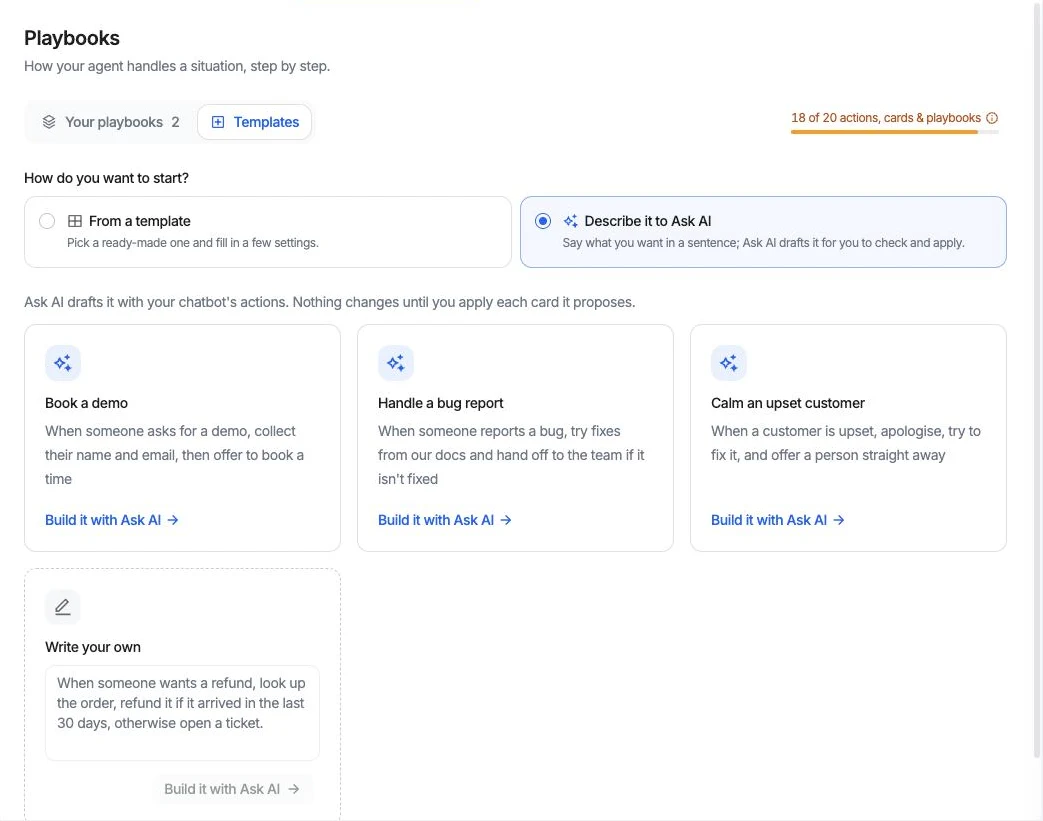
Playbooks count toward your plan's allowance of actions, cards and playbooks. See Plans & billing.
The playbook editor
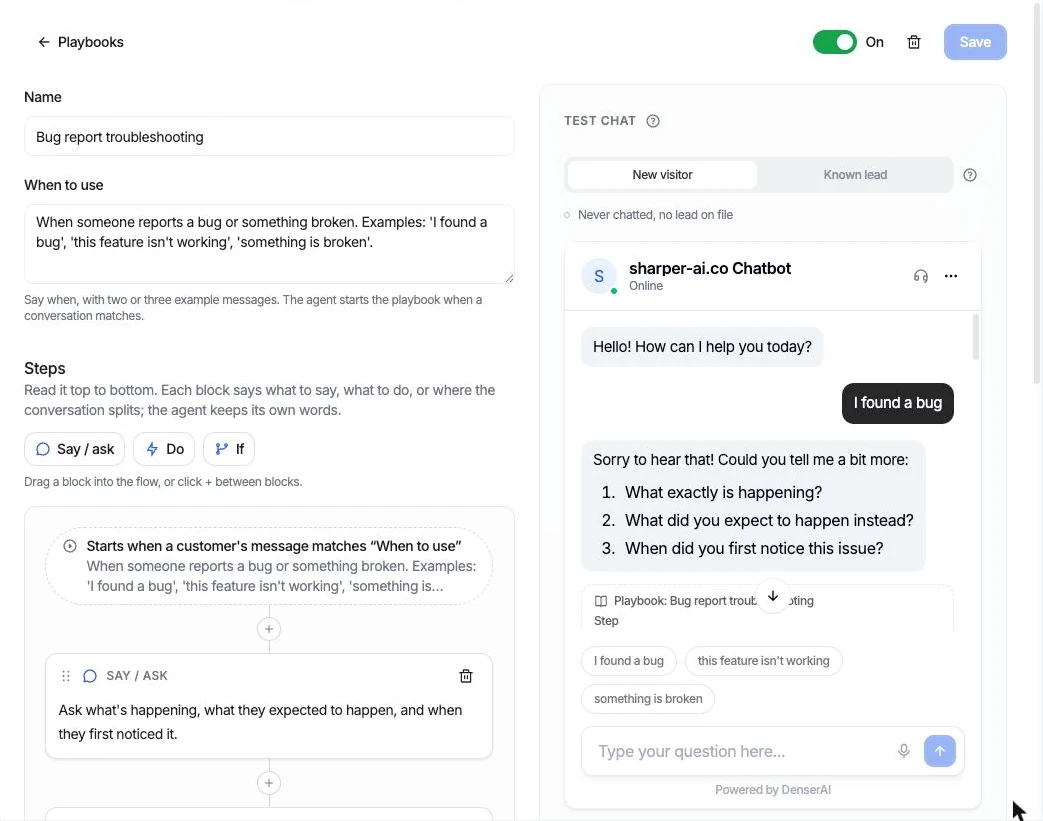
Name the playbook, and write When to use with two or three example messages, such as "I found a bug" or "this feature isn't working". The agent starts the playbook when a conversation matches.
Build the Steps, read top to bottom, from three kinds of block:
- Say / ask: what to say or ask, such as "Ask for the order number and the email on the order."
- Do: an action to run, with an optional note on what to do after it, such as "Tell them the status and tracking link."
- If: where the conversation splits, such as "the order was delivered in the last 30 days", with each path side by side and an Otherwise for the rest.
Drag a block into the flow, or click + between blocks. A playbook has up to 15 steps.
Click Save, then switch it On.
Write steps as things to do
Write "Connect them with a person", not "Offer to connect them with a person". An offer makes the agent ask instead of hand off.
While a playbook is on, the actions it uses run only inside it, so every matching question follows the steps. Talk to a person is the exception: customers can always reach a person.
Test a playbook
The editor's test chat is the real widget, as customers see it.
- Its starters are the example messages from When to use, and the playbook runs from the first message.
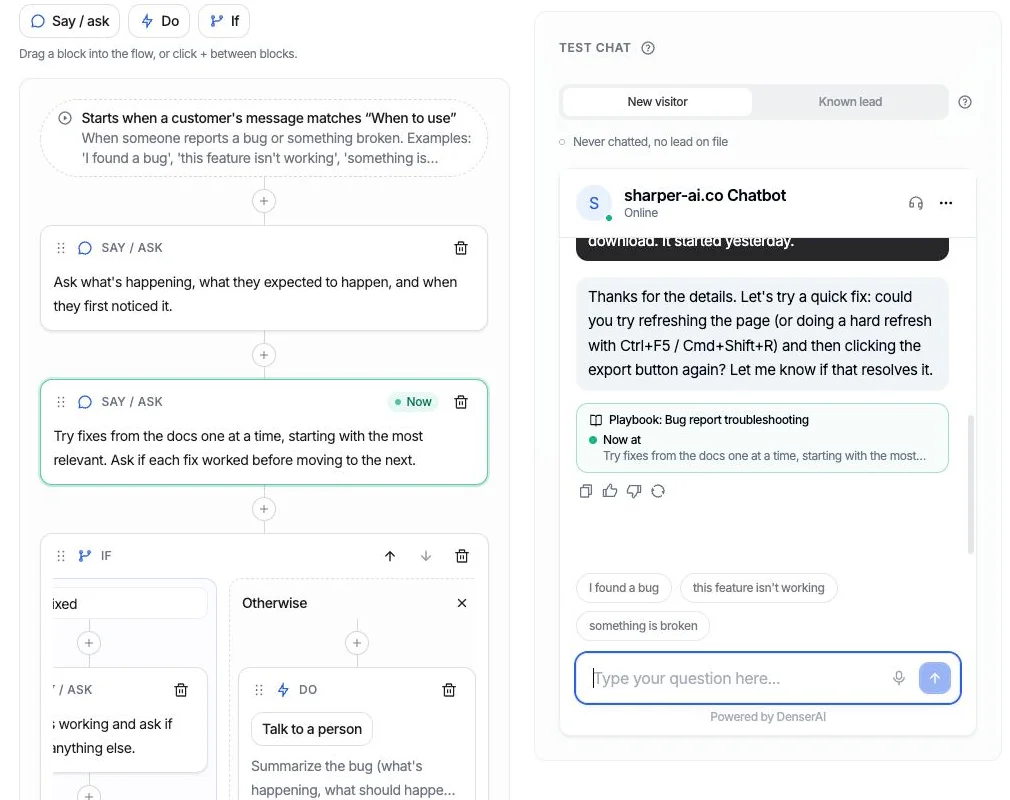
- You can follow the run step by step. Under each reply, a trace names the playbook and the step the agent is on, the path taken at an If, and the actions that ran. The same step is highlighted in the flow and marked Now, so you can see which block produced each reply, and the highlight moves as the conversation goes on.
- Switch between New visitor and Known lead to try both paths, such as showing the lead form or skipping it for someone already on file.
- If a reply promises something that didn't happen, such as "I'll connect you with a teammate" with no hand-off, the trace says so.
Actions run for real
Actions in the test chat run as they would for customers. A Slack message is posted, and a Cal.com booking is made. Test where a real post or booking is fine.
How playbooks are doing
Each playbook on the Playbooks page shows how its conversations ended over the last 30 days: completed, escalated to a person, or abandoned. A run counts as completed only when it got where it was going, such as a return actually requested. The conversations themselves are in Chat logs.
Examples
Return request
Connect your Shopify store, then use the Return request template. It uses the store's own actions, so there's nothing else to build:
- Ask for the order number and the email used at checkout.
- Look the order up and check when it was delivered.
- If it isn't found, ask them to check the number and email. If it was delivered more than 30 days ago, explain the return window. Otherwise, list what can be returned, ask which items and why, and request the return once the shopper confirms.
Change the 30 days to your own policy in the step's wording. The return is never requested in the same message it's shown: the shopper confirms first, and the store approves it in Shopify.
Troubleshoot, then hand off
The Troubleshoot, then hand off template uses your Talk to a person action:
- Ask what they're trying to do, what happens instead, and on which product, plan or device.
- Suggest one fix at a time from your knowledge base, most likely first, and check whether it worked before the next.
- If it's fixed, ask if there's anything else. Otherwise, sum up what was tried and hand off to a person.
The conversation arrives in the Helpdesk with a summary of what was tried, so nobody starts from zero. If nobody is available, a ticket is opened and the customer is told the team will reply by email.
The Unhappy customer template works the same way: it acknowledges the problem, fixes what it can, and offers a person straight away when it can't.
Billing questions
Add a Look up billing (Stripe) action, then use the Billing questions template:
- Ask for the email they're billed at and the number of any invoice they've had.
- Look up their billing in Stripe and answer from what it finds.
- If they want a refund, a cancellation or a plan change, write it down for your billing team with the Billing request form the template adds. Never promise a refund.
Collect a lead and book a meeting
Turn on Collect leads and add a Book in chat (Cal.com) action, then use the Collect a lead and book a meeting template:
- Ask briefly what they'd like to discuss.
- Ask them to leave their details with the lead form.
- Offer to book a time that suits them, in the chat.
You get a lead on the Leads page and a meeting in Cal.com from one conversation. A visitor who already left their details skips the form and goes straight to booking.
Call-back request to Slack
Add a Slack message action for your call-backs channel, then click Start from blank. Set When to use to "The customer asks for a call or to talk to someone by phone", and add two steps:
- Say / ask: Ask what it's about, the best number to call and a good time.
- Do: Run the Slack message action, then tell them the team will call.
Your team gets the request in Slack, with a link to the chat. If Slack refuses the message, the agent says so instead of promising a call.