
Cards
Design the small layouts your agent shows in the chat, such as an order summary, a product list or a plan picker.
A card is a small layout the agent shows in the chat instead of a wall of text: an order summary, a table of products, a plan picker, a short form. You design the card once. Each time it's shown, the action that shows it fills it in.
Open your chatbot and go to Cards. Your cards lists the cards you've made and which action shows each one. Built-in cards are the ones the Shopify actions show; duplicate one to make your own version.
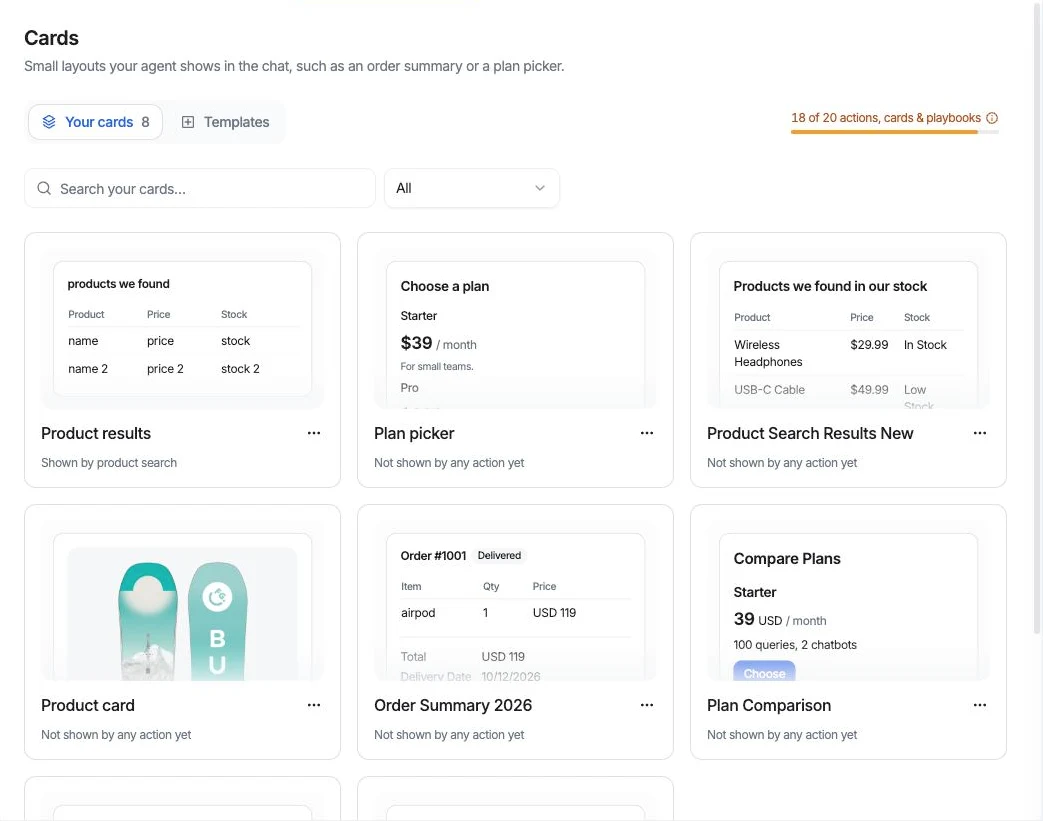
Create a card
There are three ways to start:
- Describe it to Ask AI. For example, "A card that shows an order's items with prices and a button to track it." Ask AI asks for anything it needs, builds the card and gives you a link to open it.
- Start from a template. Templates are grouped into Sales, Support, E-commerce and Scheduling. Pick one and make it yours.
- Start from blank.
Cards count toward your plan's allowance of actions, cards and playbooks. See Plans & billing.
The card editor
The editor has four tabs, with a live Preview on the right, drawn with sample data.
Design
Components lists the card's layout as an outline. Click Add for titles, text, images, lists, tables, details, prices, badges, buttons, links, and inputs such as text fields, dropdowns, dates and file uploads. Select a component in the outline or in the preview to edit it.
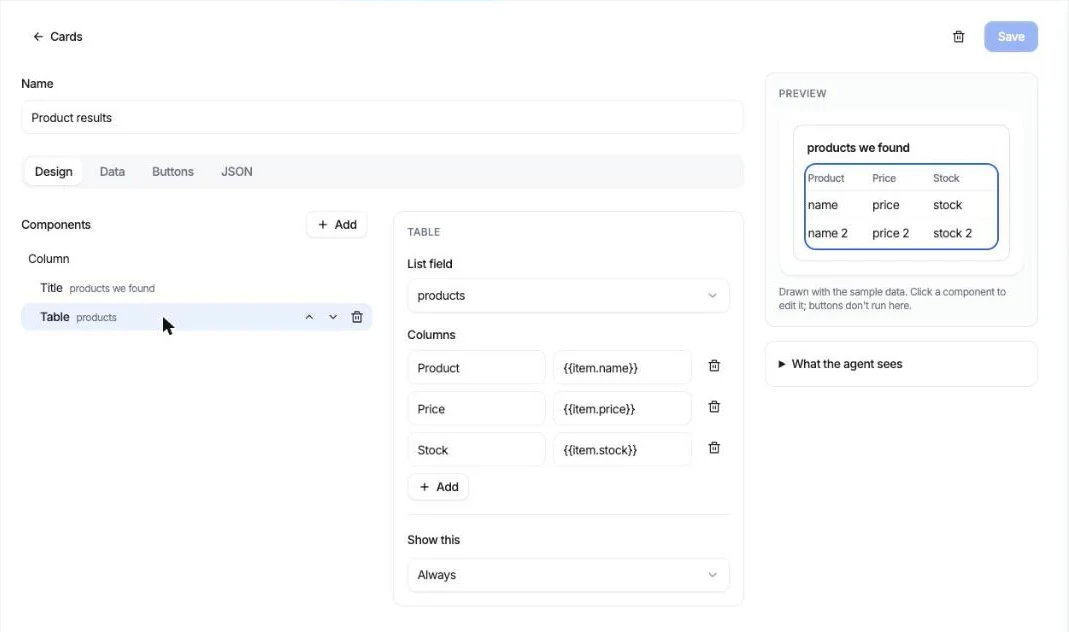
Put a field in text between double braces, such as {{name}}. Inside a list or table, use {{item.name}} for each item's field. Show this can hide a component until a condition is met, for example a "Sold out" badge only when stock is 0.
Data
The Data tab lists the fields the card shows: text, numbers, yes/no, and lists whose items have their own fields. Describe each field in a few words to help the agent fill it in.
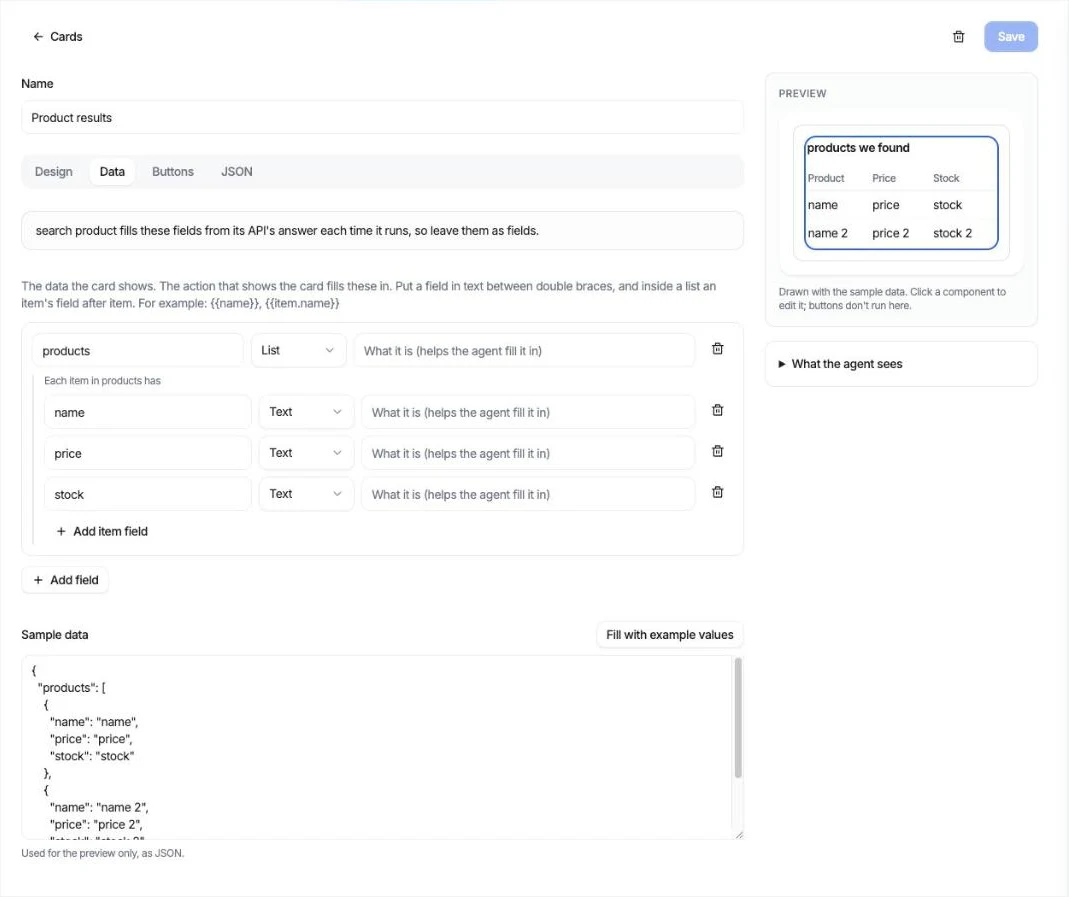
Sample data is used only for the preview. Click Fill with example values to fill it in. Once an action shows the card, the Data tab says which one, and that it fills the fields each time it runs.
Content that's the same for everyone
For a card whose content never changes, such as your plans and prices, use Make content fixed. The sample values become the card's content, and the agent shows it as it is. Don't do this for a card an API action fills.
Buttons
The Buttons tab says what each button does when clicked: send a message, run an action, open a link, set an input, or close the card.
JSON
The whole card as code, to copy or edit. Click Edit JSON to change it; applying replaces the card in the editor and lists what will change first.
What the agent sees, under the preview, shows the card as text. The agent reads the card this way, and channels that can't draw cards show this text instead.
Show a card in the chat
A card appears in the chat when an action shows it:
- Call your API: switch on Show the answer as a card in the Response step and say which field in the response fills each card field. See Call your API.
- Show card: the agent fills the card from the conversation, such as a summary of what the customer asked for.
A card an action shows can't be deleted until the action stops showing it.