
Actions
Let the assistant take actions in chat with configurable action tools.
Actions let the assistant do things in chat, not just answer. You describe when each action should appear, and Denser surfaces it automatically when the conversation matches.
Actions are most useful on public website chatbots, where you want visitors to book a meeting, fill out a form, or open a ticket without leaving the chat.
Action templates
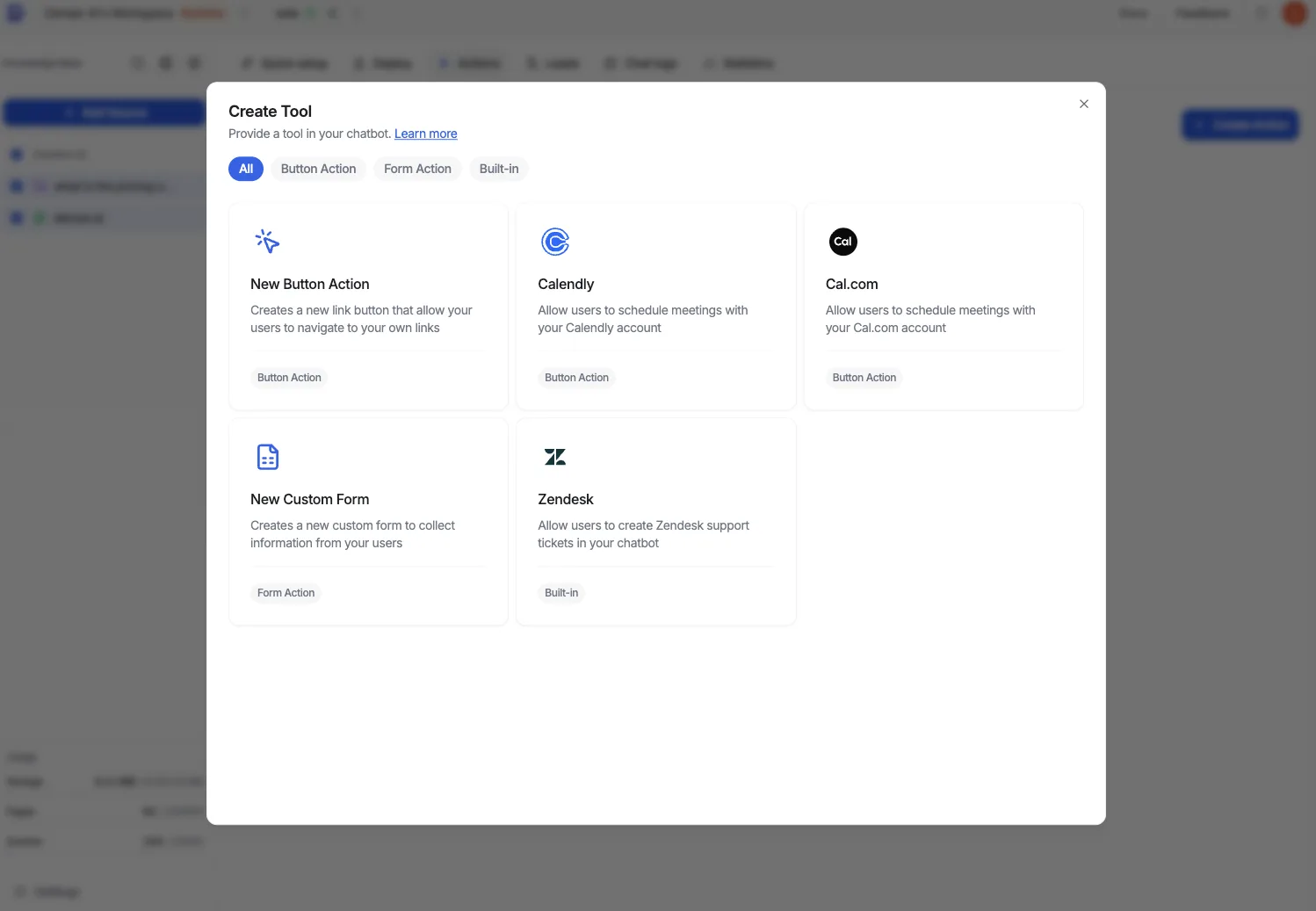
Open the Actions tab and click + Create Action to start from a template:
- Talk to a person — hand the conversation to your team: live chat when someone is free, a ticket when nobody is. Recommended, and the only template that keeps the customer inside your own chat.
- Button / Link — show a button that links to a URL.
- Custom Form — collect structured input through a form, shown when a trigger prompt matches.
- Calendly — let users book a meeting using your Calendly URL.
- Cal.com — let users book a meeting using your Cal.com URL.
- Zendesk, Freshdesk, Intercom, HubSpot — open a ticket in a help desk you already run.
You can create, enable or disable, and search actions from this tab.
Actions allowed depend on your plan
The number of actions you can create depends on your plan: Free trial 1, Basic 5, Standard 10, and Business 20. See Plans & billing for details.
Create a Button / Link action
Show a clickable button that sends users to a URL, such as a pricing page or a demo signup.
Click the New Button Action card.
Fill in the action fields:
- Action name: a short description of the action.
- Where to use: the prompt that tells Denser when to show the button, for example "Trigger when the user asks about pricing."
- Button text: the label shown on the button.
- URL: the destination opened when the button is clicked.
Click Save and make sure the Enabled switch is on.
Ask a qualifying question in the chat preview. When the intent matches, the button appears in the conversation.
Booking templates
Calendly and Cal.com are button-style actions with pre-filled trigger prompts for scheduling. Pick the template and replace the placeholder URL with your own booking link.
Create a Custom Form action
Show a form in chat to collect structured input or feedback.
Click the New Custom Form card.
In the General section, set the Action name and a Where to use prompt, for example "Show this form when the user wants to request a quote."
Click Save and Continue to open the Inputs section.
Click + Add field to define the form fields, then click Save Changes to create the form.
Trigger the form from the chat preview and submit a test entry.
Review form submissions
- On the Actions page, find the form action, click ..., and select Form submissions.
- Submitted entries appear in a table.
- Editing the form fields creates a new version. Switch versions from the dropdown in the Form submissions header to see the matching entries for each version.
Hand off to a person
Talk to a person is the built-in escalation. When it fires, the conversation goes to your Helpdesk: if a teammate is available they can answer live in the same chat window the customer is already in, and if nobody claims it in time it becomes a ticket instead. Nothing is lost either way.
Standard plan or above
Talk to a person and the third-party ticket actions below require the Standard plan or above. On Free and Starter the templates appear but saving is refused. See Plans & billing.
Click the Talk to a person card. It is first in the list and marked Recommended.
Set Where to use — when the assistant should offer it. The template ships with a prompt covering the usual cases: the visitor asks for a human, the assistant has failed repeatedly, or the visitor sounds frustrated.
Choose the channels it is offered on. Website chat and the help page are the two that support a live hand-off, and at least one must be selected.
Decide whether live support is on. With it on, an available teammate can take the conversation over in real time. With it off, every escalation goes straight to a ticket.
Set the claim window — how long the customer waits for someone to pick up before the conversation converts to a ticket. The default is 2 minutes; it accepts 15 seconds to 10 minutes.
Optionally add a hand-off message the customer sees while they wait, and up to ten notification emails to alert when an escalation opens.
What the customer sees
There is no button to click. The assistant offers the hand-off in conversation when the trigger matches, so the customer never leaves the chat to fill in a form.
Open a ticket in another help desk
If your team already works in Zendesk, Freshdesk, Intercom, or HubSpot, those templates create a ticket there instead of in Denser.
Click the card for your provider.
In the General section, connect the account — a Zendesk or Freshdesk subdomain, or an Intercom or HubSpot connection — or pick one you have connected before.
Set the Action name and a Where to use prompt, for example "Trigger when the user is frustrated or the assistant cannot resolve the issue."
Click Save, then send a matching message in the chat preview to confirm the ticket form appears.
Which one to use
These create a ticket and end the chat. Talk to a person keeps the customer in the conversation and lets someone answer live. Use a third-party action when the ticket has to live in the system your team already works in; use Talk to a person when you want the customer answered now.