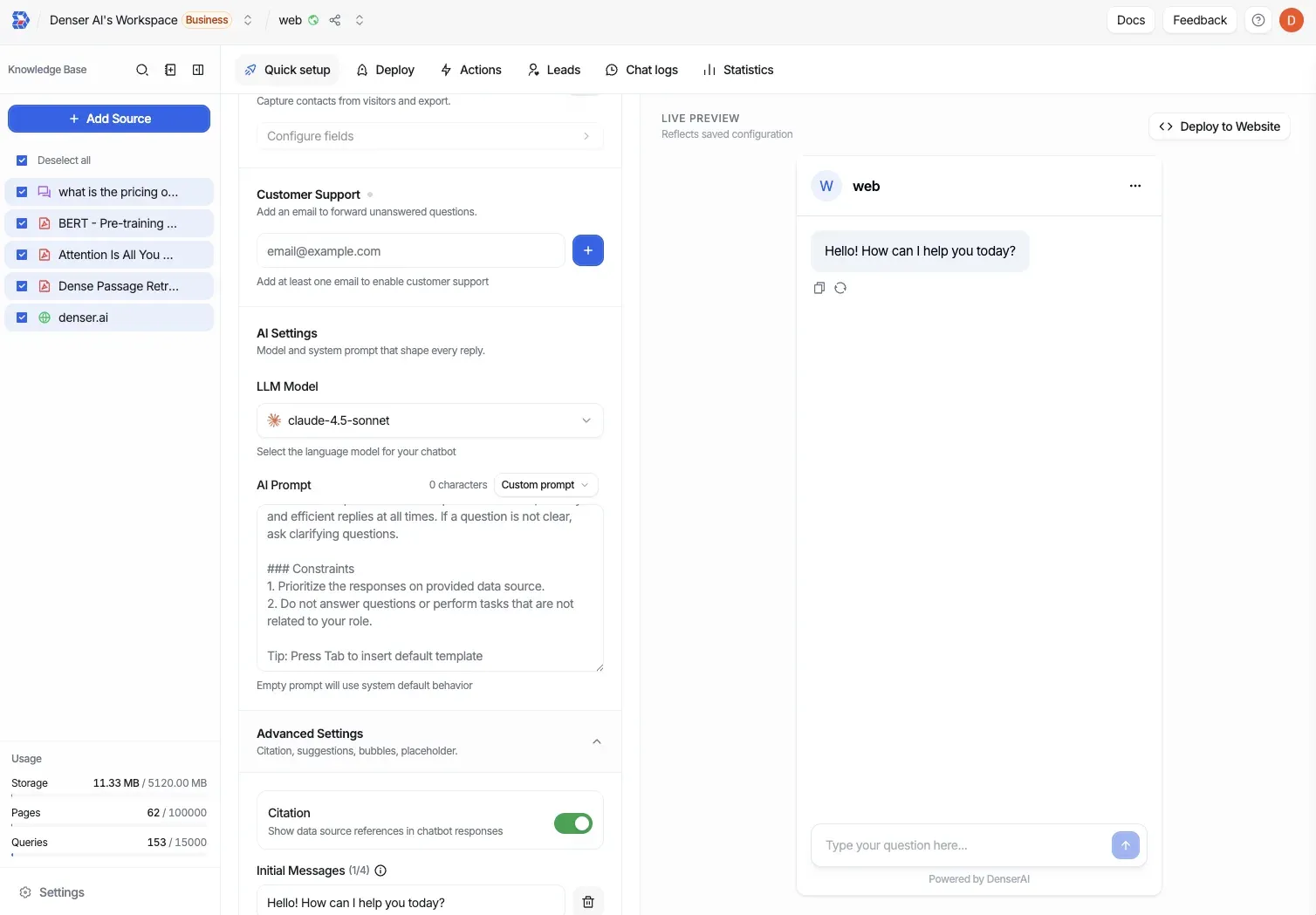
Model & Citations
These settings control which model powers your chatbot’s responses and how it surfaces the sources behind its answers.
What you can set
Section titled “What you can set”- Model version — Choose the Claude model version that powers responses.
- Citation toggle — Show or hide source citations in the chat widget.
- Dashboard citation toggle — Show or hide citations in the dashboard view.
- Customer support emails — Add up to 5 email addresses to receive handoff messages. When the chatbot can’t answer a question, it forwards the conversation to these addresses so a human can follow up.
What citations are—and why they matter
Section titled “What citations are—and why they matter”A citation links an answer back to the source it was drawn from in your data store. When citations are on, users (and you, in the dashboard) can see exactly which document an answer came from.
Citations make answers verifiable: people can confirm the response is grounded in your content rather than guessed, and you can quickly spot when the bot pulls from the wrong source.
Configure model and citations
Section titled “Configure model and citations”Open Customization
From your chatbot dashboard, open Customization and go to the model and citations settings.
Choose the model version
Select the Claude model version that powers responses. This applies to both public and private chatbots.
Set the citation toggles
Enable the citation toggle to show sources in the chat widget, and the dashboard citation toggle to show them in the dashboard view.
Add support emails
Add up to 5 customer support email addresses to receive handoff messages when the chatbot can’t answer a question.
Save
Save your changes, then ask the bot a question to confirm citations appear as expected.