
Chat Logs
Review every chatbot conversation, read transcripts with citations and feedback, export them, and turn good answers into training data.
Chat logs show what users actually ask and how well your chatbot answers. Use them to spot quick wins, flag issues, and feed good answers back into your sources.
Open chat logs
Open the Chat logs tab from the top navigation.
Select a conversation from the Conversations list on the left. The transcript opens on the right.
Read a conversation
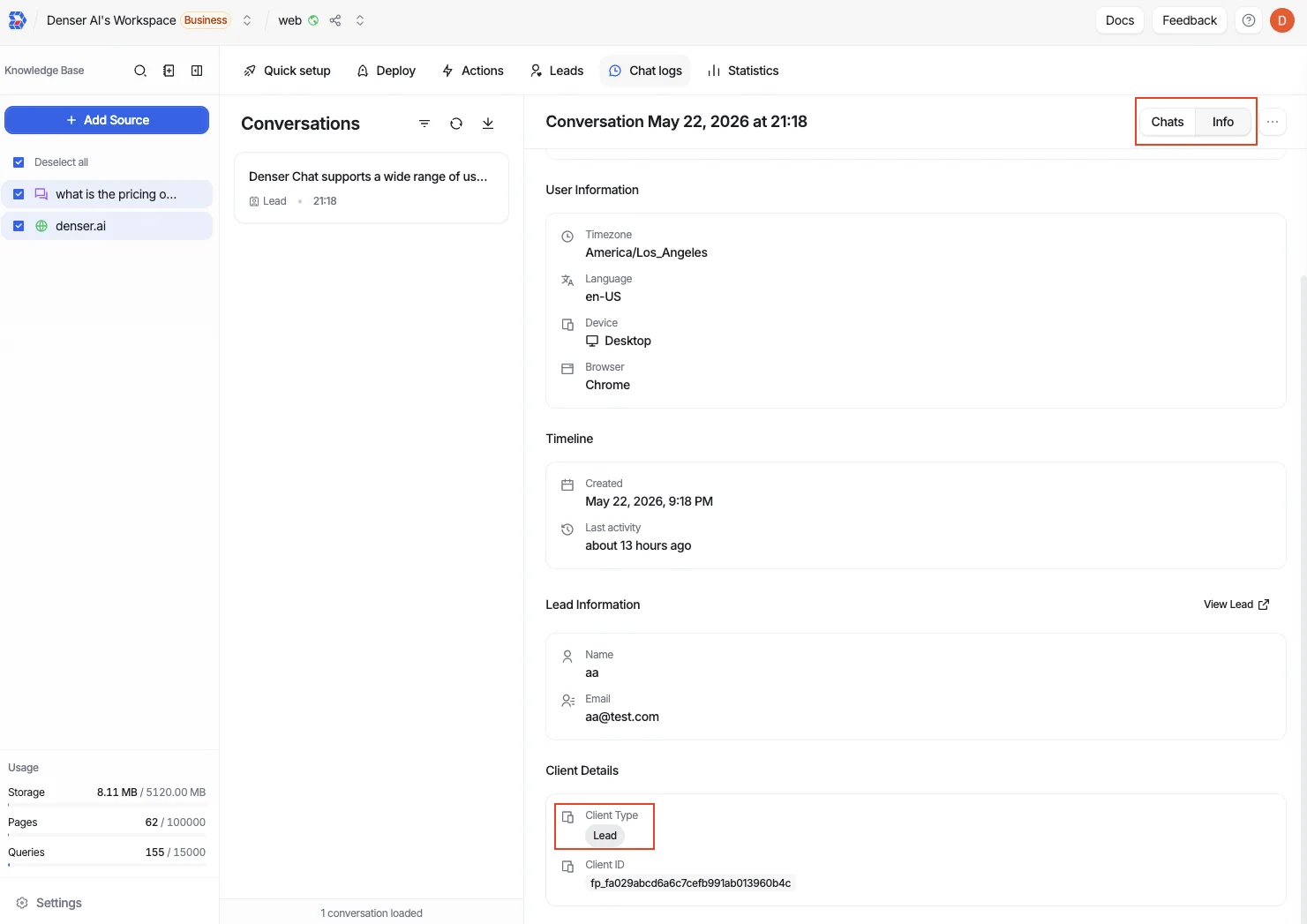
The transcript view has two tabs:
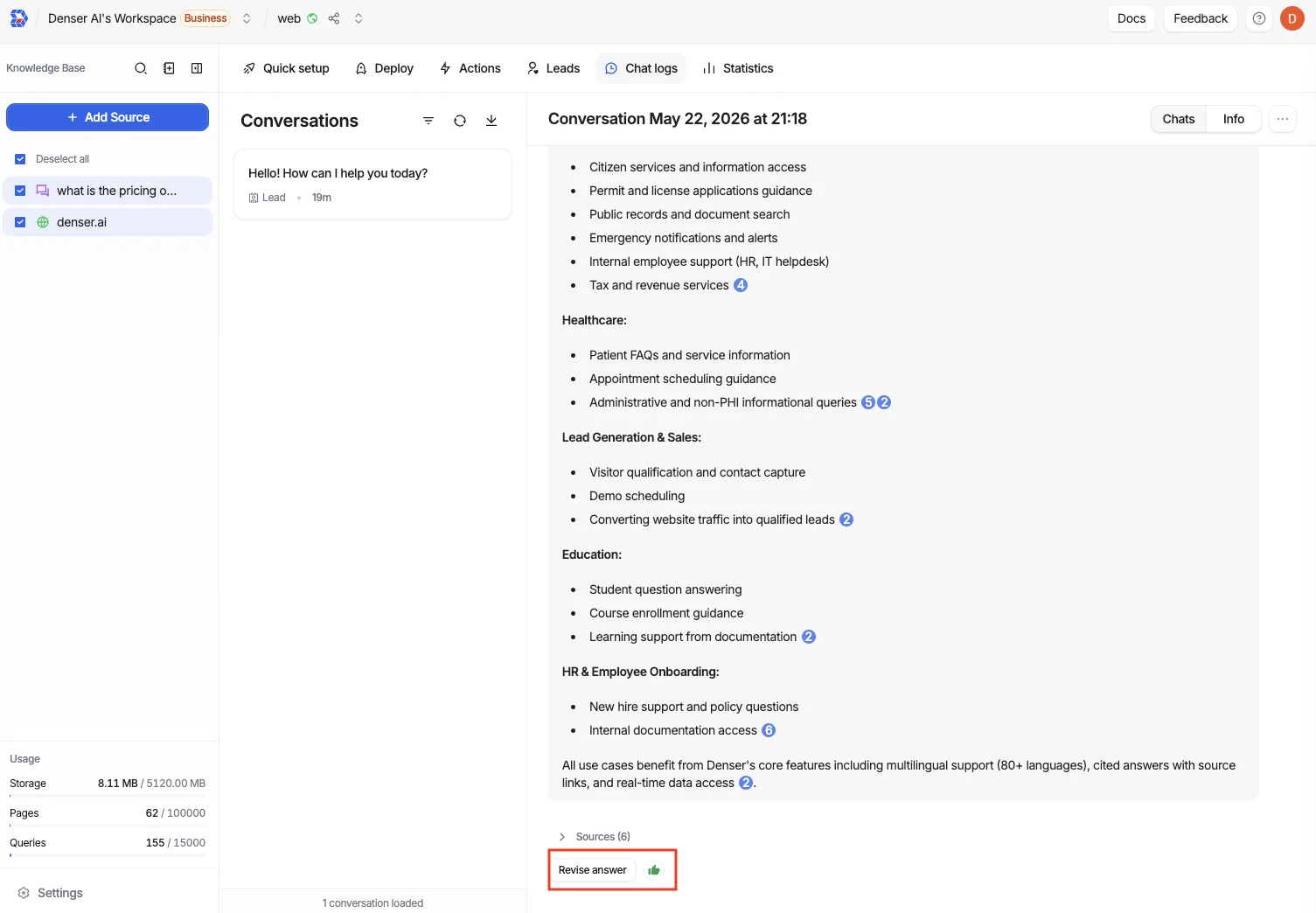
- Chats — The full message exchange between the user and the bot, with citations (numbered references to the sources each answer drew from) and the user's thumbs up / thumbs down feedback. Expand Sources below an answer to see every source it used.
- Info — Context about the visitor and the session: User Information (timezone, language, device, browser), a Timeline (created and last-activity times), Lead Information (name and email, with a link to view the full lead) when a lead was captured, and Client Details (the client type and a unique client ID).
Use feedback and citations together to judge answer quality: a thumbs-down with a weak or missing citation usually points to a content gap.
Find the right conversation
Use the controls at the top of the Conversations list to filter, refresh, and export. To narrow a long list:
- Client type — Filter by anonymous, registered, or lead to focus on the audience you care about. Anonymous visitors and leads are typical of a public website chatbot; registered users are common on a private knowledge base chatbot. Conversations that captured a lead show a Lead badge.
- Search — Find conversations by keyword.
Leads appear here too
Every captured lead is attached to its conversation, so you can read the full transcript alongside the contact details. See Leads.
Export conversations
Use the export (download) control at the top of the Conversations list to download conversations for offline review, sharing, or archiving.
Improve future answers
When the bot gives a good answer, save it to your knowledge base so it reuses it for similar questions.
Below the answer, click Revise answer.
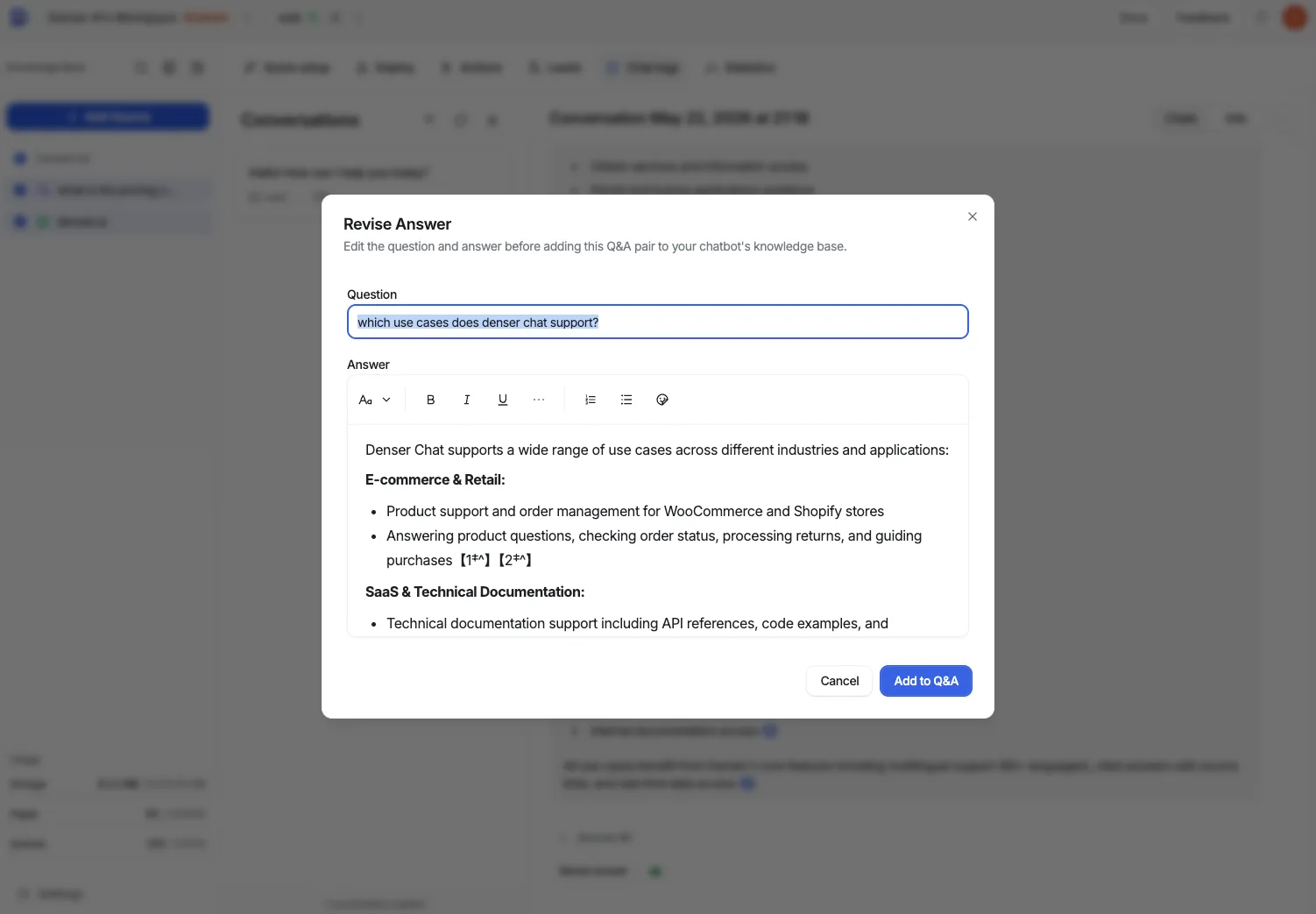
In the Revise Answer dialog, edit the Question and Answer so the pair reads well on its own.
Click Add to Q&A. The pair is added to your Q&A source, so future answers to similar questions improve.
Author Q&A directly
You can also write question/answer pairs from scratch in the Data Store. See Q&A.