
Messages & Prompts
Set the welcome message, suggested questions, input placeholder, and the assistant's persona.
Messages and prompts control what your chatbot says--the greeting it opens with, the questions it suggests, and the persona that shapes every response.
Public chatbots only
These options appear on public chatbots. A private chatbot shows only the model version and the dashboard citation toggle.
What you can set
- Welcome / initial message(s) -- The greeting shown when the chat opens.
- Suggested questions -- Clickable prompts that guide users toward useful first questions. A keep showing questions toggle controls whether they persist after the first message or disappear once the conversation starts.
- Input placeholder -- The hint text inside the message box (for example, "Ask a question...").
- System prompt / persona -- A custom prompt (up to 32,000 characters) that defines the assistant's role, scope, and tone.
Message bubble styling (fonts and background colors for bot and user messages) is set under Appearance via the color palette--not here.
Configure messages and prompts
Open Customization
From your chatbot dashboard, open Customization and go to the messages and prompts settings.
Write the welcome message
Enter the greeting shown when the chat opens. Keep it short and set expectations--what the bot can help with.
Add suggested questions
Add a few clickable prompts that reflect what users most often ask. Decide whether to enable keep showing questions so they remain visible after the first message.
Set the input placeholder
Enter hint text for the message box that signals what the user can type.
Define the persona
Write the system prompt that defines the assistant's role, scope, and tone (up to 32,000 characters).
Save and test
Save, then open the widget and ask a few questions to confirm the greeting, suggestions, and tone behave as expected.
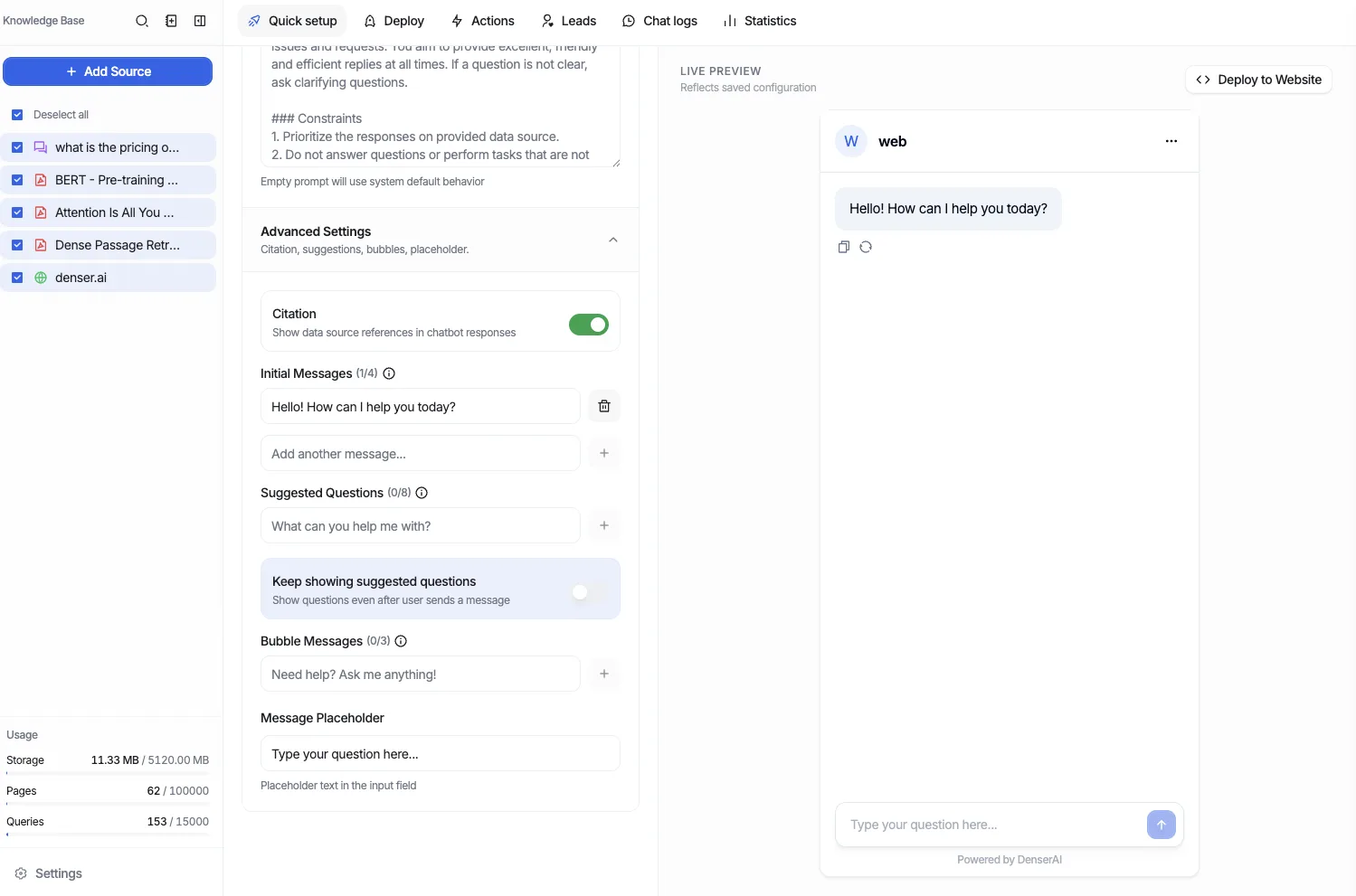
Writing a good persona prompt
The system prompt sets the assistant's behavior on every turn. A strong persona prompt usually covers:
- Role -- Who the assistant is (for example, "a support agent for Acme's billing team").
- Scope -- What it should and should not answer; when to defer or hand off.
- Tone -- Formal or casual, concise or detailed.
- Fallback -- What to do when the answer is not in the knowledge base (for example, point users to a support channel rather than guessing).
Keep instructions specific and avoid contradictions. Test edge cases after each change.
Writing good suggested questions
- Phrase them as a user would actually type them.
- Cover your highest-traffic topics--the questions most people open the chat to ask.
- Keep each one short so they fit cleanly in the widget.
- Limit the set to a handful so the choices stay clear.
For more on tuning tone, scope, and content quality, see Best Practices. The accuracy of answers also depends on what you've indexed--review your Data Store.