
Appearance
Style the chat widget with an avatar, theme mode, and color palette.
Appearance settings control the visual styling of the chat widget--its avatar, theme, and colors--so it feels native to your site.
Public chatbots only
The full appearance panel is available on public chatbots. A private chatbot shows only the model version and the dashboard citation toggle, so the styling options below will not appear.
What you can style
- Avatar / icon -- Upload an image to represent the bot (up to 1 MB), or let Denser auto-fetch one from your website.
- Theme mode -- Choose light or dark.
- Theme presets -- Pick a ready-made preset, or define a custom color palette.
- Color palette -- Set individual colors for: background, border, primary font, primary background, bot message font, bot message background, chat action font, chat action background, text font, text background, and placeholder font.
Style the widget
Open Customization
From your chatbot dashboard, open Customization and go to the appearance settings.
Set an avatar
Upload an image for the bot's avatar/icon (keep it under 1 MB and square for the cleanest result), or let Denser auto-fetch one from your website.
Choose a theme mode
Select light or dark to match where the widget will appear.
Pick a preset or set custom colors
Select a theme preset for a quick start, or switch to a custom palette and set the background, border, font, message, and chat action colors individually.
Save
Save your changes. Preview the widget to confirm the colors read well against your site's background.
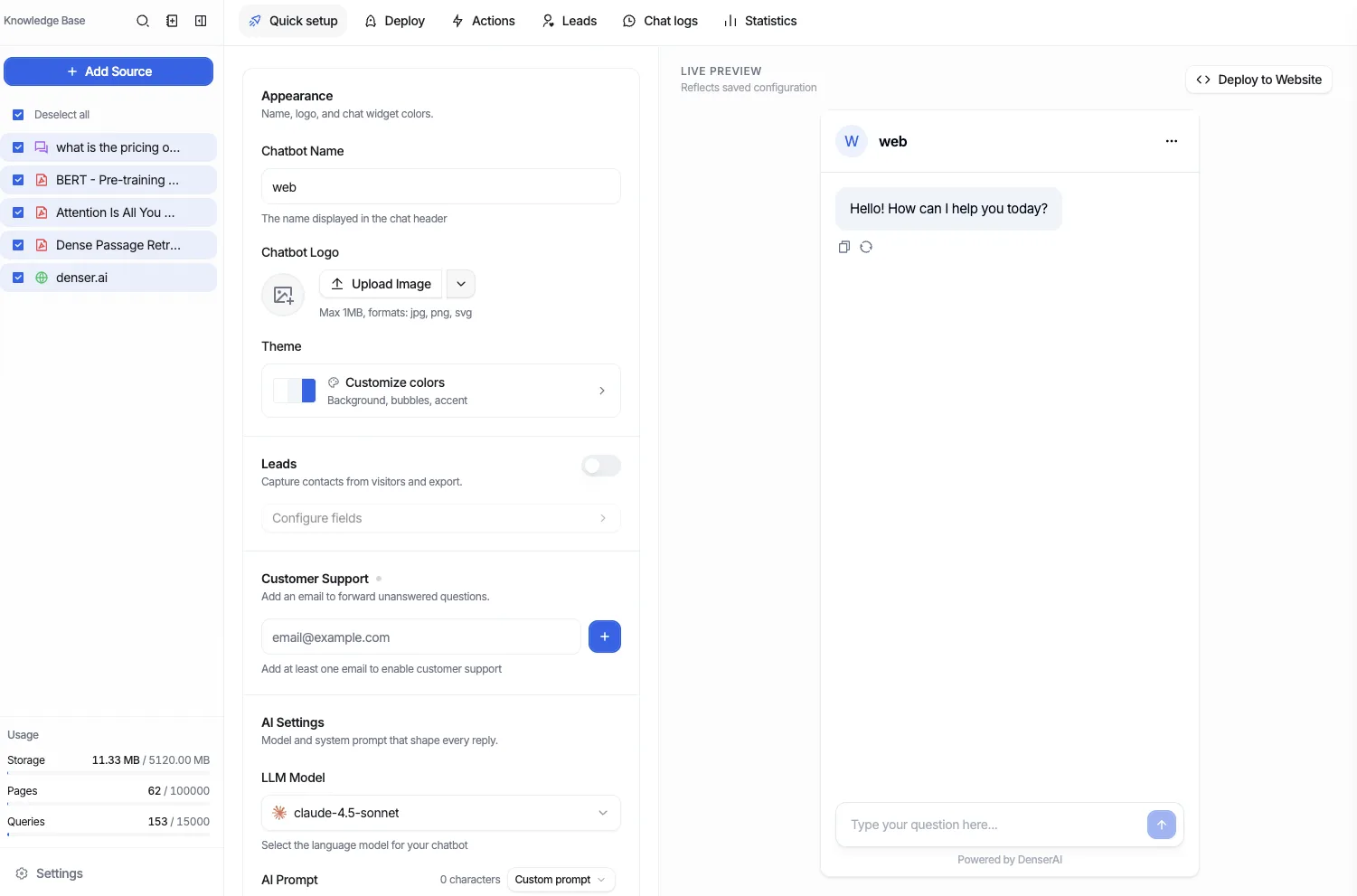
Set the theme mode to match the page where the widget will live--a dark widget on a light site (or vice versa) can look out of place. When using a custom palette, check the placeholder font and border colors for enough contrast against the background.
Removing the Denser watermark
The chat widget shows a small Powered by Denser label. To hide it, purchase the Remove Watermark add-on -- see Plans & Billing. This isn't a toggle in the appearance panel.