
Phone with Vapi
Give your chatbot a phone number by pointing a Vapi assistant at it as a Custom LLM.
The phone channel lets a caller ask your chatbot a question out loud. Vapi runs the call — it answers the number, turns speech into text, and speaks the reply — and asks your chatbot for the words to say. Every call lands in Chat logs with a Phone label, beside your website and email conversations.
Your chatbot is connected as a Custom LLM: an OpenAI-compatible endpoint Vapi calls once per turn. Nothing about your data sources, prompt, or model choice changes; the caller gets the same answers your website visitors get.
Vapi is one of two options
The dashboard also offers Twilio, which needs no third-party account beyond Twilio itself. Vapi suits teams already set up there, or who want its call transfers and number pool. Pick one — a number can only ring one of them.
Before you start
You need a Vapi account with credits, and your chatbot's Custom LLM URL and API key. Both are on the phone channel screen: open your chatbot, go to Deploy → Phone, and select the Vapi tab.
The API key is shown once, at the moment it is generated. Copy it before leaving the screen.
Connect your chatbot
Create an assistant. In Vapi, open Assistants and click Create Assistant. Any template will do — you are about to replace its model.
Open Model Settings and set Model to Custom LLM.
The panel changes to ask for a URL rather than an OpenAI model name.
Paste the Custom LLM URL.
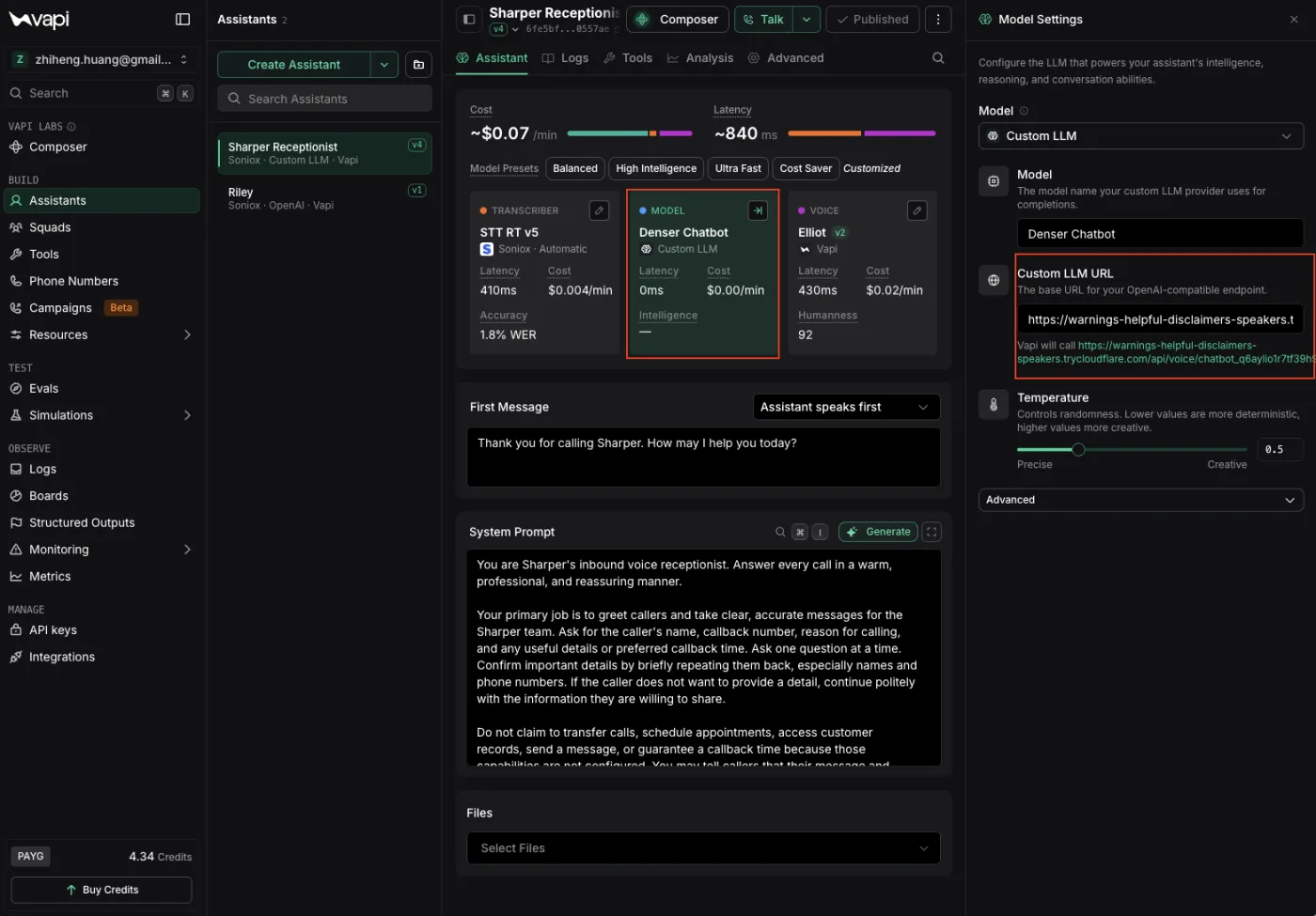
Vapi labels this field "The base URL for your OpenAI-compatible endpoint" and appends /chat/completions itself, so the value on the Vapi tab is already the right shape — paste it unchanged. It ends with your chatbot's id:
https://denser.ai/api/voice/chatbot_a1b2c3d4e5f6Underneath the field Vapi shows "Vapi will call …". Check that line ends in /chat/completions exactly once before saving; it is the fastest way to catch a path that has been doubled or trimmed.
The Model field above it is a label only. Vapi sends it to us and we ignore it, so name it whatever you will recognise in the Vapi logs — "Denser Chatbot" is a reasonable choice.
Add the API key. Vapi sends it as a bearer token. Paste the key on its own, without the word Bearer — Vapi adds that.
Write the first message and system prompt. These belong to Vapi, not to your chatbot: the first message is spoken before anyone has asked anything, and the system prompt shapes the voice rather than the answers.
Your chatbot's own prompt and data sources still drive every reply.
Attach a number. Buy one through Phone Numbers in Vapi, or connect one you already own over SIP. Vapi bills the minutes.
Call it. Use Talk in Vapi to test without spending a number, or dial the real thing. The conversation should appear in Chat logs labelled Phone within a few seconds of hanging up.
What each field maps to
| In Vapi | What to put there |
|---|---|
| Model | Any label. Sent to us and ignored — your chatbot's own model setting decides what answers. |
| Custom LLM URL | The endpoint from the Vapi tab. See the note above about the base URL. |
| Authorization | Your chatbot's API key, without Bearer. |
| First Message | Spoken before the caller says anything. Vapi's, not your chatbot's. |
| System Prompt | Shapes tone and call handling. Your chatbot's prompt still governs the content of answers. |
| Temperature | Ignored. Sampling happens on our side, under your chatbot's model settings. |
Troubleshooting
The call connects but the assistant says nothing. Almost always the URL. Check the "Vapi will call …" line under the field — if it ends in anything other than /chat/completions, the base URL is wrong. Vapi's own Logs tab shows the request it made and the status it got back.
Every turn starts a new conversation in Chat logs. Vapi is not sending a call identifier we recognise, so each turn looks like a first contact. Check the assistant is a single Custom LLM assistant rather than a squad, and that no proxy in front of us is stripping headers.
401 or 403 in Vapi's logs. The API key is wrong, revoked, or was pasted with Bearer in front of it. Generate a fresh key on the Vapi tab and paste it alone.
Answers are right but slow. The first turn of a call includes retrieval against your data sources. If it is consistently slow, a smaller model on your chatbot's own settings will cut the largest part of the delay.