
REST API
Turn on a chatbot's API channel, get a key and make your first request
Use the REST API to query a Denser chatbot from your own product, internal tools or automations. Everything you need is on the chatbot's API channel: turn the API on, get a key, and run a real request before you write any code.
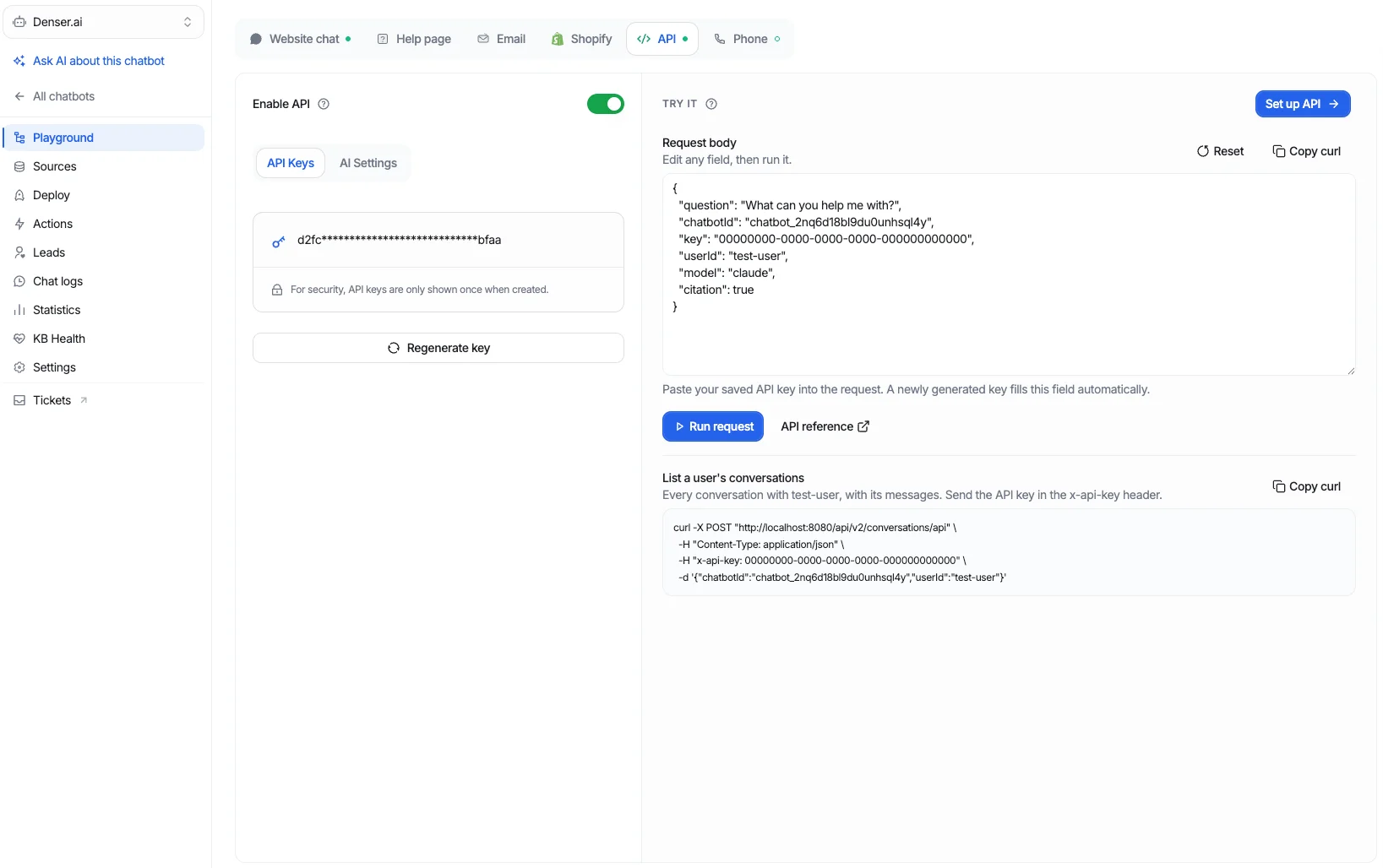
1. Open the API channel
Open the chatbot you want to query. On its Playground, select the API tab in the row of channels at the top.
Make sure Enable API is on. While it is off, every request to this chatbot's API is refused.
2. Get an API key
In the API Keys tab, click Generate API key. If the chatbot already has a key, you see its first and last characters and a Regenerate key button.
Copy the key and store it somewhere safe, such as your server's environment variables. It is shown only once: afterwards only its first and last characters are.
A key you generate here is also filled into the request on the right, so you can try it straight away.
Regenerating disables the old key
Each chatbot has one key. Regenerating it immediately invalidates the previous one, so update everywhere the old key is used.
3. Run a request
The Try it panel holds a ready-made request for this chatbot: its chatbot ID, your key, a question, an example userId and the chatbot's model.
Edit any field you like, such as the question. If the key shows as zeros, paste your saved key into key.
Click Run request. The response shows the chatbot's answer, the passages it drew on, and the conversationId and messageId of this exchange.
To ask a follow-up, click Continue conversation, edit the question, and run it again. The chatbot answers with the earlier turns as context.
Test requests are recorded under the user test-user, so you can find them in Chat logs apart from real users. Reset restores the request. On a narrow screen, where the Try it panel is not shown beside the key, open it with Set up API.
4. Call it from your code
Click Copy curl to copy the request as a curl command, ready to run from a terminal or translate to your language:
curl -X POST "https://denser.ai/api/query" \
  -H "Content-Type: application/json" \
  -d '{
    "question": "What can you help me with?",
    "chatbotId": "<chatbot-id>",
    "key": "<api-key>",
    "userId": "<your-user-id>"
  }'
Send your own ID for the person asking as userId, and the conversationId from a response to continue that conversation. To read a user's conversations back, copy the request under List a user's conversations.
Call the API from your backend
Keep the key on your server and never send it to a browser. The key gives access to the chatbot and its conversations, and the userId you send is trusted because the key vouches for it.
Instructions for API answers only
The AI Settings tab next to API Keys holds instructions that apply to this channel alone — useful when answers consumed by your own product need a different length or format than the ones shown in a chat bubble. Everything else comes from the chatbot's own configuration.
Go further
See every request field, the response, errors, and how to list conversations in the API reference.
Zapier Integration
Connect your Denser chatbot to Zapier and automate workflows across 6,000+ apps. Use your chatbot as a trigger or an action.
API Documentation
Use Denser.ai's API to query a chatbot programmatically, keep conversations per end user, and list them. Build custom chat UIs and connect your own apps.