

Shopify Chatbot Integration: Setup Guide for Denser AI

A useful Shopify chatbot integration should do more than repeat an FAQ. It should help a shopper find a current product, choose the right variant, add it to the store's real cart, and check an order without leaving the page.
Denser's Shopify AI chatbot brings those actions into one storefront conversation. This walkthrough connects a Denser chatbot to a Shopify test store, approves access, displays live snowboard results, adds a selected product to the cart, and opens the order-tracking flow.
This guide turns the setup into a repeatable launch process. By the end, your customers will be able to:
- Search your live Shopify catalog in natural language
- Review product cards, prices, availability, and variants
- Add, remove, or update products in the native Shopify cart
- Continue through your normal Shopify checkout
- Check an eligible order using the order number and checkout email
- Ask about shipping, returns, sizing, and other policies from your connected knowledge sources
What This Shopify Chatbot Integration Connects#
A basic FAQ widget answers from a fixed list of questions. An AI chatbot with Shopify integration connects different customer requests to the appropriate source or action: live catalog data for product discovery, the active storefront cart for purchase actions, verified order data for tracking, and merchant-controlled content for policy answers.
That architecture lets the assistant support the shopping journey without treating every answer as static text. Shopify remains responsible for commerce state and checkout, while Denser handles conversation, knowledge retrieval, and the shopper-facing workflow.
What You Need Before You Start#
Prepare three things:
- A Denser AI account and chatbot. You can create a new chatbot during setup or connect an existing one.
- Shopify admin access. The account must be allowed to install and approve the Denser app.
- Admin access to your Denser workspace. Only a workspace admin can connect a store.
Set the chatbot's visibility to Public before deployment. A private chatbot is useful for internal testing, but it cannot serve visitors on a public storefront.
It also helps to prepare a small acceptance-test set: two products you know are in stock, one product with multiple variants, one valid test order, and one deliberately invalid order lookup.
Step 1: Create a Public Shopify AI Chatbot in Denser#
Sign in to Denser AI and create a chatbot. During onboarding, choose:
- Public when Denser asks who the chatbot is for
- Shopify store as the deployment channel
The setup starts with this path. Choosing Shopify tells Denser that the assistant needs commerce capabilities rather than only a generic website widget.
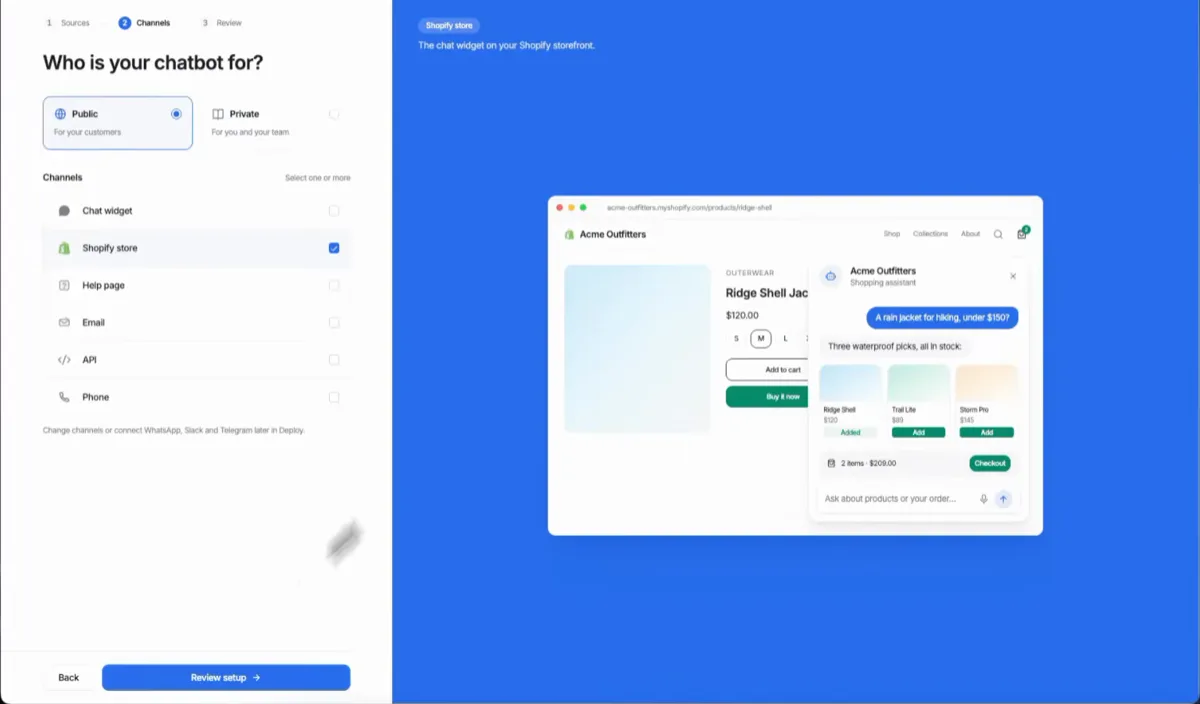
If you already have a chatbot, open it and confirm that its knowledge sources and instructions are appropriate for customers. Add your shipping page, return policy, sizing guide, warranty information, product manuals, or help-center content. Denser uses these sources for knowledge questions while Shopify remains the source of truth for live catalog, cart, and order data.
That separation matters:
| Customer request | Source of truth |
|---|---|
| Product, price, variant, availability | Live Shopify catalog |
| Cart contents and quantity | Active Shopify storefront cart |
| Order and fulfillment status | Verified Shopify order data |
| Shipping, returns, sizing, warranty | Sources connected to the Denser chatbot |
Step 2: Install the Denser AI App on Shopify#
There are two ways to install the app. Both end in the same place: the store connected to one chatbot.
From Denser. Open the chatbot's Shopify tab (or the Shopify card on the Deploy page) and click Connect Shopify store, then Install from Shopify App Store. Shopify opens the Denser AI app for your store.
From the Shopify App Store. Open Denser AI on the Shopify App Store and click Install. This is the quickest route if you start in Shopify.
Either way, Shopify shows the access the app needs before you install it. Review it instead of clicking through. Product access enables live catalog search. Order access enables verified order lookup and, if you switch those actions on later, cancelling an unshipped order. Returns access is only used to request a return when you turn that action on. Shopify also lists View customer data (name, email, and address), because orders include them; the chat uses the checkout email to confirm a shopper owns the order before showing it.
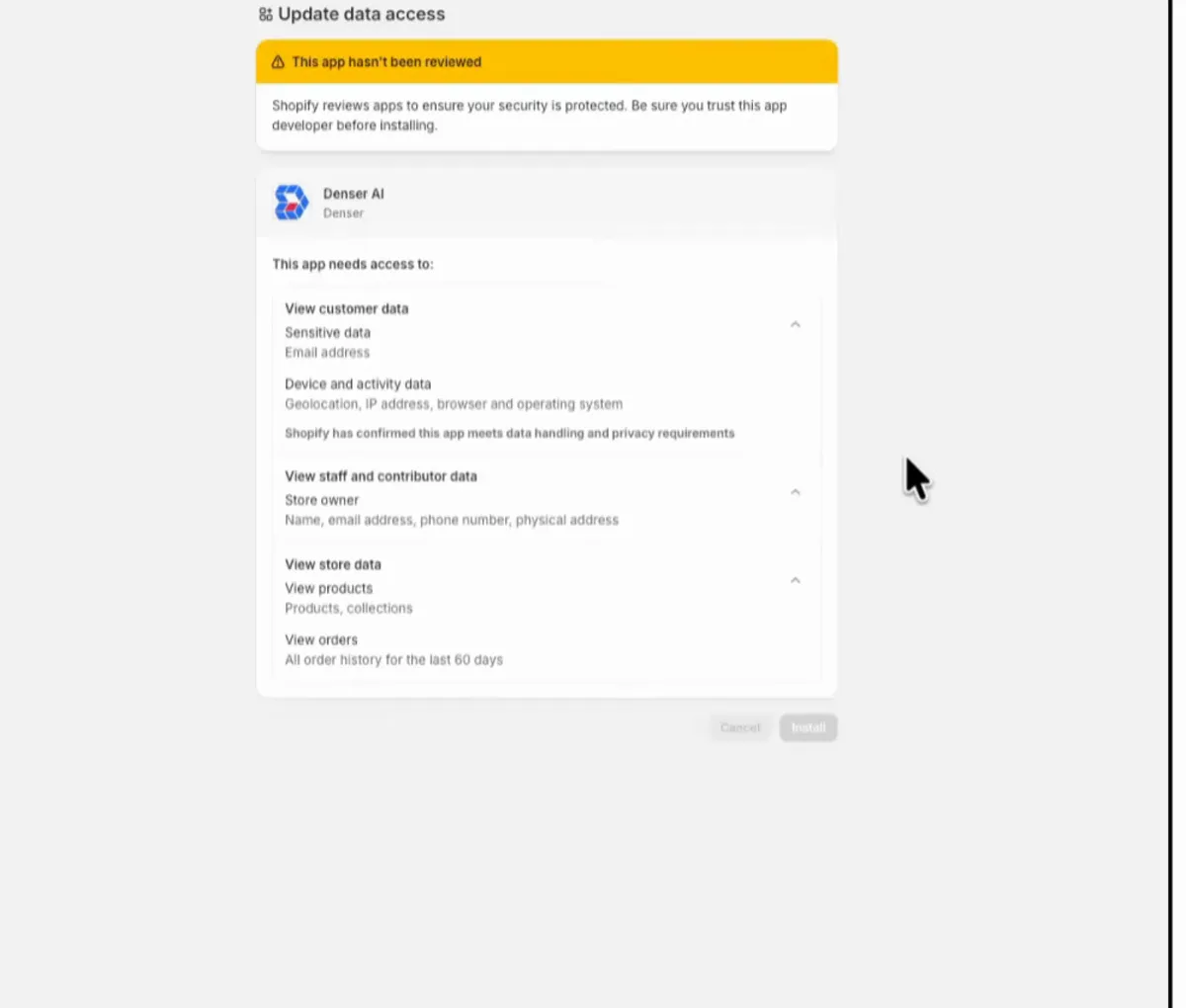
After you approve, Shopify opens Denser. Sign in if needed, and switch to the workspace the chatbot is in. On the page titled Connect your-store.myshopify.com to a chatbot, select the chatbot and click Connect store. A chatbot marked Private can't serve your storefront until you make it Public. If you don't have a chatbot yet, click Create a new chatbot.
The chatbot's Shopify panel then shows the store as connected, with the remaining setup steps.
Only one Denser chatbot can be connected to a store at a time. If Denser reports that the store is already connected, disconnect it from the previous chatbot before trying again.
Step 3: Add the AI Chatbot to Your Shopify Theme#
Installing the app connects the systems, but it does not automatically make the chat visible on your storefront.
From the Denser Shopify panel, select Enable in Shopify theme. Shopify opens the theme editor with the app embeds panel selected. Turn on Denser Chat, then select Save.
Shopify app embeds are enabled per theme. If you later publish a different theme, repeat this step for the new published theme. This is the first thing to check if the chatbot disappears after a redesign or theme switch.
You do not need to paste a script into theme.liquid. Denser uses Shopify's app-embed workflow, which is designed for floating storefront components such as chat widgets.
Open the storefront preview and confirm that the chat button and greeting appear. Then check the published storefront in a private browser window so an admin session does not hide a customer-facing problem.
Step 4: Test Shopify Product Search#
In this example, a Shopify test store asks the chatbot, “What products do you sell?” Denser responds with a short catalog summary and a carousel of snowboard product cards.
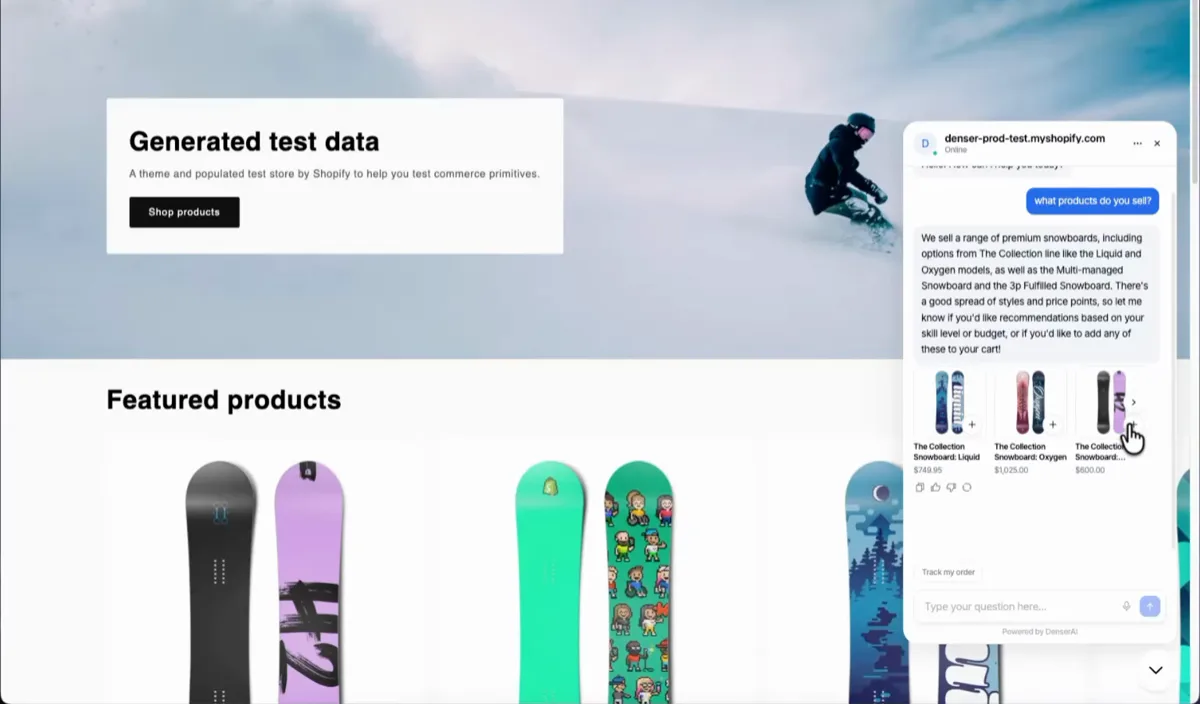
That is a useful smoke test, but launch testing should be more specific. Try questions such as:
- “Show me a snowboard under $800.”
- “Which boards are available for a beginner?”
- “Do you have this model in another size?”
- “Compare the Liquid and Oxygen snowboards.”
- “Show me a waterproof jacket in medium.”
Denser queries Shopify at request time, so product responses can use current information returned by the store instead of relying only on an old crawl of the product page. Each recommendation should link to the correct product and avoid inventing attributes that Shopify does not provide.
Test an unavailable size, a sold-out product, and an attribute missing from your catalog. A trustworthy assistant should clarify or say that the information is unavailable rather than fill the gap with a plausible guess.
Step 5: Test Product Selection and Cart Management#
Selecting a product card opens its purchase controls. The shopper can choose the available option and select Add to cart. The chat then shows the cart count and total at the bottom, with a Checkout button.
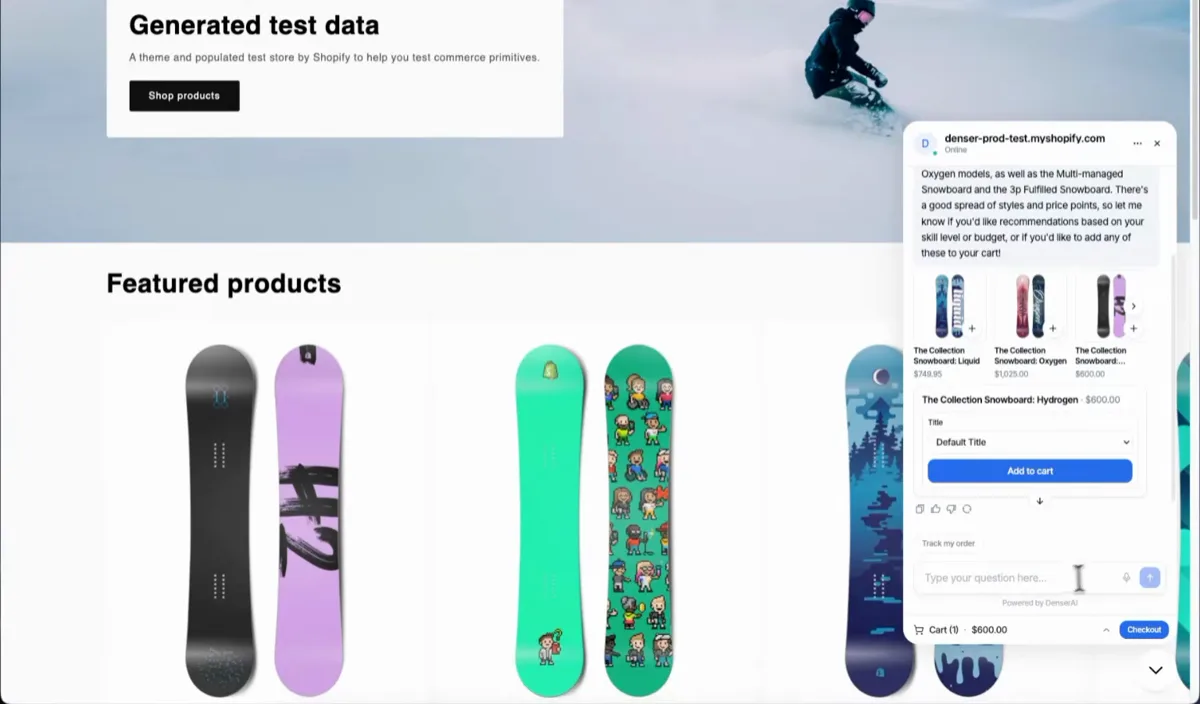
This is not a separate chatbot basket. Denser updates the native Shopify storefront cart, which keeps the purchase connected to the store's existing discount, shipping, tax, and checkout behavior.
Run the full cart test:
- Ask Denser to find a specific product.
- Open a result and choose the correct variant.
- Add it to the cart.
- Change the quantity.
- Remove it and add it again.
- Open Shopify's standard cart outside the chat and confirm that the same item is present.
- Select Checkout and confirm that Shopify receives the correct product, variant, and quantity.
Keep checkout explicit. The chatbot can help the shopper reach it, but the shopper should decide when to continue and complete payment through the normal Shopify checkout.
Step 6: Configure Shopify Order Tracking#
The chat includes a Track my order action. For a guest customer, Denser asks for:
- The order number
- The exact email address used at checkout
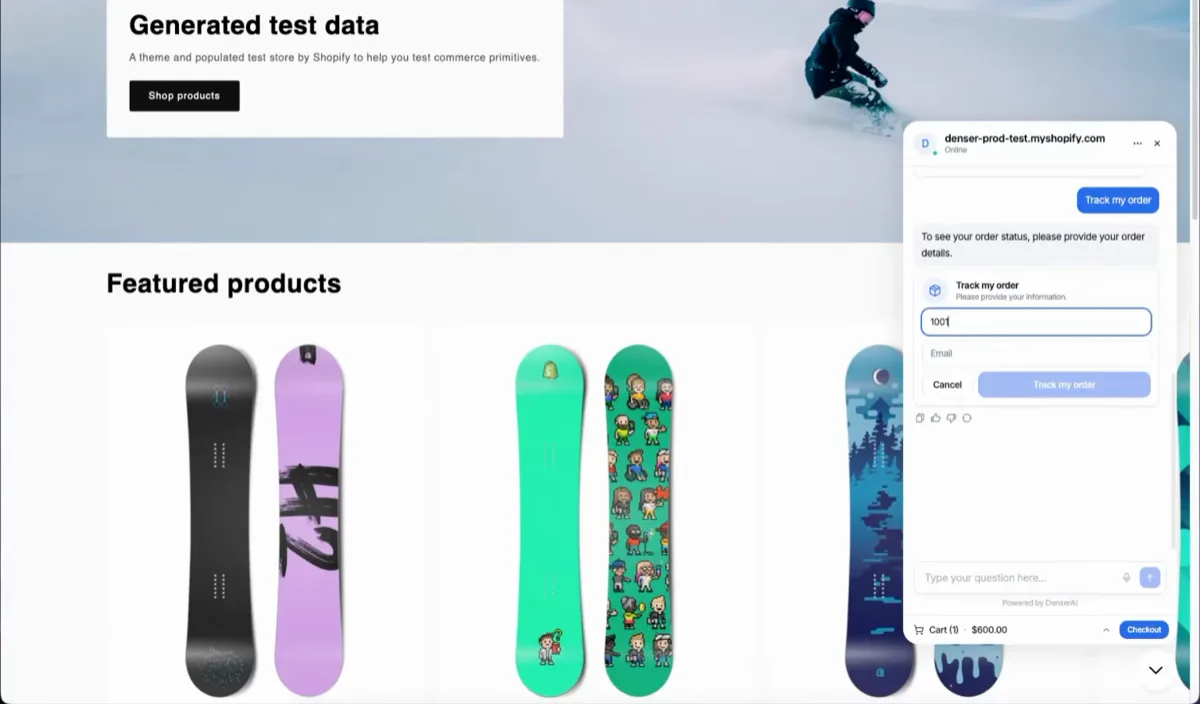
Signed-in customers can see their recent eligible orders without entering those details again. The verification step is important because order status is private customer information, not public knowledge-base content.
During testing, verify both successful lookups and temporary-error responses. A graceful failure should protect customer data, explain what happened without making unsupported claims, and provide a retry or support path.
Before launch, complete these checks with your own test data:
- A valid order number with the matching checkout email returns the expected status.
- The valid order with the wrong email does not reveal order details.
- An unknown order number returns a neutral failure response.
- An order placed without an email is not presented as trackable by email.
- A temporary Shopify or network failure gives the customer a retry or support path.
Order tracking does not automatically mean the chatbot can cancel an order, change an address, approve a return, or issue a refund. Route unsupported or high-impact requests to a person.
Step 7: Add Store Knowledge and a Human Fallback#
Product search, carts, and order status come from Shopify. Broader support questions need maintained store content.
Connect the pages and documents that answer questions such as:
- “How long does international shipping take?”
- “Can I return a sale item?”
- “How do I choose the right size?”
- “What does the warranty cover?”
- “How should I care for this product?”
Review the retrieved sources during testing. Remove expired promotions, duplicate policies, and conflicting documents. A chatbot cannot resolve contradictions that the business has not resolved.
Configure a visible Speak to a human action for exceptions, complaints, unsupported changes, and direct requests for a person. The handoff should preserve enough conversation context that the customer does not need to start again.
Step 8: Publish and Monitor#
Once product search, cart actions, order lookup, policy answers, and escalation all pass, publish the Shopify theme with the Denser app embed enabled.
Monitor conversations by intent during the first weeks:
- Product searches that lead to a product view or add-to-cart action
- Add-to-cart actions that reach Shopify checkout
- Successful and failed order lookups
- Questions with weak or missing source coverage
- Requests escalated to support
- Negative ratings or corrected answers
Do not judge the chatbot only by total conversation volume. A better launch metric is whether each supported workflow reaches the correct outcome without exposing data or inventing an answer.
Shopify AI Chatbot Setup Checklist#
- The chatbot is Public in Denser AI.
- The correct Shopify store is connected.
- Product and order permissions were reviewed and approved.
- Denser Chat is enabled and saved on the published theme.
- Product cards show current links, prices, stock, and variants.
- Cart changes appear in Shopify's native cart.
- Checkout opens with the correct line items.
- Valid order lookup works with the matching email.
- Invalid order lookup does not disclose customer information.
- Policy answers use current connected sources.
- A human-support path is visible.
- Mobile and desktop storefronts have both been tested.
Troubleshooting#
The chat button does not appear#
Open Shopify's theme editor for the published theme. Under App embeds, confirm that Denser Chat is enabled and that the theme was saved.
Denser asks you to reconnect Shopify#
The Denser app may have been uninstalled or may require approval again. Select Reconnect Shopify and review the requested access in Shopify.
The store is already connected to another chatbot#
A Shopify store can be attached to one Denser chatbot at a time. Open the first chatbot's Shopify integration, disconnect the store, and then connect it to the intended chatbot.
An order cannot be found#
Confirm the order number and the exact email used during checkout. An order placed without an email cannot be retrieved through email verification. If correct test data still fails, retry after a few minutes and escalate the integration issue rather than telling the shopper that the order does not exist.
The chatbot disappeared after a theme change#
App-embed status is theme-specific. Enable Denser Chat on the newly published theme and save it.
Build the Shortest Useful Shopping Journey#
The strongest part of the Denser Shopify integration is the continuity of the journey. A shopper can describe a need, inspect live products, select a variant, add it to the native cart, move to Shopify checkout, and later return for verified order status—all from the same chat surface.
The deployment itself is short: connect Shopify, approve access, enable the app embed, and test. The work that makes it reliable is the launch discipline around it: use Shopify for live commerce facts, use maintained sources for policies, verify private order requests, preserve a human exit, and test failure cases as carefully as successful ones.
Follow the current Denser Shopify integration guide for setup details, or read the broader Shopify AI chatbot merchant guide for evaluation, privacy, and measurement practices.
Frequently Asked Questions#
Does the Denser Shopify chatbot require theme code changes?#
No. Connect the store in Denser, approve the Shopify app, then enable the Denser Chat app embed in Shopify's theme editor and save the theme.
Does product search use current Shopify data?#
Yes. Denser queries Shopify when the shopper searches, so results can use the product details and availability returned by the store at that time.
Does the chatbot use Shopify's real cart?#
Yes. Products selected in chat are added to the native storefront cart, and checkout continues through the store's normal Shopify checkout.
How does a guest customer track an order?#
The customer enters the order number and the exact email address used at checkout. Denser uses both values to verify the lookup before returning an eligible order status.
Can the chatbot cancel or edit an order?#
Do not assume so. Product search, cart management, and eligible order-status lookup are separate from higher-impact actions such as cancellation, address changes, refunds, exchanges, or return approval. Send unsupported requests to a human-support workflow.