DenserAI Logo

Changelog

New features and improvements to Denser, newest first.

  1. Meet the Denser AI Assistant

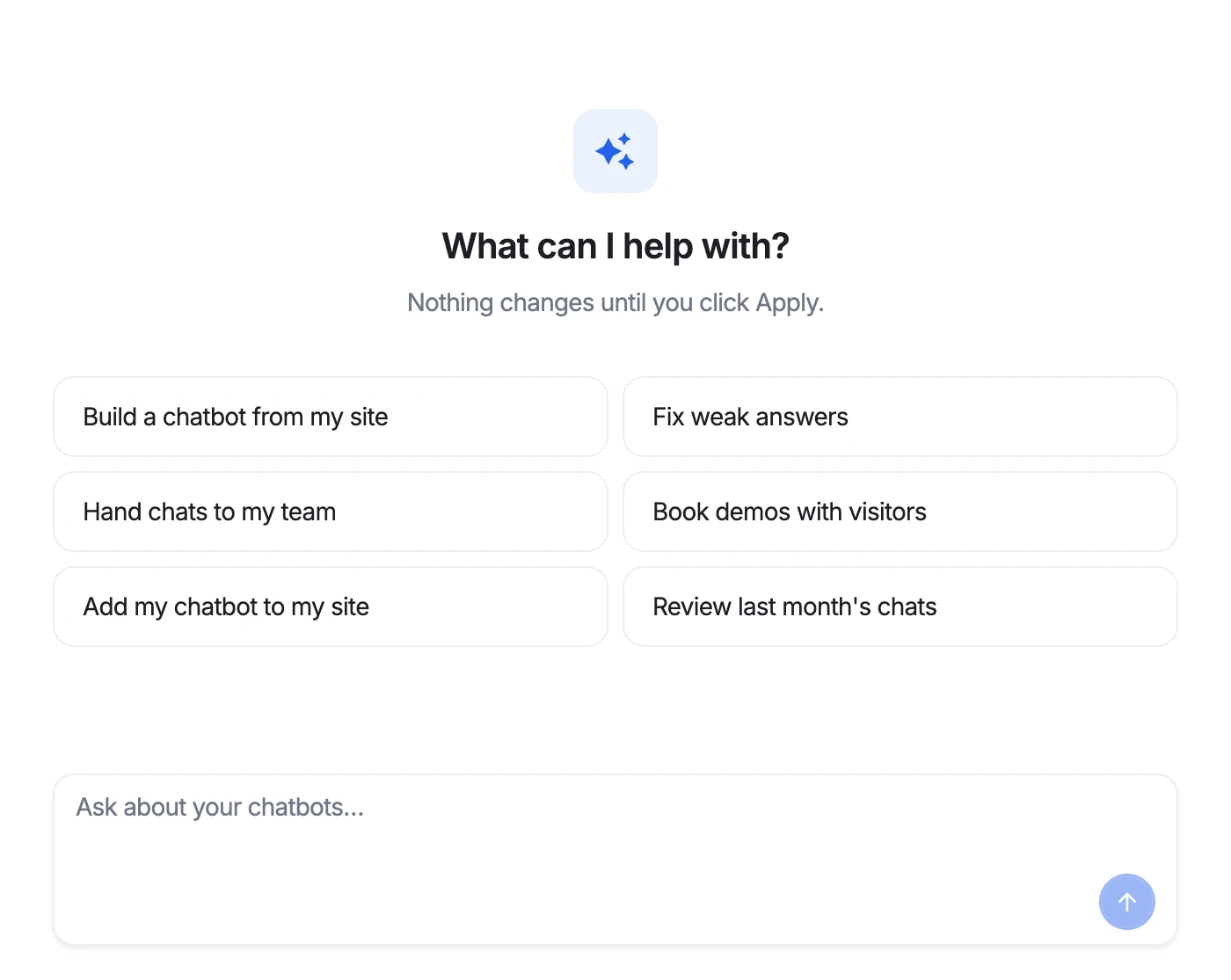
    Ask AI builds, tests and improves your chatbot from a conversation. Give it your website and it reads the sitemap, recommends which pages to use, creates the chatbot, crawls and indexes the pages, and tests real questions with you.

    • Every change waits for you. The assistant proposes each step as a card that shows what it will do and what it uses, such as a chatbot slot or your page allowance, and runs it only when you apply it.
    • It fixes weak answers. Ask it to improve an answer and it checks the sources and passages behind it, explains what went wrong, proposes a fix such as a Q&A pair, and re-tests.
    • It teaches the product as it works. Each card names the manual path, like Sources › Add Source › Web, and the step it is on is shown in the app beside the chat.
    • Open it anywhere. Ask AI opens in a panel beside any page, or full screen, and you can attach text files to a chat.
  2. Your chatbot now speaks your visitors' language

    The chat widget and help page now follow each visitor's language, read from their browser or from your website, with 21 languages to offer.

    • Choose your languages. Pick a default and the languages you offer in the new Languages settings, including formal German.
    • Write your texts per language. Welcome messages, suggested questions, the input placeholder and the lead form, including its confirmation message, each have a version per language. Anything left empty shows your default language.
    • Built-in text is translated for you. Buttons, errors, handoff notices and the server's own replies, such as fallbacks and ticket confirmations, appear in the visitor's language.
    • Never guessed from messages. The language comes from the browser or the page, not from a short message like “ok”, so a consent line never appears in the wrong language.
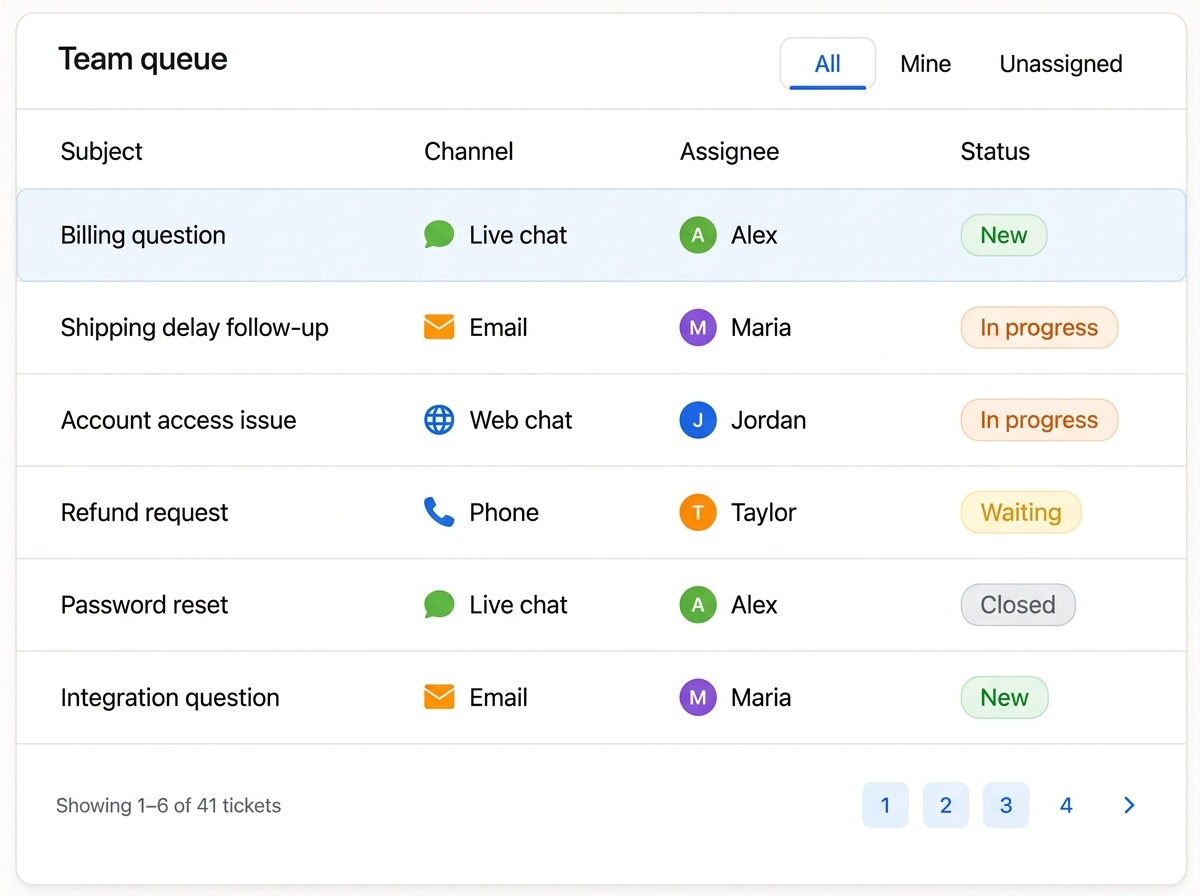
  3. A help desk team queue listing tickets by subject, channel, assignee and status

    Help desk and Answer Quality on every plan

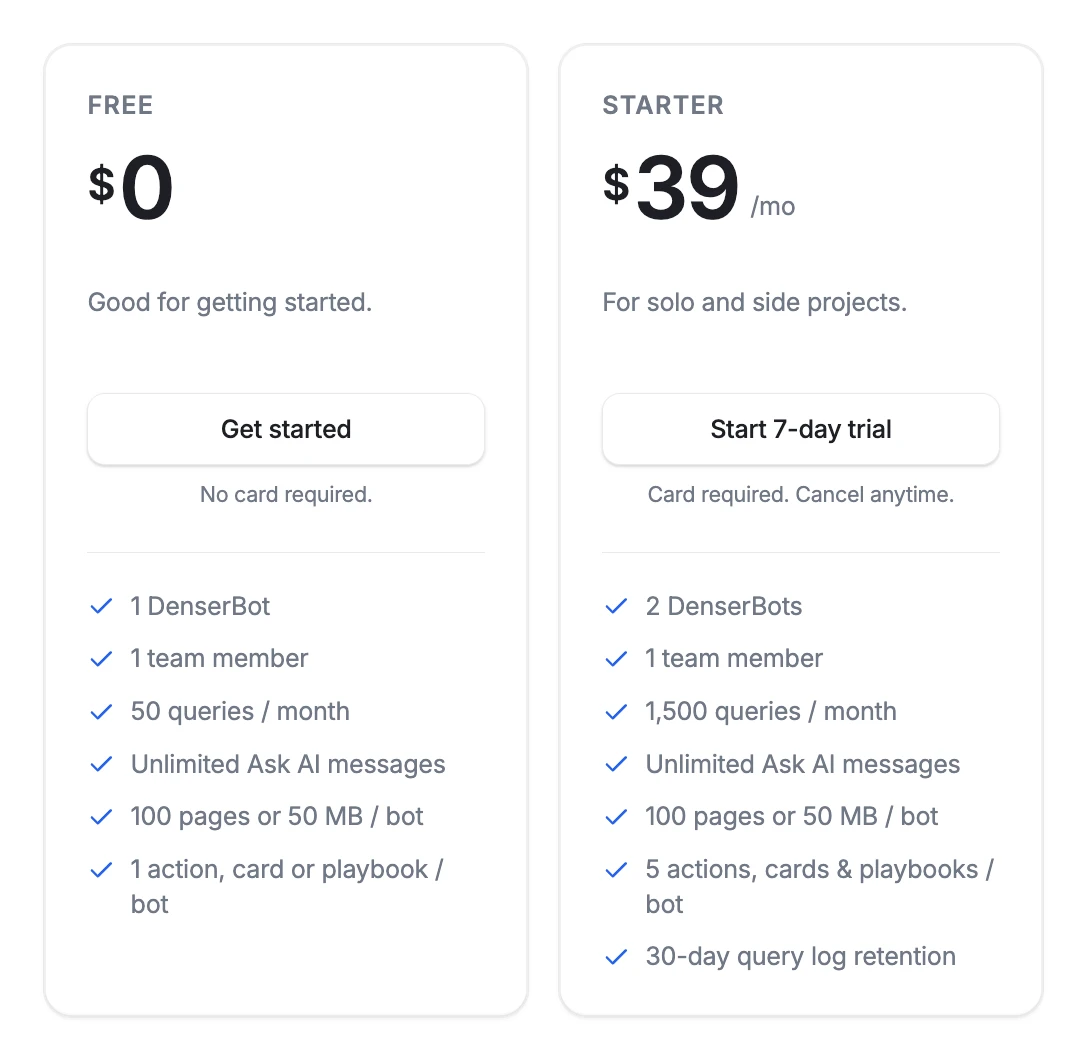
    The help desk, the help desk actions and Answer Quality are now available on every plan, so every team can hand conversations to a person and see which questions their chatbot missed.

    • Help desk for live takeover, tickets and a shared team queue.
    • Help desk actions that open tickets in Intercom, HubSpot and Freshdesk.
    • Answer Quality, which grades replies and groups the questions your content never covered.
    Explore the help desk →
  4. Per-user conversations in the API

    The query API now keeps a conversation per end user, so your own app can continue a chat and list a user's history.

    • Pass your own user ID with a question, and conversations are stored under it.
    • Continue a conversation with the conversation ID each response returns, along with message IDs.
    • List a user's conversations through the new conversations API, and try it from the API panel in the dashboard.
  5. AI chat for Shopify storefronts

    Connect a Shopify store and your chatbot sells and supports on the storefront: it searches live products, builds the cart and answers order questions.

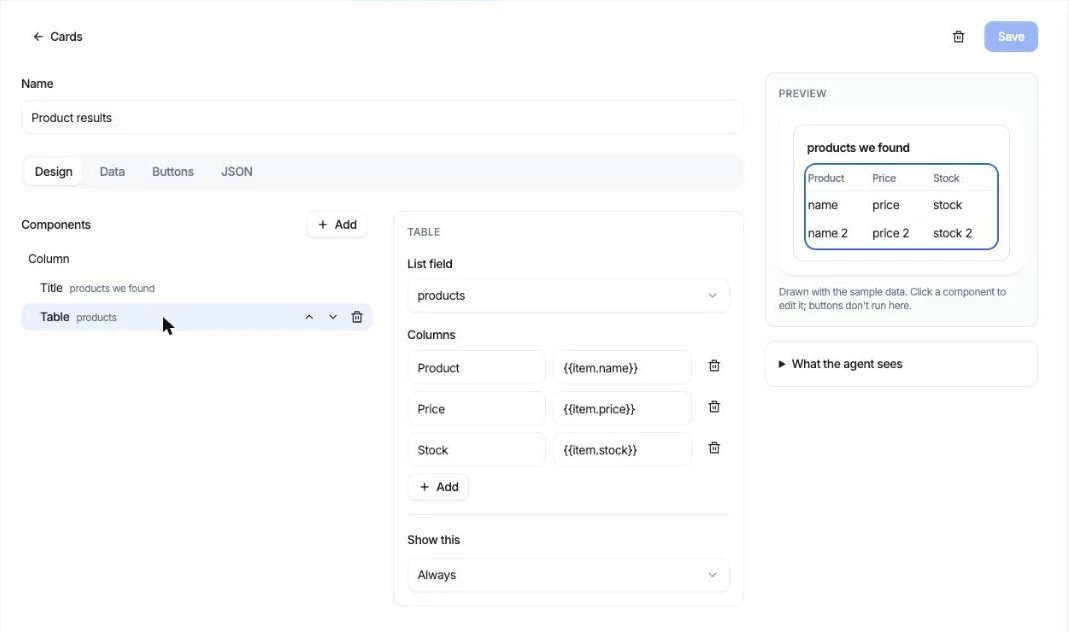
    • Live product search with compact product cards shoppers can browse and add to the cart.
    • Cart and checkout in the chat, with a docked cart that collapses out of the way.
    • Order status, with recent orders for signed-in shoppers and an order tracking form for guests.
    • Install from Shopify, with a Shopify tab in the playground, its own channel switch, and billing through Shopify.
    See the Shopify AI chatbot →
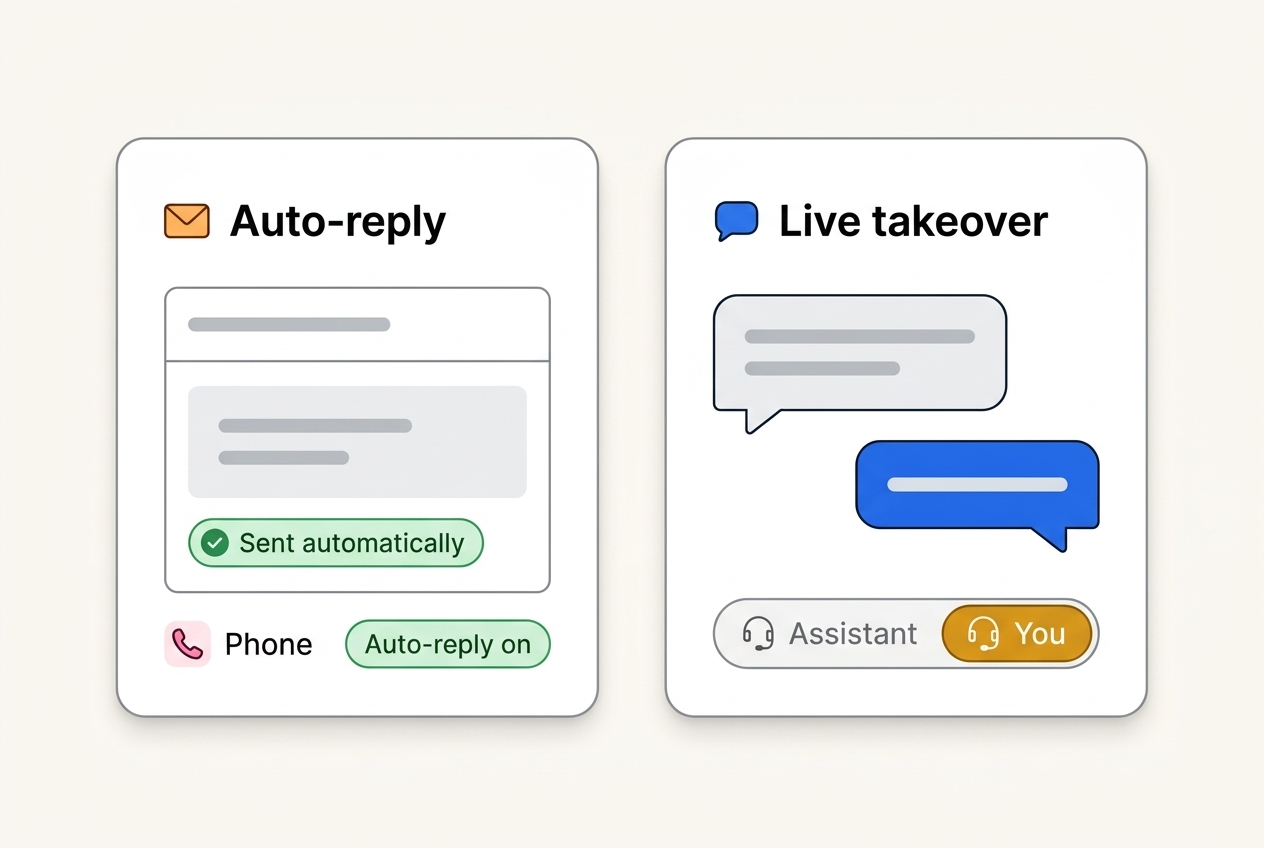
  6. An email marked as sent automatically, next to a live chat taken over by a person

    An AI agent for your support inbox

    Forward your support email to your chatbot and it answers customers by email, replying in the same thread.

    • Reply from your own address. Set it up in three steps with a single DNS record, and give one chatbot several addresses.
    • Draft for approval or send automatically. Start with drafts your team approves, and switch to automatic replies when you trust them.
    • A ticket for every email, with the help desk's replies threaded back to the customer.
    • Ignores mail a machine sent, such as bounces and auto-replies, and alerts you to bounces and complaints.
    Explore the AI email agent →
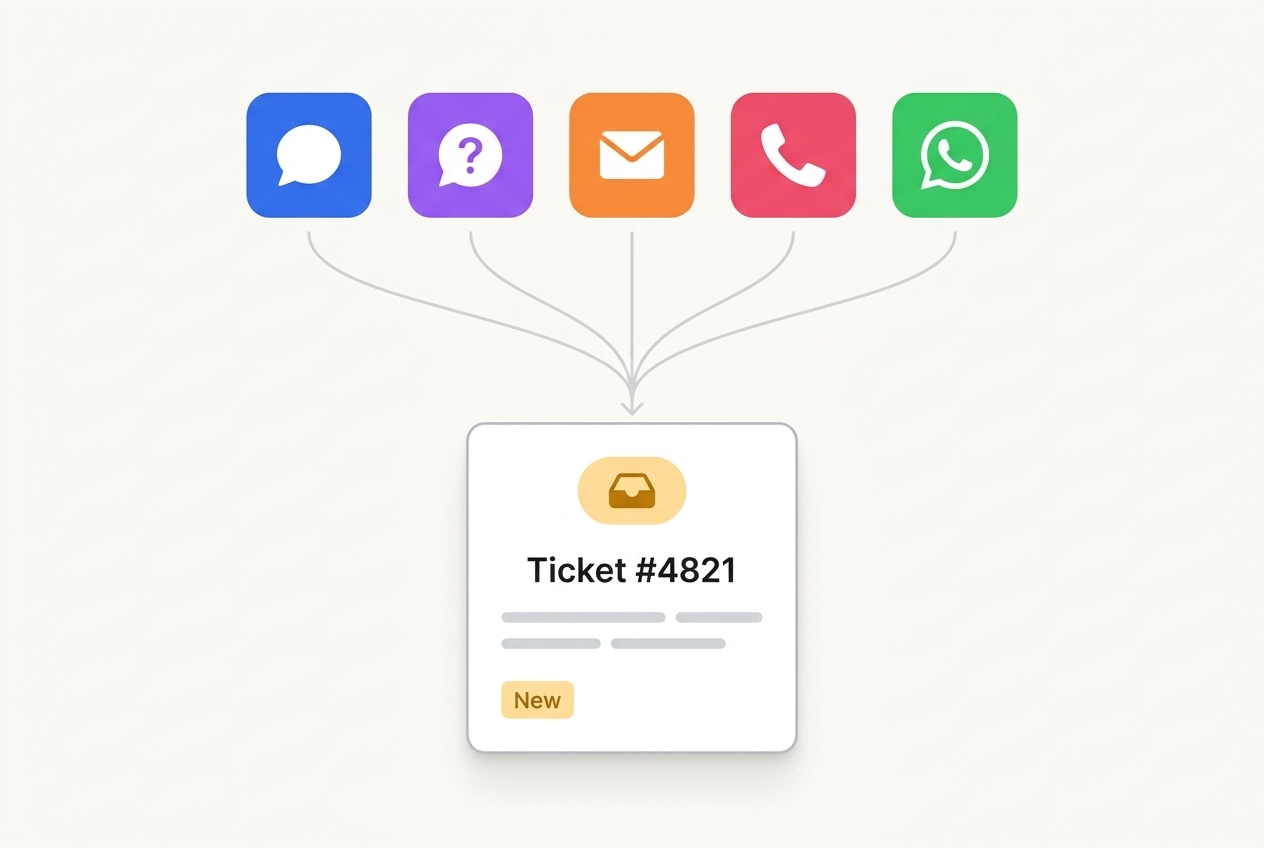
  7. Conversations from several channels arriving as tickets in one help desk

    A help desk for the conversations that need a person

    When the chatbot cannot help, your team picks up in the help desk with the whole conversation in front of them.

    • Take over any conversation and answer as a person, then hand it back to the assistant.
    • A shared ticket queue with AI-written summaries, sorted by last activity, with unread replies marked.
    • Assign tickets to teammates, who get an email, and filter the queue by chatbot, owner and status.
    • See who is there. Know whether the customer is still waiting, with a chime when they write.
    Explore the help desk →
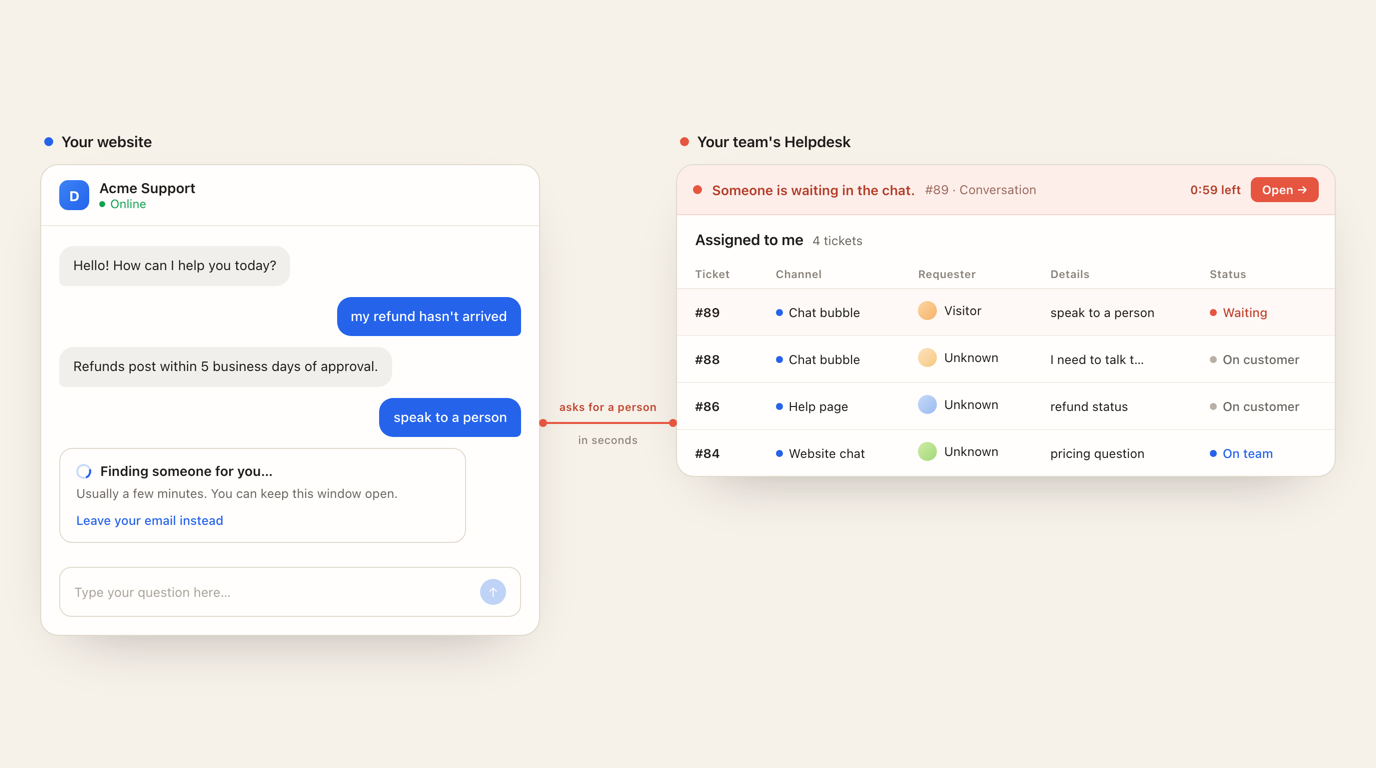
  8. A visitor asking for a person in the chat, and the help desk showing who is waiting

    “Talk to a person”, built in

    Customers can ask for a person in any chat. Denser finds someone on your team, and offers a ticket when nobody is free.

    • Live chat first. The request waits for an available teammate, two minutes by default, and appears on every help desk page.
    • A ticket when nobody is free, so the customer leaves an email instead of waiting.
    • Hand back to the assistant when the person is done, or when they step away.
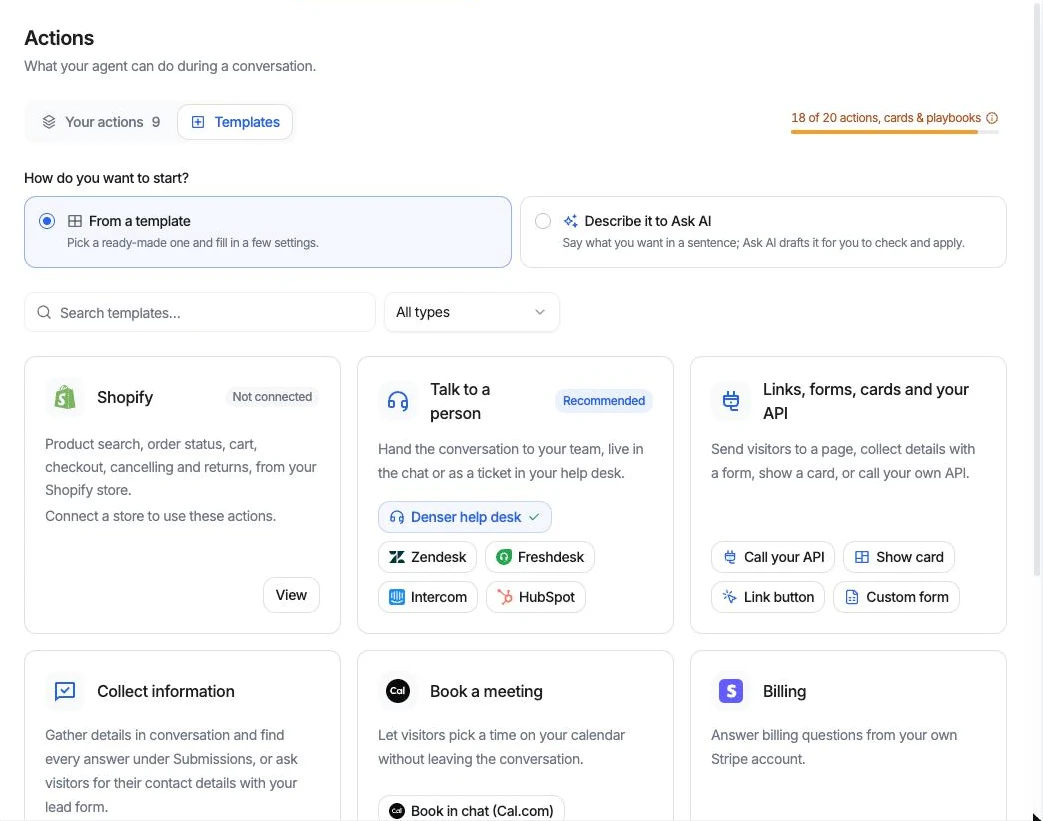
    • A new “Talk to a person” action replaces the old handoff settings.
    Explore the help desk →
  9. A guided way to create a chatbot

    Creating a chatbot is now three clear steps: sources, channels and review.

    • Choose public or private up front: a chatbot for website visitors, or an assistant for your team.
    • Preview each channel before you pick it, and review crawled pages as a folder tree.
    • A getting-started checklist and clear next steps while the index builds.
    • A redesigned chatbot list built around each chatbot's sources, channels and counts.
  10. The API channel

    Use your chatbot from your own app through the REST API, with keys managed beside every other channel.

    • Create and manage API keys in the chatbot's API channel.
    • Run a real request from the dashboard and copy it into your code.
  11. A hosted help page for your chatbot

    Give your chatbot a full-page help center that you can share as a link or serve on your own domain.

    • Your brand, with your logo, favicon and hero image, and its own light and dark mode.
    • Sources beside the answer. Citations open next to the chat.
    • Recent chats in a sidebar, and links and cards of your choice.
    • On your domain through a proxy, with share links pointing to the help page.
  12. Require the lead form before chatting

    You can now ask visitors for their details before they start a conversation.

    • Required mode shows the lead form first and keeps the input locked until it is submitted.