

PDF Meaning Explained: File Format, Uses, and Benefits

PDF meaning refers to Portable Document Format, a file format built to keep documents consistent when you share, open, or print them.
A PDF preserves the layout, fonts, images, graphics, and page structure, so the file looks the same on Windows, macOS, browsers, and phones.
People use PDFs for contracts, reports, invoices, manuals, forms, e-books, and other documents that need stable formatting.
In this guide, you'll learn what a PDF file is, why the format matters, where it's used, which PDF file types exist, and how to use chat with PDF when you have a long document.
What Is a PDF File (Portable Document Format)?#
A PDF file is a document file format that preserves a document's layout so it looks consistent no matter where you open it.
Portable Document Format was created by Adobe to make electronic documents easier to share, regardless of the software, hardware, or operating system used to view them.
A PDF can hold more than plain text. The PDF format can include fonts, images, links, buttons, form fields, audio, video, business logic, and digital signatures when the document requires them.
The main value of a PDF file format is layout control. If you save a report, invoice, brochure, or policy as a PDF, the spacing, page layout, graphics, and fonts remain fixed for the next user.
This is different from editable formats such as Microsoft Word or Google Docs. Those tools are built for writing and editing, while PDF documents are built for stable viewing, sharing, printing, and signing.
The PDF specification also supports both simple and complex documents. A single file can contain a two-page form, a 200-page manual, a scanned contract, or a polished report with images, tables, and vector graphics.
PDF readers and PDF viewers make this format easy to access. Many browsers can view PDF files, and tools like Adobe Reader, Adobe Acrobat, Preview on macOS, and built-in mobile viewers let you open, print, annotate, and save documents.
A Short History of PDF#
The history of PDF started with Adobe Systems and Dr. John Warnock's Camelot Project. The idea was to let people capture documents from any application, send electronic versions anywhere, and view or print them on any machine.
By 1992, the Camelot Project had developed into PDF, and the format became part of the shift from paper documents to digital files. Merriam-Webster lists 1992 as the first known use of "PDF" in this meaning.
The PDF format later became an open standard maintained through ISO. The current ISO 32000-2:2020 standard describes PDF 2.0 as a digital format for representing electronic documents, enabling users to exchange and view them regardless of the environment in which they were created, viewed, or printed.
Key Benefits of PDF Files#
The key benefits of PDF files come from stability, portability, security, and broad software support. A PDF is a single document that can be opened, shared, printed, signed, searched, and stored without relying on the original app that created it.
PDFs working well give you several practical advantages:
- Universal compatibility: You can view PDF files on different devices, browsers, and operating systems with a PDF reader or built-in viewer.
- Layout preservation: The PDF file keeps fonts, images, page breaks, margins, and other elements in place.
- Easy sharing: A PDF usually travels as a single file, which makes it easier to send reports, forms, contracts, and manuals.
- Printing control: The format maintains page size and visual structure, making print results more predictable.
- Security features: PDF tools can add password protection, encryption, permission controls, redaction, and digital signatures.
- Interactive options: PDF forms can include form fields, checkboxes, buttons, links, and other input areas.
- File conversion: You can convert PDF files to other formats or create PDFs from Microsoft Word, Google Docs, images, scans, and web pages.
- Review support: Annotation tools let users comment on, highlight, and mark up documents without changing the original layout.
Common Uses for PDF Documents#
PDF documents are ideal when you need a stable file that looks the same after it leaves the original software. These are the most common ways people use the PDF file format in daily work.
Business Documents#
Businesses use PDFs for reports, invoices, proposals, contracts, slide decks, sales materials, and internal policies. The format protects the layout, so charts, logos, page numbers, tables, and images don't change after someone opens the file.
A PDF also works well when several people need to review the same version. You can send a single file to a client, vendor, or manager to reduce confusion about formatting changes.
Legal Documents#
Legal documents often require stable wording, a clear page structure, signatures, and secure sharing controls. PDFs are common for contracts, agreements, policies, signed records, disclosures, and scanned paper documents.
Security features also matter here. You can password-protect a PDF, add encryption, use digital signatures, redact sensitive data, and control whether users can edit, copy, or print the file.
E-Books and Manuals#
PDFs work well for e-books and manuals when layout and page order matter. This includes user guides, training manuals, product instructions, technical documentation, and visual handbooks. The format is practical when you want readers to see the same pages in the same order.
Forms and Applications#
PDF forms let people fill out information inside the file. Interactive forms can include form fields, checkboxes, dropdowns, buttons, signature blocks, and required fields.
This makes PDFs useful for applications, intake forms, tax forms, HR forms, consent forms, and client questionnaires. You can create the form once, send it as a file, and collect structured information without having to rebuild the document in another tool.
Academic and Research Files#
Academic users often share papers, journals, lecture notes, syllabi, study materials, and research files as PDFs. The format keeps citations, images, tables, formulas, footnotes, and page references stable.
PDFs are also practical for reading and review. You can highlight text, add comments, search pages, cite page numbers, and save marked-up copies for later use.
Common PDF File Types and Standards#
PDF standards exist because different workflows need different rules. A standard PDF is enough for daily sharing, but archiving, printing, and accessibility can require more specific file types.
ISO 32000-2 lists specialized PDF standards, including PDF/X for prepress printing, PDF/A for archiving digital documents, and PDF/UA for accessible PDF documents and processors.
PDF/A#
PDF/A is used for long-term archiving and preservation. It's designed for records that need to remain readable years later, such as legal files, government records, financial documents, and historical archives.
This format limits features that could break over time. The aim is to preserve the document's content, structure, fonts, and visual appearance without relying on outside resources.
PDF/X#
PDF/X is used for print production and prepress workflows. It helps designers, publishers, and print vendors prepare files with more predictable output for brochures, posters, packaging, magazines, and marketing materials.
Print workflows often need tighter control over color, fonts, images, bleed, and page boxes. PDF/X helps reduce production errors before a file reaches the printer.
PDF/UA#
PDF/UA is used for accessibility-focused PDF documents. The "UA" stands for Universal Access, and the standard supports PDF files that people can read with assistive technologies.
Accessible PDFs often rely on tagged PDFs. Tags give screen readers and other assistive technologies the structure they need to understand headings, paragraphs, tables, lists, images, and reading order.
Standard PDF#
A standard PDF is the everyday format most users know. It's used for viewing, sharing, printing, signing, saving, and storing documents.
Use a standard PDF when you don't need a special archive, print, or accessibility standard. It works for invoices, reports, proposals, guides, receipts, presentations, scanned documents, and files shared through online platforms.
How to Work With Long PDF Documents#
Long PDF documents can be hard to scan when you need one clause, number, table, or detail. A 10-page file may be easy to read, but a 200-page contract, research paper, manual, or financial report needs a more organized workflow.
A basic PDF reader can help you search for exact words, but it can't always explain what a section means, compare details between files, or pull out the answer you need with source context.
A better workflow starts with direct questions. With Denser, you can upload PDF files, DOCX files, PPTX files, or connect to Google Drive, then ask questions in natural language and get answers with page citations you can verify.
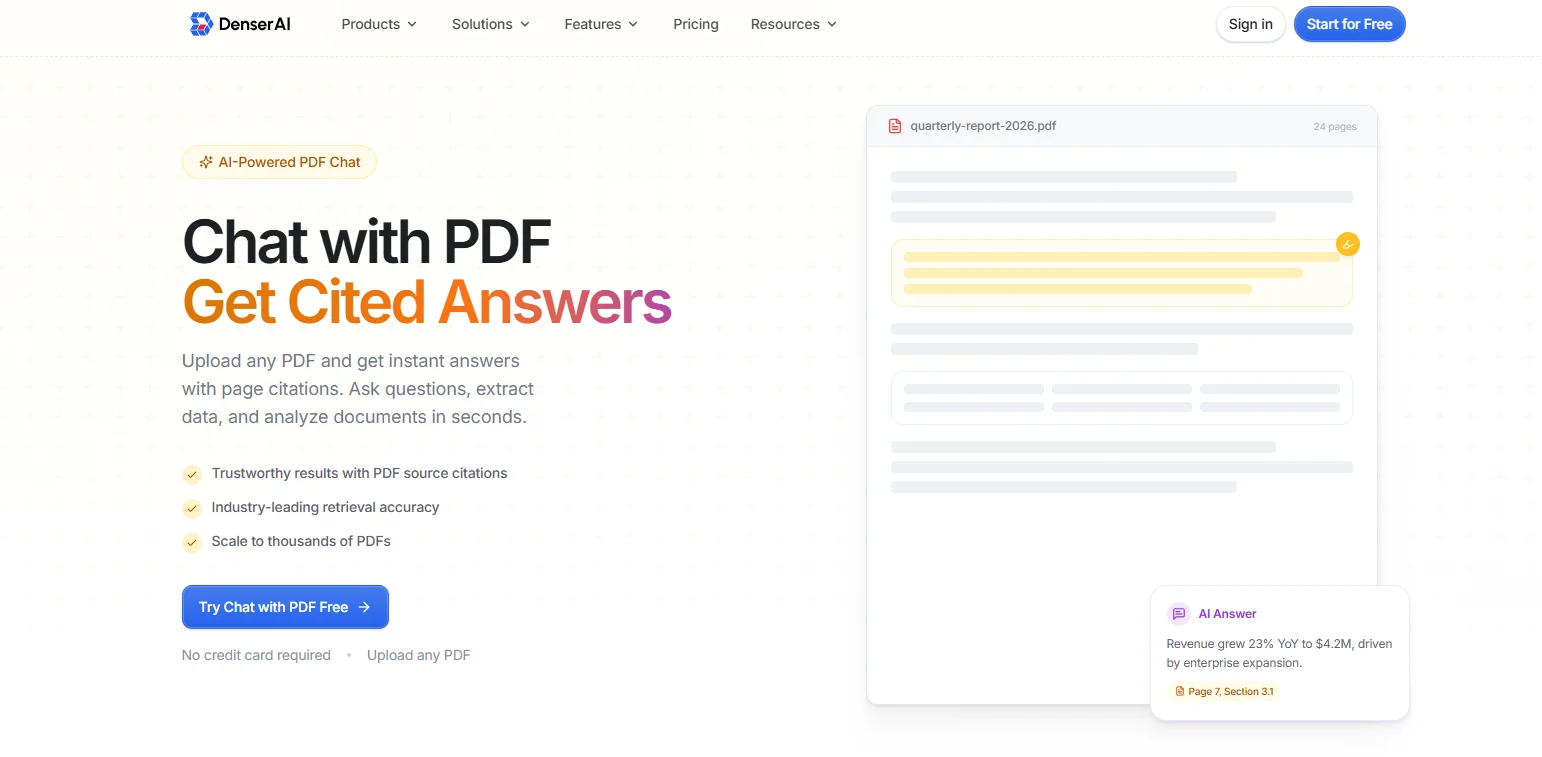
This is useful when you need to:
- Find a clause, date, number, or definition inside a long file.
- Summarize a PDF section without manually reading every page.
- Compare details from several PDF documents at once.
- Extract data from contracts, reports, manuals, research papers, or business files.
- Check the source page behind each answer before you use it.
Denser also supports multi-document analysis, so you can compare reports, review policy versions, or search a full document collection from one chat.
Start for free and ask questions from your PDF without manually searching for every page!
Are PDF Files Secure?#
PDF files can be secure when you use the right settings and share them carefully. The format supports password protection, encryption, permission controls, redaction, and digital signatures for sensitive documents.
Password protection can stop people from opening a file unless they have the password. Permission controls can limit actions such as printing, copying, or editing.
Encryption protects the document's data so unauthorized users can't easily read it. Redaction permanently removes sensitive text or images when performed with proper PDF tools.
Digital signatures help show who signed a document and whether the file has changed after signing. For legal documents, contracts, policies, and financial records, this creates a clearer trust record.
PDF vs Microsoft Word and Other File Types#
PDF, Microsoft Word, Google Docs, images, and other formats each serve a different purpose. Use PDF when the finished document needs to keep its layout, and use editable formats when you need to draft, revise, or collaborate.
| File Type | Main Use | Editing | Layout Control | Common Example |
|---|---|---|---|---|
| Sharing, viewing, printing, signing, and storing finished documents | Limited unless you use PDF tools | High | Contracts, invoices, reports, manuals | |
| Microsoft Word | Writing and editing text-heavy documents | High | Medium | Drafts, letters, proposals, outlines |
| Google Docs | Cloud-based drafting and collaboration | High | Medium | Shared drafts, team notes, live documents |
| Image Files | Sharing visual content | Low | High for the image itself | Scans, screenshots, photos |
| HTML/Web Pages | Publishing content online | High for web editors | Flexible | Blog posts, landing pages, help articles |
A PDF is the better choice when you want the file to look the same regardless of the software used to open it. Microsoft Word and Google Docs are better when you need to modify text, track changes, or keep writing with other users.
You can also convert documents between formats. For example, you can create PDFs from Word files, export Google Docs as PDF documents, convert images into PDFs, or convert PDF files back into editable formats when you have the right tools.
Need Answers From a PDF? Try Denser#
Knowing the meaning of PDF helps you understand the file format. Working with long PDF documents is different because the answer you need may sit inside a clause, table, chart, appendix, scanned page, or footnote.
With Denser, you can upload a PDF and ask questions in plain English. Each answer includes page citations, so you can check the source before you use the information in a report, decision, contract review, or research workflow.
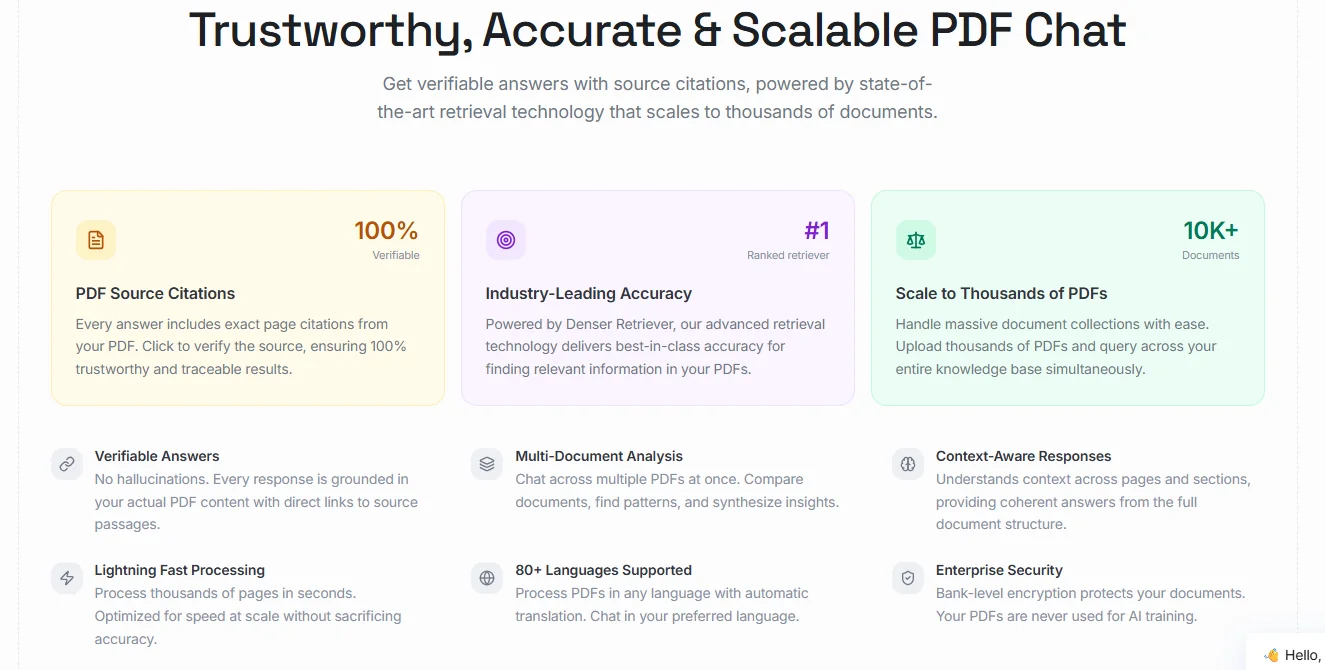
You can use the AI-powered chat with PDF for:
- Legal files: Find clauses, renewal terms, obligations, and differences between document versions.
- Business reports: Pull out numbers, risks, summaries, metrics, and financial details.
- Academic PDFs: Review methods, findings, citations, definitions, and study notes faster.
- Manuals and guides: Search procedures, troubleshooting steps, tables, safety notes, and product details.
- Internal documents: Turn policies, SOPs, training files, and process documents into answers you can verify.
Denser also supports larger document workflows. You can work with PDFs, DOCX files, PPTX files, or Google Drive documents, then ask questions across your files when one PDF doesn't hold the full answer.
Try Denser for free and make long PDF documents easier to search, summarize, and verify!
Chat With Your PDFs Instead of Scrolling Them#
A PDF reader shows you the document. Denser answers questions about it. Upload a contract, a manual, or a folder of research papers, then ask in plain language. Every answer highlights the exact passage it came from, so you can verify it in one click rather than trusting it.
Try it on your own file with the free Chat with PDF tool, see how it works, or start a 7-day trial for larger document sets and team access.
FAQs About PDF Meaning#
Is PDF an open standard?#
Yes, PDF is an open standard. The current PDF 2.0 standard is ISO 32000-2:2020, and ISO lists it as current after its 2026 review. The PDF Association also maintains resources around the PDF specification and related standards.
What is the difference between PDF and Microsoft Word?#
A PDF is built to preserve layout for sharing, viewing, printing, and signing. Microsoft Word is built for writing, editing, and revising documents. Use PDF when the file is finished or needs stable formatting. Use Microsoft Word when you still need to edit text, track changes, or collaborate on a draft.
What does chat with PDF mean?#
Chat with PDF means using an AI tool to ask questions about a PDF file and get answers from the document. Instead of manually searching pages, you ask for a summary, clause, date, number, definition, or comparison. It can speed up review when you work with contracts, research papers, reports, manuals, policies, or training files.
How do I make a PDF file?#
You can create a PDF by exporting or saving a document as a PDF in a tool such as Microsoft Word or Google Docs. Many operating systems also include a print-to-PDF option, which lets you save a web page, document, or image as a PDF.