

AI PDF Data Extraction: How It Works + 6 Tools to Compare

PDF data is hard to use when it's embedded in tables, scans, multi-column layouts, invoices, or long reports.
A PDF file may look clean on screen, but the data inside it is often trapped in a format that slows search, analysis, export, and automation.
Manual methods still force teams to copy values by hand, recheck line items, fix OCR (optical character recognition) errors, and clean up output before it is useful.
AI PDF data extraction helps teams pull usable information faster and with fewer manual steps. Teams can use it to chat with PDF files, extract key details, and move from raw documents to usable output much faster.
In this guide, you'll see how the process works and which tools are worth comparing in 2026.
TL;DR#
These are the top AI PDF data extraction tools worth comparing in 2026.
-
Adobe PDF Extract API
-
Parseur
-
Docparser
-
Nanonets
-
PDF.ai
What Is AI PDF Data Extraction?#
AI PDF data extraction is the process of using AI to pull usable data from a PDF instead of treating the file as static text or an image. It usually combines OCR, layout analysis, machine learning, and sometimes NLP to extract text, values, tables, passages, and other elements from PDF files.
Simple text extraction only pulls the text it can find. Structured data extraction goes further. It tries to understand the document type, detect headings, tables, and columns, and determine the reading order, then return the extracted data in a format your workflows can use.
That difference matters when many organizations need to pull data from invoices, reports, legal documents, or other unstructured data without relying on manual data entry.
How AI PDF Data Extraction Works#
Most tools follow the same broad process, even when the interface looks different. First, the system reads the PDF, then detects the structure, pulls the right data, and returns an output you can use in business workflows or within existing systems.
The steps below explain that process.
Step 1: Read the PDF#
The first step is reading the PDF itself. If the file is native, the system can often extract text directly. If it is a scan, an image-based file, or a poor-quality upload, the tool usually needs OCR to convert the page into machine-readable text.
This is why scanned PDFs and scanned documents need more work than a clean digital file. OCR has to detect characters, preserve enough layout to keep fields meaningful, and avoid losing key information hidden inside invoices, reports, or forms.
Better tools can also handle split documents, multiple files, and mixed file types without forcing teams back into manual methods.
Step 2: Detect Structure#
Once the file is readable, the tool must detect its structure. That includes tables, headings, paragraphs, images, columns, and the page's natural reading order.
Without this step, text extracted from a complex PDF can turn into a mess of broken lines and values in the wrong order.
Structure detection is what makes document parsing useful for more than raw text extraction. It helps the system identify patterns, keep columns aligned, detect table boundaries, and separate the part you want from the rest of the document.
That matters most when you work with financial statements, invoices, legal documents, or any PDF format where layout carries meaning.
Step 3: Pull the Right Data#
Once the structure is clear, the system can pull the data. That may mean fields, tables, passages, values, line items, or direct answers from the document.
Some tools focus on structured extraction into JSON or CSV. Others are built to extract findings and cited answers from long PDFs or multiple PDFs.
This is where AI data extraction starts to beat manual data entry. Instead of copying values cell by cell or page by page, the tool can extract key fields, apply rules to them, and prepare them for automation, export, or review.
It can also fine-tune output using schemas, field instructions, or custom extraction rules, depending on the platform.
Step 4: Return Output You Can Use#
The final step is returning the result in a usable format. That may be JSON for an API workflow, CSV for spreadsheets, Excel for reporting, or citation-backed answers for analysis and review.
The right output depends on the roles.
-
Non-technical teams may want Excel, Google Sheets, or cloud storage integrations.
-
Developer teams may want API access and automation in existing systems.
-
Analysis-heavy teams may care more about cited answers, extracted insights, and clean summaries from their own documents.
6 Best AI PDF Data Extraction Tools Worth Comparing#
These tools were chosen based on how well they handle core extraction work, not just how polished the UI looks.
The comparison focuses on OCR, structured data output, table handling, API access, workflow integration, support for multiple PDFs, and the product's usefulness for analysis or automation after extraction.
The list also covers different workflow styles. Some tools are built for document AI APIs, others for non-technical teams that want drag-and-drop automation, and still others for users who want to extract key insights and cited answers from complex PDFs.
Let's go deeper into each one.
1. Denser#
Denser is an AI document and retrieval platform built for teams that need to extract findings, answers, and cited details from complex PDFs and multi-document collections.
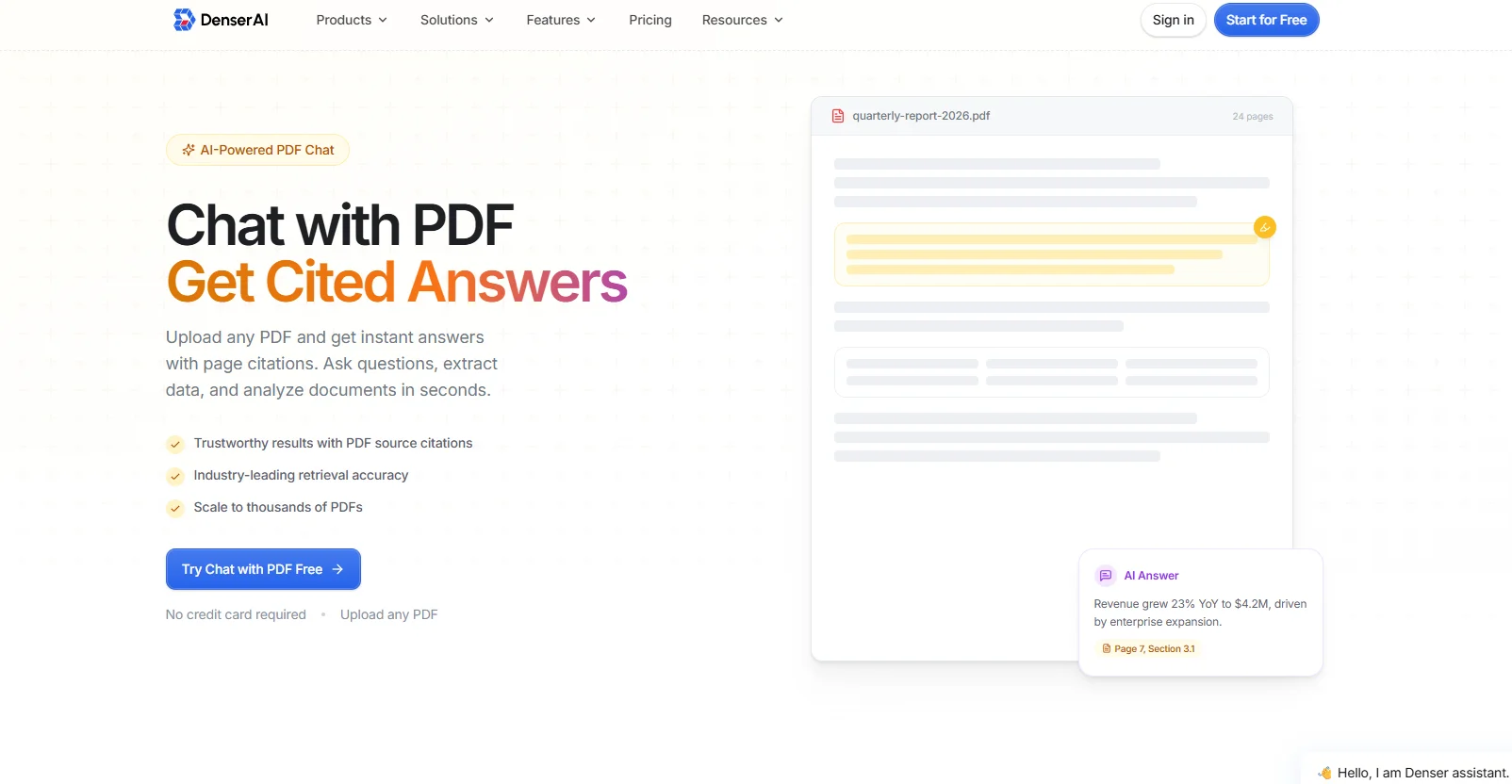
Instead of stopping at text extracted from one file, Denser turns PDF content into a searchable knowledge base where you can upload documents, ask questions in natural language, and get citation-backed answers tied to exact pages.
It supports long PDFs, multiple PDFs, and larger document sets without pushing users into a one-file chat workflow.
That makes Denser a practical fit for analysis-heavy work, not only raw extraction.
You can pull key information from contracts, reports, manuals, and research papers, then verify the answer against cited sources.
It also supports drag-and-drop uploads, Google Drive, 80+ languages, and multi-document analysis, helping teams create a document workflow for their own documents rather than treating every PDF as a separate task.
Key Features#
-
Exact page citations in every answer
-
Query thousands of documents in one knowledge base
-
Multi-document analysis for related PDFs
-
Google Drive connection plus drag-and-drop upload
-
80+ languages supported
-
Natural-language answers for complex PDFs
Pros:#
-
Easy setup speeds up deployment
-
Exact citations make answers easier to verify
-
One workspace can handle website, PDF, and document knowledge tasks
Good Fit For#
Teams that need to extract insights, analyze multiple PDFs, and verify answers against the source, rather than only export fields to CSV or Excel.
Start for free and extract cited answers from complex PDFs in minutes!
2. Adobe PDF Extract API#
Adobe PDF Extract API is a document AI API built for programmatic extraction from native and scanned PDFs.
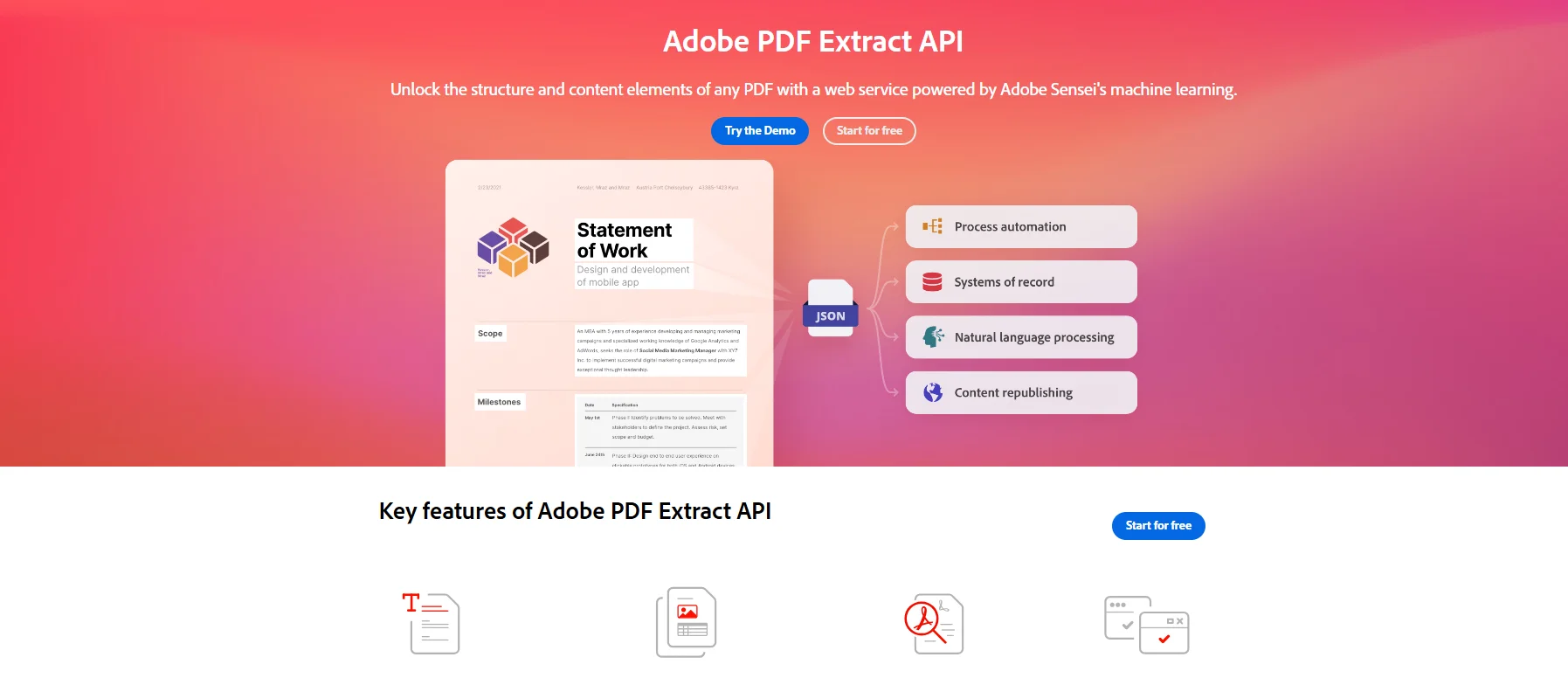
Image Source: developer.adobe.com
It focuses on structured output, not chat. The service extracts text, tables, images, headings, paragraphs, and reading order into structured JSON, with optional CSV or XLSX files for tables and PNG files for images.
It is a clean fit when developers need to parse PDFs into data for downstream automation, RPA, NLP, or analysis workflows.
Adobe also handles multi-column layouts, page-spanning content, and scanned PDFs without requiring custom ML templates.
The main limitation is that it is more API-first than end-user-friendly, so non-technical teams may need extra build work before the extracted data is ready for daily use.
Key Features#
-
Structured JSON output
-
Optional CSV or XLSX table export
-
Reading-order and layout analysis
-
Native and scanned PDF support
-
REST API plus SDK samples
Good Fit For#
Teams that need API-based PDF extraction into JSON, CSV, or Excel and plan to connect the output to other systems or automation pipelines.
3. Parseur#
Parseur is an AI data extraction platform built for automating document parsing from PDFs, emails, scans, and attachments.
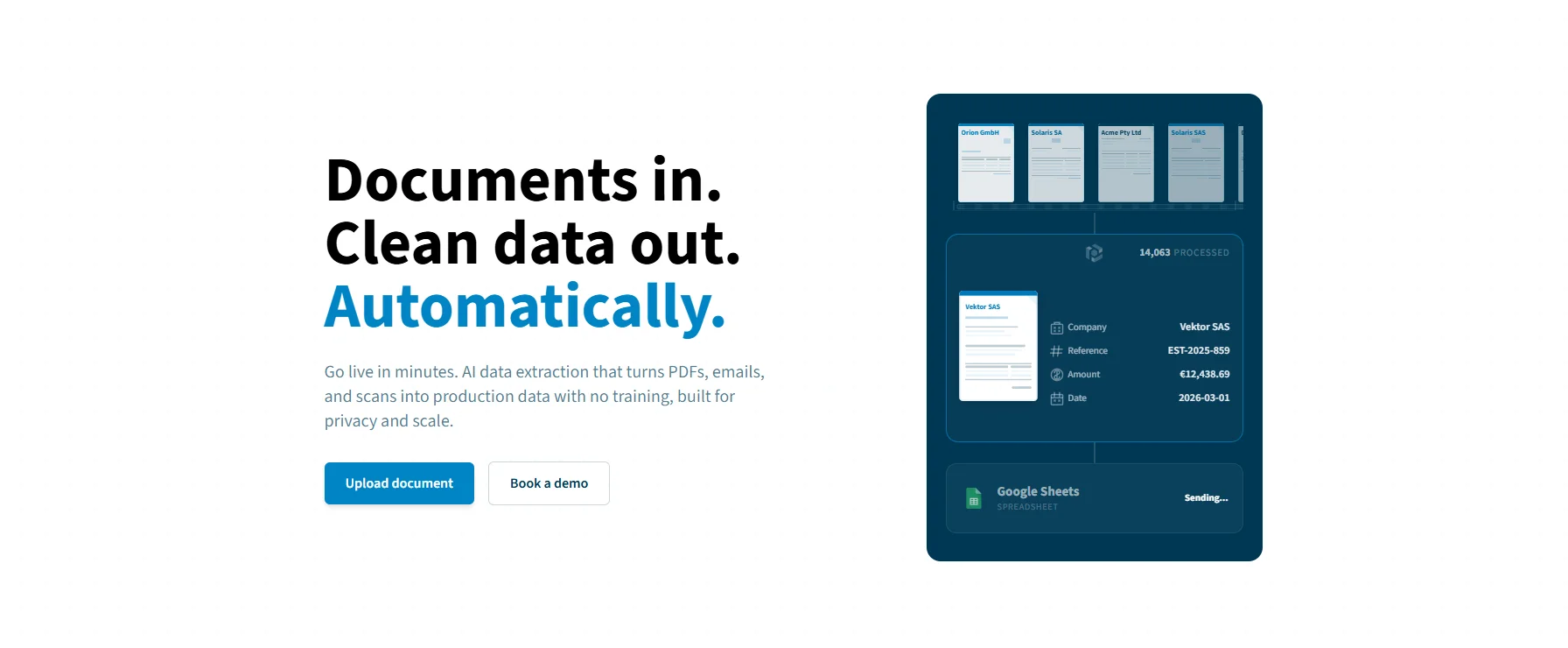
Image Source: parseur.com
It is designed for production workflows where teams want to upload documents, identify fields, and send extracted data into other apps or cloud storage without writing code.
Parseur supports API input, email forwarding, and direct exports into downstream workflows, which makes it useful for invoices, logistics files, and repetitive business document processing.
Key Features#
-
AI-based data extraction from PDFs, emails, and scans
-
API input, email forwarding, and file upload
-
Real-time delivery to apps and workflows
-
Google Sheets and app integrations
-
EU-hosted processing and privacy controls
Good Fit For#
Non-technical teams that want to automate PDF data extraction, real-time export, and low-code workflow setup for invoices, forms, or email attachments.
4. Docparser#
Docparser is a document parsing tool focused on rules-based extraction from PDFs, Word files, and images.
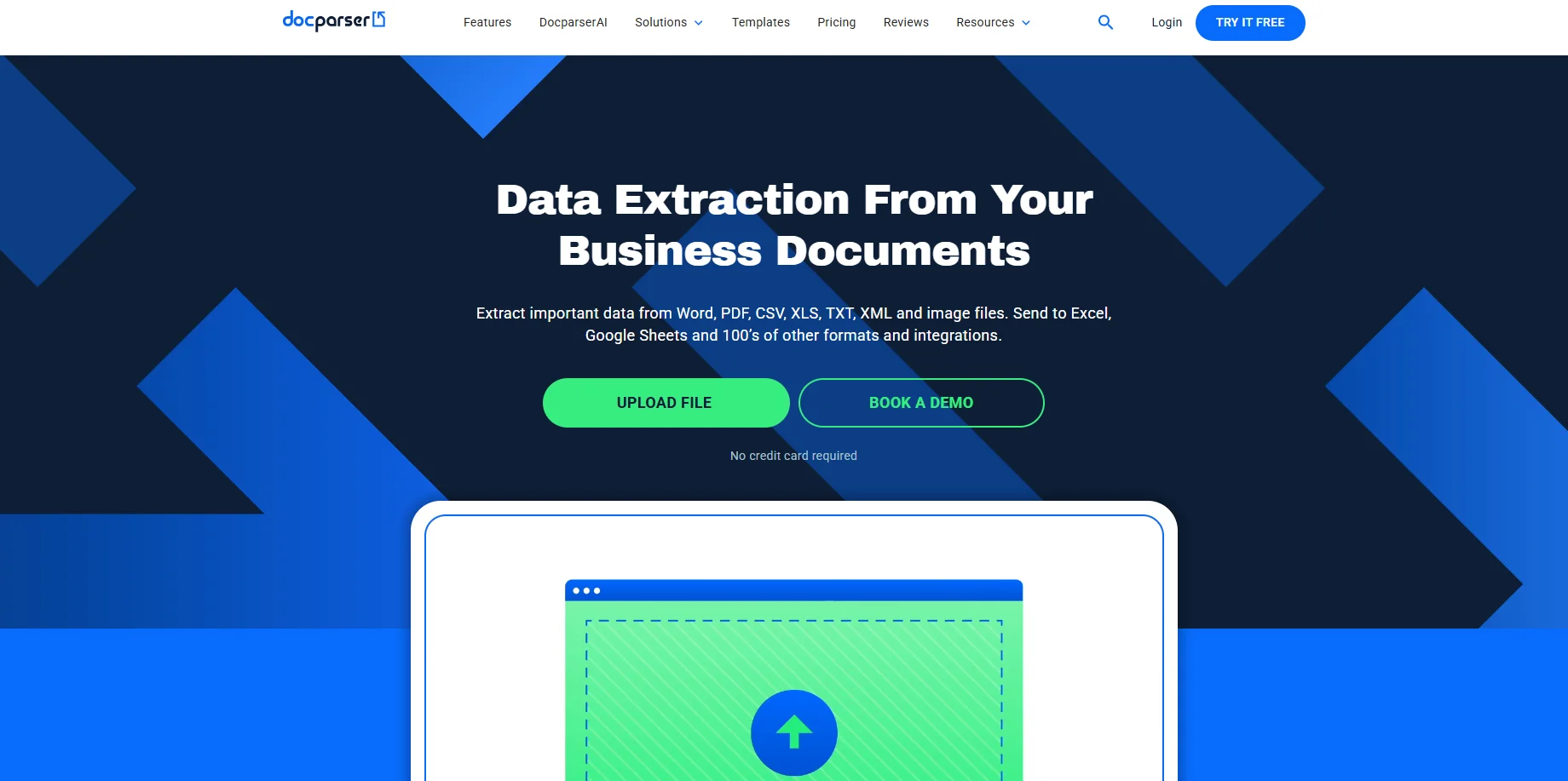
Image Source: docparser.com
It uses zonal OCR, pattern recognition, anchor keywords, and newer AI-assisted parsing to convert documents into structured outputs for downstream use.
Teams can upload or import files from cloud storage, use email or REST API input, and build parsers for tables, repeating fields, and document-specific rules.
Docparser also adds rule creation help, checkbox detection, handwriting support, and document identification.
Key Features#
-
Zonal OCR and pattern-based parsing
-
Cloud storage, email, and REST API input
-
Table and repeating text extraction
-
AI-assisted rule creation and checkbox recognition
-
Supports PDFs, images, receipts, and handwritten documents
Good Fit For#
Teams that want predictable document parsing rules, table extraction, and workflow automation from PDFs, images, and forms.
5. Nanonets#
Nanonets is an AI-powered document OCR and extraction platform designed for document-heavy business processes, such as accounts payable, underwriting, and financial operations.
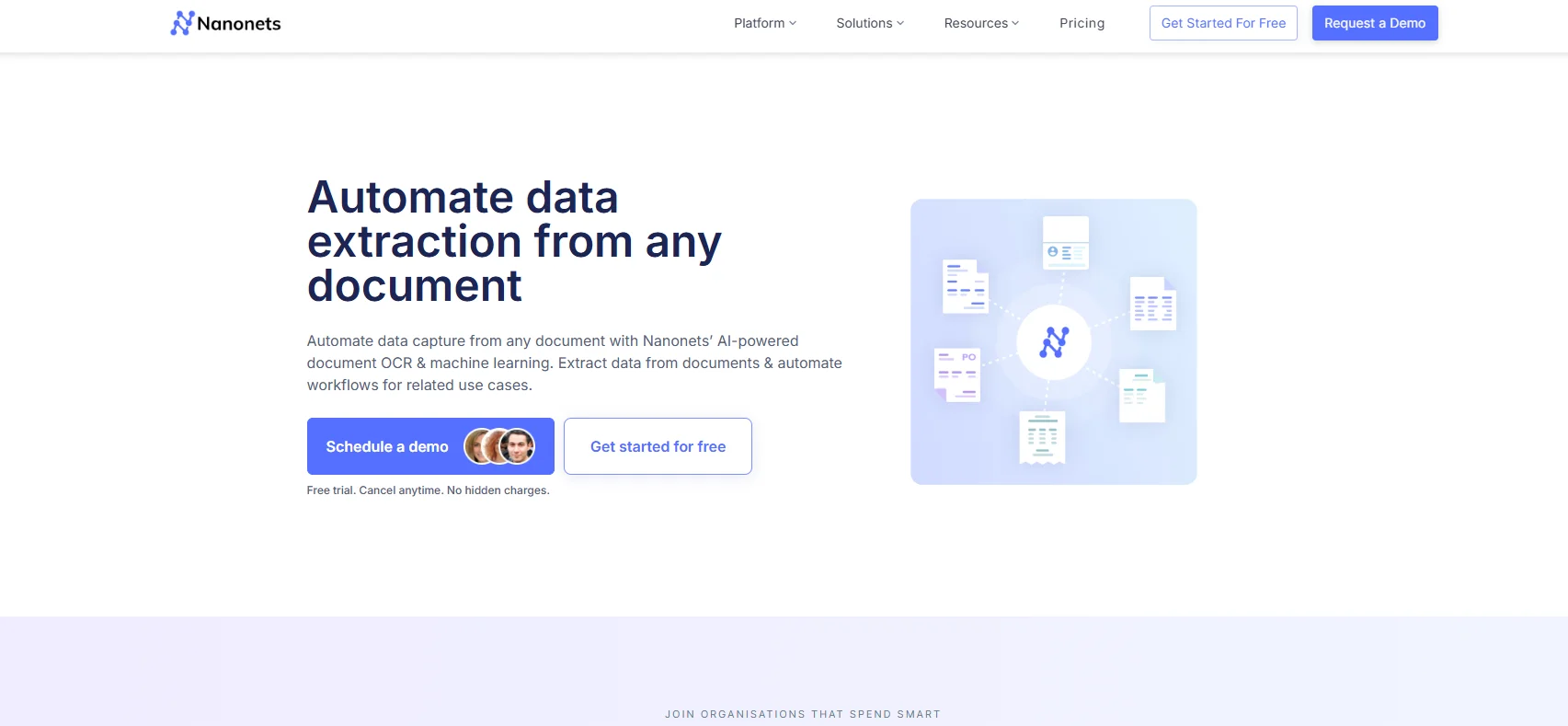
Image Source: nanonets.com
It uses OCR and AI models to extract structured content from documents and return output in formats such as Markdown, HTML, JSON, or CSV.
It also supports automated workflows, real-time streaming, and API-based document extraction for teams that want more than a one-off parser.
Nanonets is built to process invoices, reports, credit card statements, tax statements, and many other business document types, with enough flexibility for both no-code operations and developer-led automation.
Key Features#
-
AI OCR and machine learning extraction
-
JSON, CSV, HTML, and Markdown outputs
-
Real-time streaming via API
-
Handles many document types, including financial files
-
Automated document workflows
Good Fit For#
Businesses that want AI data extraction plus automation for invoices, reports, financial documents, and other high-volume document processing workflows.
6. PDF.ai#
PDF.ai is built around chat-based document analysis, plus an API layer for parsing, extracting, splitting, and workflow-based queries.
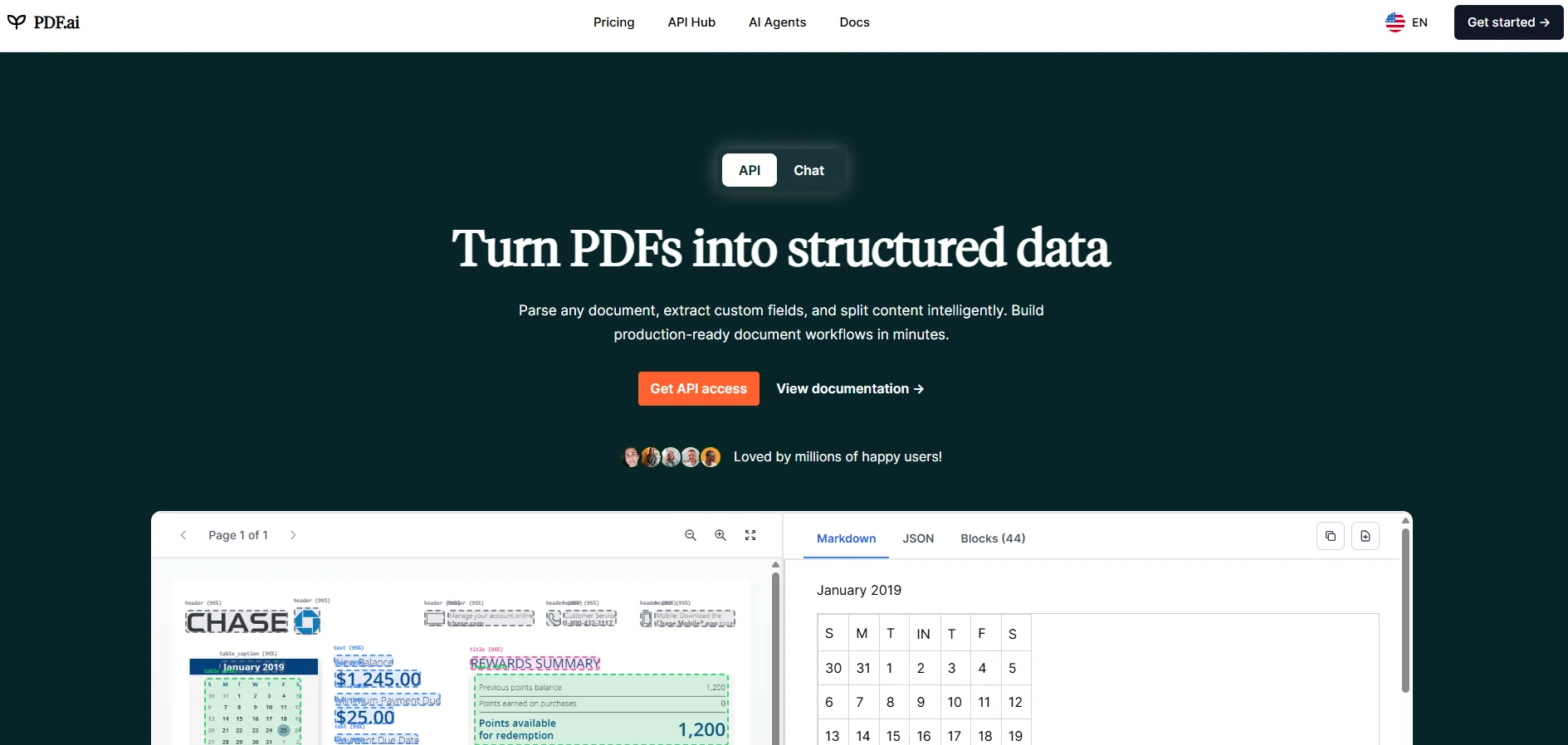
Image Source: pdf.ai
The newer API supports OCR, schema-based JSON extraction, splitting large PDF files into smaller documents, and direct querying of uploaded PDFs.
The product also supports chat across all PDFs, making it more useful for multi-file exploration than a single-file upload flow.
Key Features#
-
Parse, extract, split, and ask API endpoints
-
OCR and JSON schema-based extraction
-
Chat with all PDFs in one account
-
Playground for testing uploads and schemas
-
Free start with PDF upload
Good Fit For#
Teams that want PDF analysis plus API-based parse, extract, and split features, especially when the workflow includes multiple PDFs and direct Q&A.
How to Choose the Right Tool for Your Workflow#
Start with the output you actually need.
If the goal is structured data for automation, look for JSON, CSV, Excel, rule logic, and seamless integration with Google Sheets, cloud storage, or other existing systems.
If the goal is analysis, choose a tool that can answer questions, pull key information, and keep the answer tied to the page with citations.
Then check the document conditions.
Some tools handle scanned PDFs, poor-quality images, and mixed document types better than others. Some are built for invoices and line items. Others are built for reports, long PDFs, multiple PDFs, and complex document collections.
The document type decides whether you need rule-based parsing, document AI, or a cited analysis tool.
Finally, look at the team using it.
Non-technical teams usually need drag-and-drop uploads, easier automation, and clear exports. Developer teams may want API control, schemas, and workflow routing.
The right tool should reduce manual data entry, improve accuracy, and make the extracted data usable without adding another cleanup step.
Extract Data From PDFs With Cited Answers Using Denser#
Denser turns long PDFs and document collections into something you can search, question, and verify.
You can upload one file or multiple PDFs, ask about clauses, figures, tables, or specific sections, and get answers tied to exact page citations instead of vague summaries.
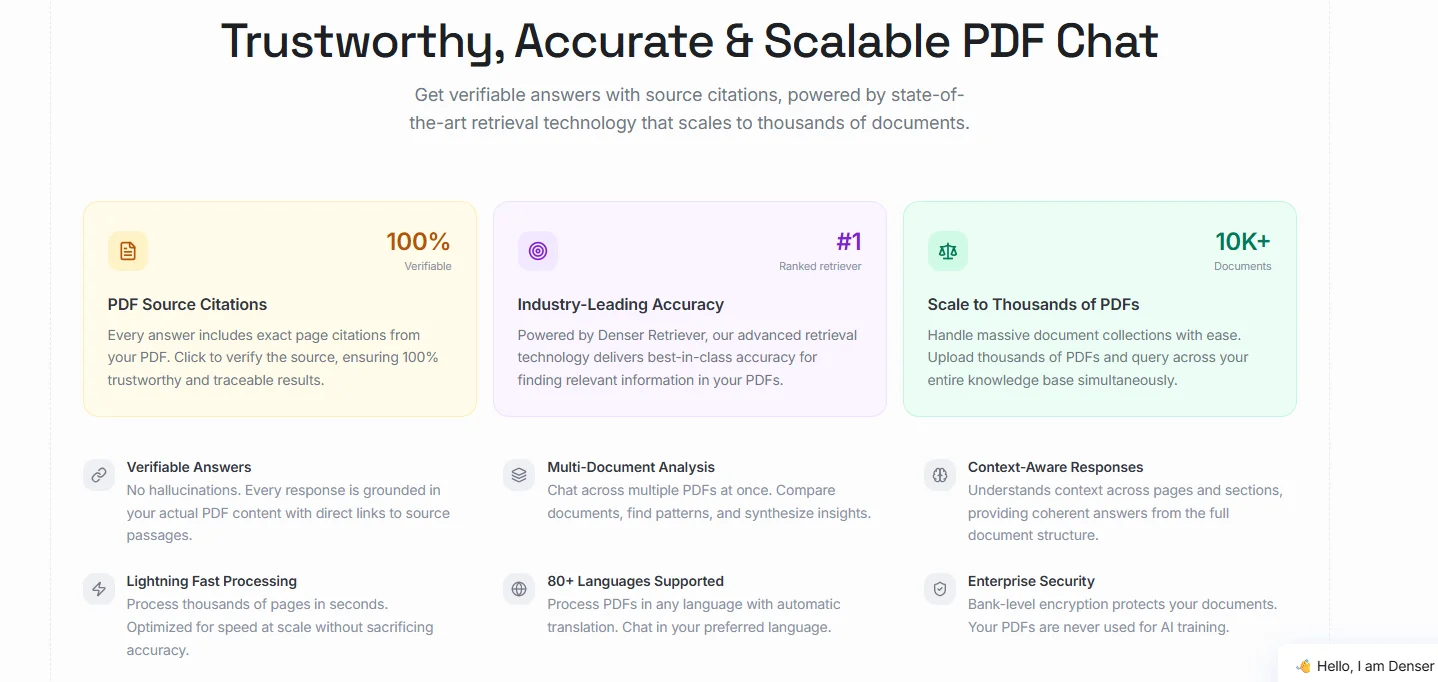
Denser also makes it easier to review and extract findings from multiple PDFs in one place.
You can compare related files, pull findings from reports, manuals, contracts, and research papers, and keep everything in one searchable knowledge base instead of opening documents one by one.
Denser helps you move from raw PDF content to cited answers, document analysis, and verified findings that are easier to use in research, operations, compliance, and day-to-day review work.
Try Denser for free and compare multiple PDFs with cited answers in one searchable workspace!
Chat With Your PDFs Instead of Scrolling Them#
A PDF reader shows you the document. Denser answers questions about it. Upload a contract, a manual, or a folder of research papers, then ask in plain language. Every answer highlights the exact passage it came from, so you can verify it in one click rather than trusting it.
Try it on your own file with the free Chat with PDF tool, see how it works, or start a 7-day trial for larger document sets and team access.
FAQs About AI PDF Data Extraction#
Can AI extract tables from PDF files?#
Yes. Many tools can extract tables from PDFs, but the quality of the output depends on layout detection and OCR. Tools built for structured extraction can return tables as JSON, CSV, or Excel rather than plain text blocks.
Does AI PDF data extraction work on scanned documents?#
Yes, if the tool supports OCR. OCR converts scanned documents and image-based PDFs into searchable text, enabling the system to process the page rather than treating it as a static image.
Which industries use AI PDF data extraction most often?#
Common use cases show up in finance, logistics, operations, legal, insurance, and document-heavy back-office workflows. These are the industries where invoices, reports, forms, statements, and customer documents still create a lot of manual data entry.
What types of documents benefit most from AI PDF data extraction?#
Invoices, reports, legal documents, financial statements, contracts, forms, and other PDF documents with repeatable fields or buried key information benefit the most. The larger and more complex the file, the greater the value of faster extraction and fewer manual review steps.