
AI Slides: Create Professional Presentations from Documents in Minutes

Creating presentations is one of the most time-consuming tasks in the modern workplace. Whether you're preparing a sales pitch, an investor deck, or a training presentation, you often spend hours formatting slides instead of focusing on your message.
Denser AI Slides changes this completely. Upload any document—PDF, Word, PowerPoint, or even plain text—and generate a professional presentation in minutes. But what truly sets it apart is the ability to edit your content before generating slides and fine-tune individual elements after generation.
In this guide, we'll walk you through creating AI-powered presentations step by step and explain why Denser AI Slides offers more control than alternatives like NotebookLM.
What Is Denser AI Slides?#
Denser AI Slides is an intelligent presentation generator built into the Denser AI Studio. It uses advanced AI to:
- Extract key points from your documents automatically
- Generate structured slides with titles, bullet points, and speaker notes
- Create AI images that match your content and visual style
- Add audio narration with natural-sounding voices
- Export to PowerPoint for easy sharing and editing
The key differentiator: you maintain full control throughout the process. Edit the AI-generated outline before creating visuals, then fine-tune any slide element afterward.
How to Create AI Slides: Step-by-Step Guide#
Let's walk through creating a presentation from a document using Denser AI Slides.
Step 1: Upload Your Document#
Start by navigating to the Slides section in Denser AI Studio. Click "Create New Deck" and upload your source document.
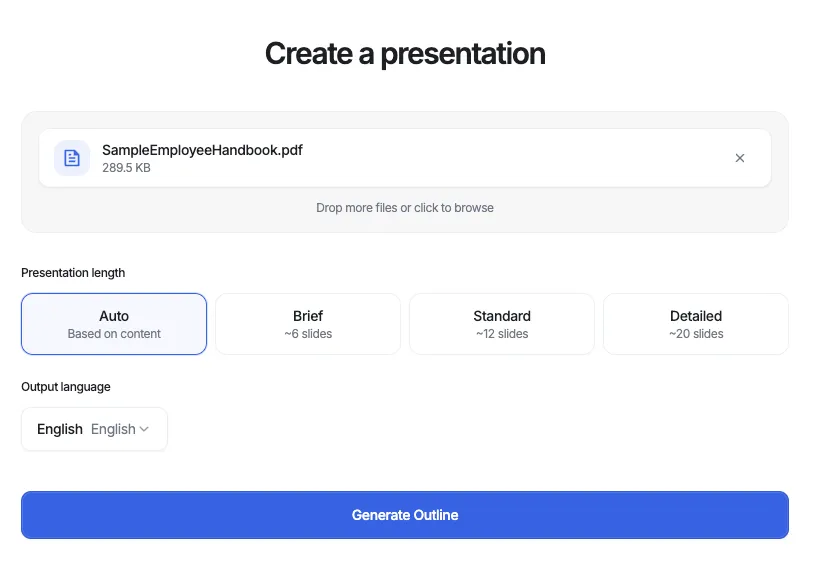
Denser supports multiple formats:
- PDF - Research papers, reports, whitepapers
- DOCX - Word documents, proposals, articles
- PPTX - Existing presentations to enhance
- TXT/MD - Plain text or Markdown files
The AI will process your document and extract the key content to structure your presentation.
Step 2: Review and Edit the Generated Outline#
This is where Denser AI Slides shines. Unlike other tools that generate final slides immediately, Denser shows you an editable outline first.
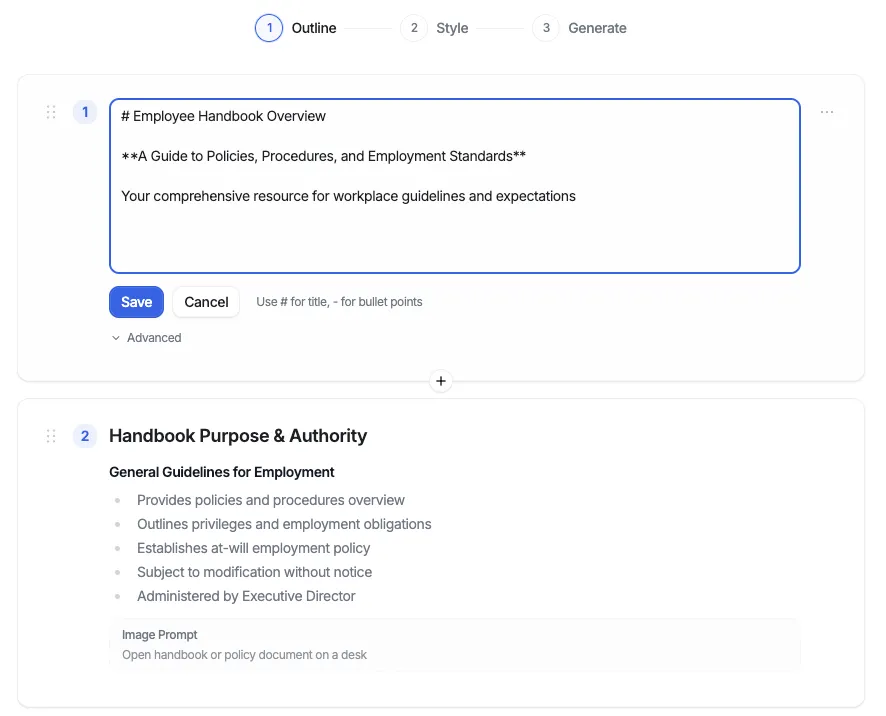
For each slide, you can:
- Edit the title to better capture your message
- Modify bullet points to add, remove, or reword content
- Adjust image prompts to guide the AI's visual generation
- Add speaker notes for your presentation
This pre-generation editing step ensures the final slides match your vision—not just what the AI interpreted from your document.
Step 3: Choose Your Visual Style#
Once you're happy with the content, select a visual style for your presentation. Denser offers several preset styles:
- Playful - Colorful, engaging visuals perfect for creative topics
- Modern - Clean, professional look for business presentations
- Minimalist - Simple, elegant designs that let content shine
- Corporate - Traditional business aesthetic
- Custom - Write your own style prompt for unique results
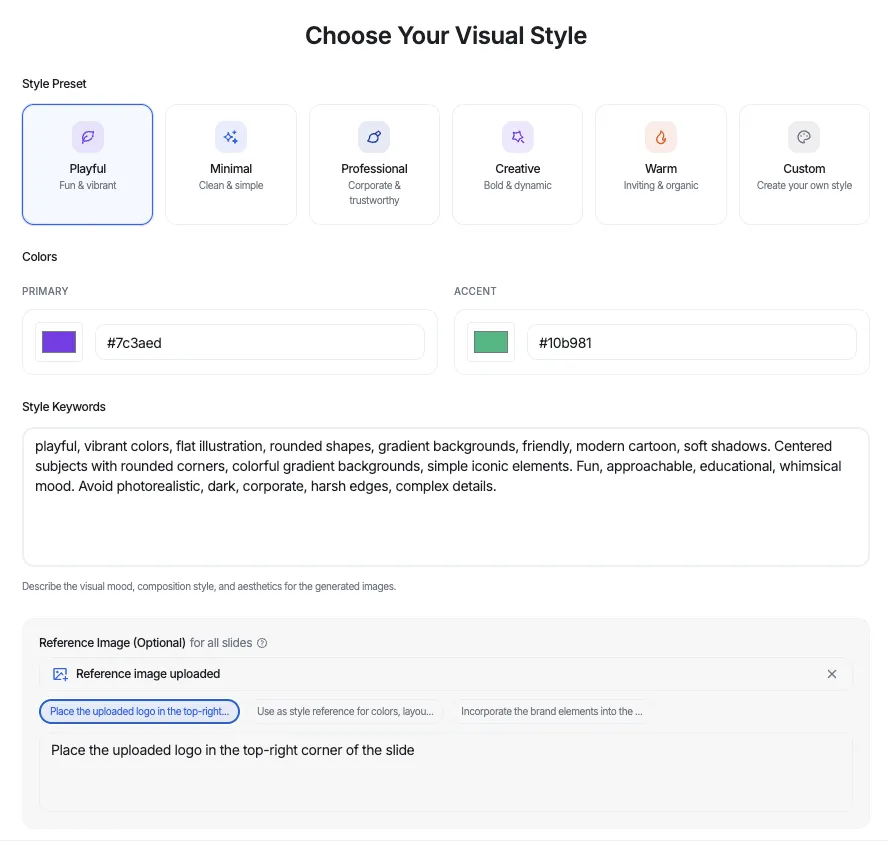
You can also upload a reference image to guide the AI's visual style, ensuring consistency with your brand.
Step 4: Generate AI Images#
Click "Generate Images" and watch as Denser creates custom visuals for each slide. The AI uses your content and style preferences to generate images that reinforce your message.
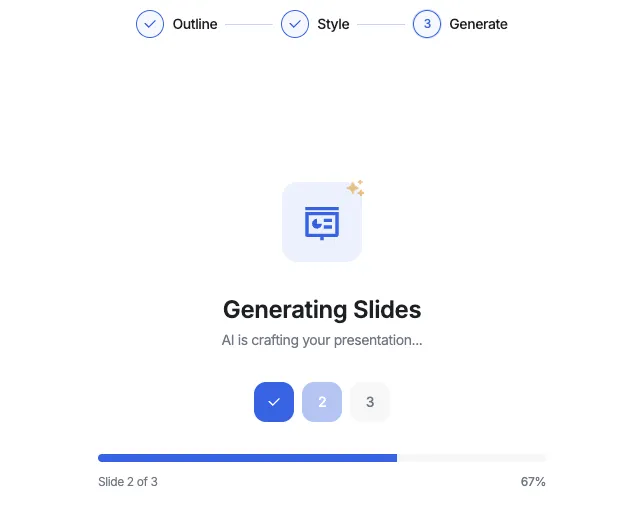
The generation progress shows:
- Which slide is currently being processed
- How many slides are complete
Step 5: Fine-Tune Individual Slides#
Here's another advantage over NotebookLM: after generation, you can fine-tune any individual element.
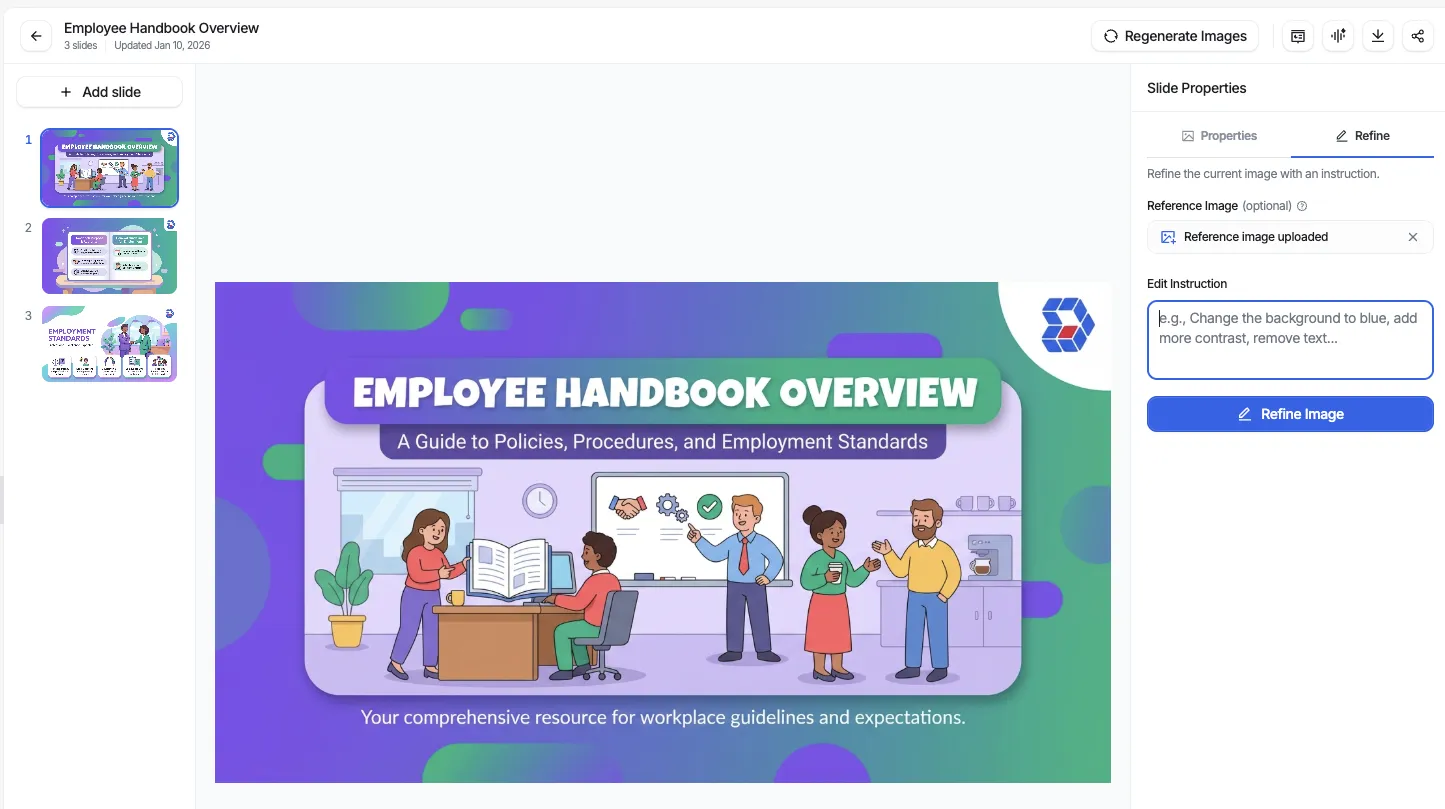
For any slide, you can:
- Regenerate a single image with a new prompt
- Edit specific bullet points without affecting others
- Change the layout (title-content, two-column, image-only)
- Update speaker notes for better delivery
- Replace the image prompt and regenerate just that slide
This granular control means you never have to regenerate the entire deck just to fix one slide.
Step 6: Add Audio Narration (Optional)#
For video presentations or self-paced learning, add AI-generated audio narration.
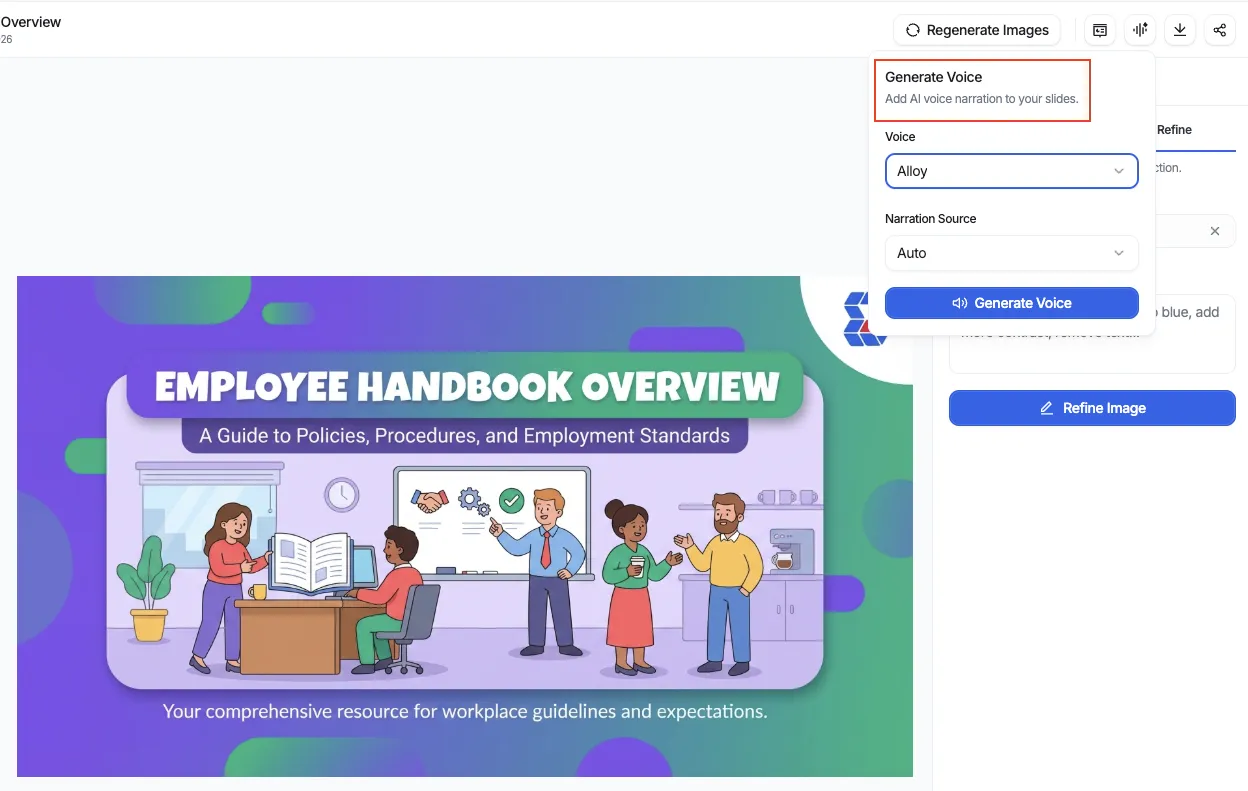
Choose from 6 natural-sounding voices:
- Alloy, Echo, Fable, Onyx, Nova, Shimmer
Select the narration source:
- Auto - AI generates narration from content
- Notes - Use your speaker notes
- Combined - Blend content with notes
Step 7: Share or Export#
Once your presentation is complete, you have several options:
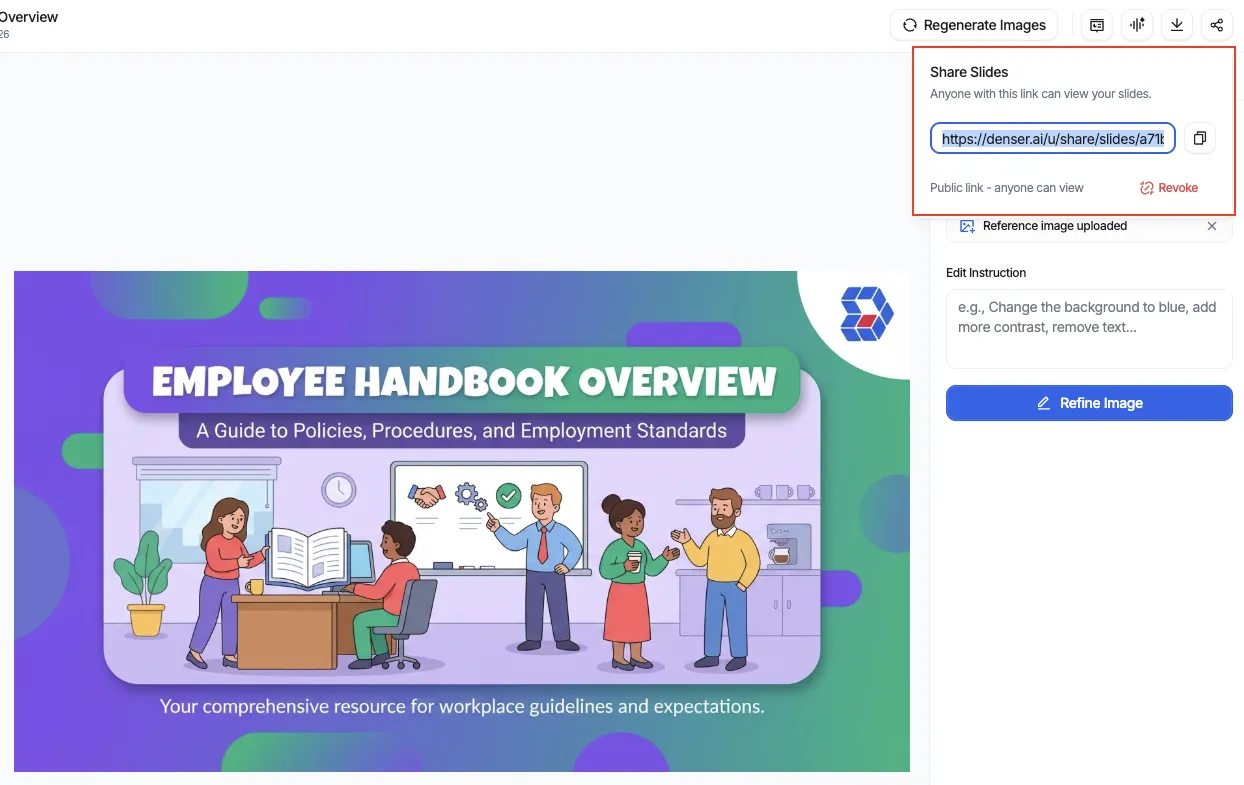
- Present - Full-screen presentation mode with audio playback
- Share Link - Generate a public link for viewers
- Export to PowerPoint - Download as .pptx for editing in Microsoft PowerPoint
Why Denser AI Slides Beats NotebookLM#
Google's NotebookLM can generate presentations from documents, but Denser AI Slides offers significant advantages:
1. Edit Before Generation#
NotebookLM generates slides directly from your document with limited control over the output. Denser shows you the content first, letting you:
- Remove irrelevant sections
- Reword key messages
- Add missing points
- Customize image prompts
This prevents the frustrating cycle of regenerating entire presentations when one section isn't right.
2. Fine-Tune Individual Elements#
With NotebookLM, if you don't like one slide, your options are limited. Denser lets you:
- Regenerate a single slide's image
- Edit one bullet point without affecting others
- Change just the title or speaker notes
- Adjust the layout of specific slides
This surgical precision saves time and produces better results.
3. Custom Visual Styles#
NotebookLM uses generic visuals. Denser AI Slides offers:
- Multiple preset visual styles
- Custom style prompts for unique looks
- Reference image uploads for brand consistency
- Per-slide image prompt customization
4. Audio Narration#
Denser includes built-in TTS (text-to-speech) with multiple voice options. Create narrated presentations for:
- Video content
- E-learning modules
- Asynchronous presentations
- Accessibility
5. Export Flexibility#
Export your Denser presentation to:
- PowerPoint (.pptx) for editing and sharing
- Shareable web link
Comparison: Denser AI Slides vs NotebookLM#
| Feature | Denser AI Slides | NotebookLM |
|---|---|---|
| Edit content before generation | Yes | No |
| Fine-tune individual slides | Yes | Limited |
| Custom visual styles | Yes (5+ presets + custom) | No |
| Reference image upload | Yes | No |
| AI image generation | Yes (per-slide) | Basic |
| Audio narration | Yes (6 voices) | No |
| Shareable public links | Yes | Limited |
| Free tier available | Yes | Yes |
Best Practices for AI Slides#
1. Start with Well-Structured Documents#
The AI works best with clearly organized content. Use headings, bullet points, and logical sections in your source document.
2. Review the Outline Carefully#
Take time to edit the generated outline before generating images. This is your chance to shape the narrative.
3. Customize Image Prompts#
Don't accept generic prompts. Edit them to be specific:
- Instead of: "Business meeting"
- Try: "Diverse team collaborating around a modern conference table with laptops and whiteboards"
4. Use Reference Images for Brand Consistency#
Upload an image that represents your brand's visual style. The AI will match this aesthetic across all generated slides.
5. Add Speaker Notes#
Even if you're not using audio narration, speaker notes help you present effectively and can be used for handouts.
Who Should Use AI Slides?#
Sales Teams#
- Create pitch decks from proposal documents
- Generate product presentations quickly
- Customize slides for different prospects
Educators#
- Transform course materials into presentations
- Create engaging visual content for students
- Add narration for online learning
Marketers#
- Convert whitepapers into shareable decks
- Create webinar presentations from blog content
- Generate social media carousel content
Consultants#
- Build client presentations from reports
- Create training materials from documentation
- Present findings with professional visuals
Executives#
- Prepare board presentations from reports
- Create investor decks from business plans
- Share updates with engaging visuals
Getting Started with Denser AI Slides#
Ready to create your first AI-powered presentation?
- Visit Denser AI Slides and sign up for free
- Navigate to the Slides section
- Upload your document (PDF, DOCX, PPTX, TXT)
- Edit the generated outline to match your vision
- Select a visual style
- Generate AI images for your slides
- Fine-tune any elements that need adjustment
- Share or export your finished presentation
FAQs#
Is Denser AI Slides free to use?#
Yes, Denser offers a free tier with limited monthly slide generation. Upgrade to Starter ($29/month), Standard ($119/month), or Business ($399/month) for more capacity.
What file formats are supported?#
Denser AI Slides supports PDF, DOCX (Word), PPTX (PowerPoint), TXT, and MD (Markdown) files up to 10MB.
Can I edit slides after generating images?#
Absolutely. You can edit any element—title, content, image prompt, speaker notes—and regenerate individual slides without affecting the rest of your deck.
How does audio narration work?#
Choose from 6 AI voices and select your narration source (auto-generated, speaker notes, or combined). The AI generates natural-sounding audio for each slide.
Can I export to PowerPoint?#
Yes, Denser allows you to export your presentation as a .pptx file that you can open and edit in Microsoft PowerPoint, Google Slides, or any compatible presentation software.
Is my content secure?#
Yes, all uploaded documents and generated content are stored securely. Files are associated with your account and are not used to train AI models.
Conclusion#
Creating professional presentations doesn't have to be a time sink. Denser AI Slides transforms your documents into polished slide decks in minutes, with the control you need to get perfect results.
Unlike NotebookLM and other AI presentation tools, Denser lets you:
- Edit content before generating slides
- Fine-tune individual elements after generation
- Apply custom visual styles
- Add professional audio narration
The result? Presentations that look like you spent hours creating them—finished in minutes.
Ready to transform how you create presentations? Try Denser AI Slides now and experience the difference of AI-powered presentation creation with full creative control.