
How to Add Audio to Google Slides & PowerPoint: Complete Guide + Better Alternative

Adding audio to your presentations can transform a static slideshow into an engaging, multimedia experience. Whether you're using Google Slides or PowerPoint, voice narration helps your audience better understand and retain information.
In this guide, we'll show you exactly how to add audio to Google Slides and PowerPoint. We'll also introduce you to a faster, more efficient alternative - Denser AI Slides - that lets you add voice narration with just a few clicks.
Why Add Audio to Your Presentations?#
Before diving into the how-to, let's understand why adding audio matters:
- Increased engagement: Voice narration keeps viewers focused and interested
- Better accessibility: Audio helps visually impaired users consume your content
- Self-paced learning: Viewers can watch presentations on their own time with full context
- Professional polish: Narrated slides feel more complete and thoughtfully crafted
- Remote collaboration: Share presentations with coworkers who can understand them without you being present
How to Add Audio to Google Slides#
Google Slides doesn't have a built-in audio recording feature, but you can add audio files from Google Drive. Here's the step-by-step process:
Step 1: Prepare Your Audio File#
First, you need to create your audio narration separately:
- Use a recording app like Audacity, Voice Memos (Mac/iPhone), or any audio recorder
- Record your narration for each slide
- Save the file as MP3 or WAV format
- Make sure your audio quality is clear and professional
Step 2: Upload Audio to Google Drive#
- Open Google Drive
- Click the + New button
- Select File upload
- Choose your audio file and wait for it to upload
- Once uploaded, right-click the file and ensure sharing settings allow access
Step 3: Insert Audio into Your Slide#
- Open your Google Slides presentation
- Navigate to the slide where you want to add audio
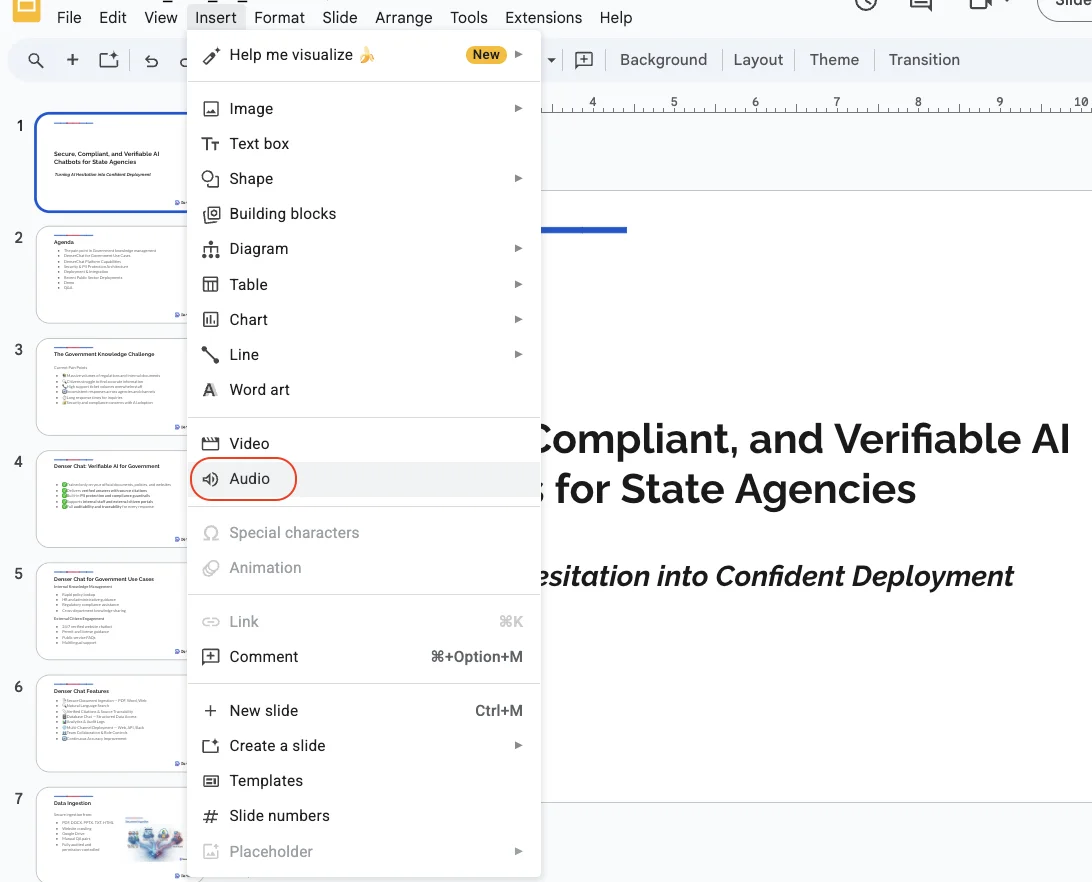
- Click Insert in the menu bar
- Select Audio
- Choose your audio file from Google Drive
- Click Select to insert it
Step 4: Configure Audio Settings#
After inserting the audio, you'll see a speaker icon on your slide. Click on it to access format options:
- Click the audio icon on your slide
- Click Format options in the toolbar (or right-click and select it)
- In the Audio playback panel, configure:
- Start playing: On click or Automatically
- Volume: Adjust the playback volume
- Hide icon when presenting: Check this for a cleaner look
- Loop audio: Enable if you want continuous playback
Step 5: Repeat for Each Slide#
Unfortunately, you'll need to repeat this process for every slide that needs narration. This means:
- Recording separate audio files for each slide
- Uploading each file to Google Drive
- Inserting and configuring audio on each slide individually
This can be extremely time-consuming for longer presentations.
How to Add Audio to PowerPoint#
PowerPoint offers more built-in audio features than Google Slides, including direct recording. Here's how to add audio to PowerPoint:
Method 1: Record Audio Directly in PowerPoint#
PowerPoint lets you record narration without external software:
- Open your PowerPoint presentation
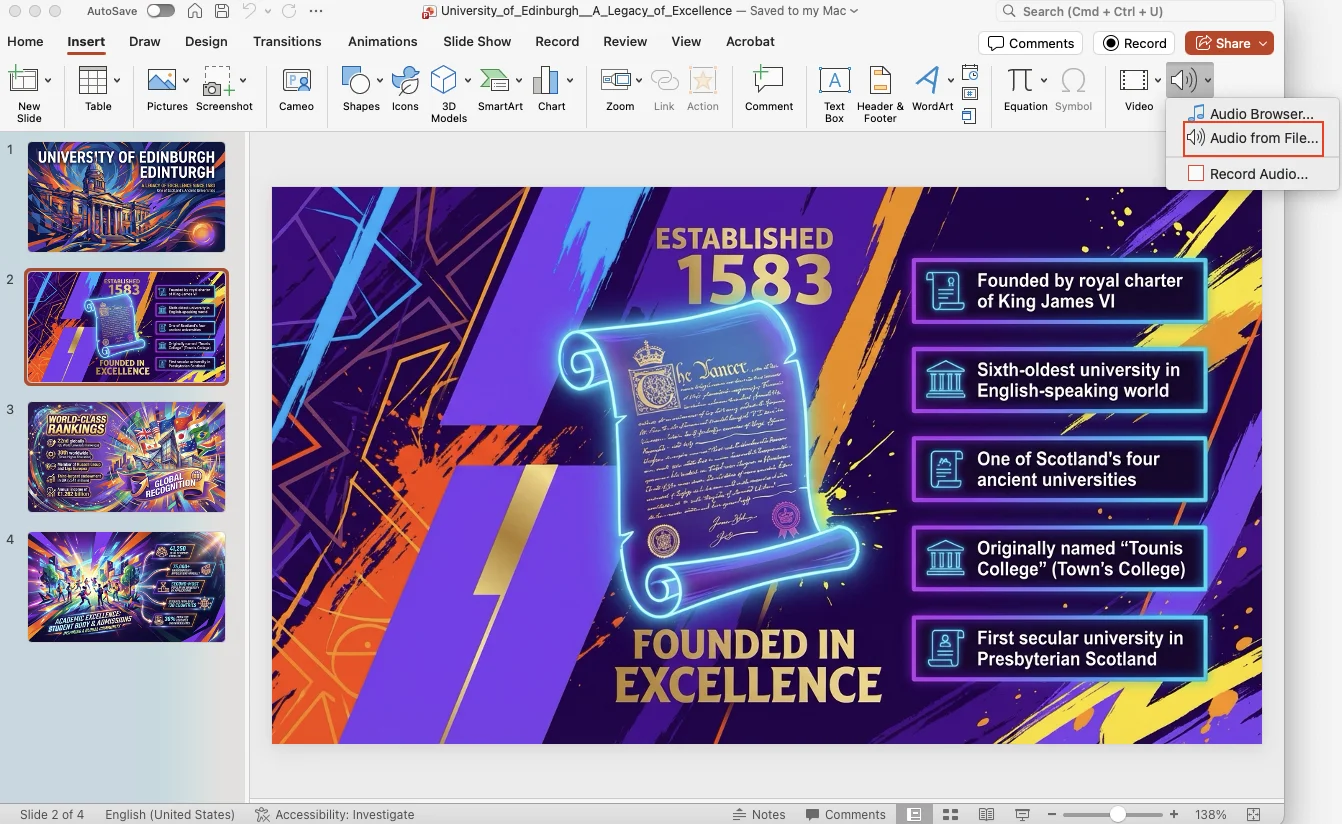
- Go to the Insert tab
- Click Audio > Record Audio
- Name your recording and click the red Record button
- Speak your narration, then click Stop
- Click OK to insert the audio
Method 2: Record Slide Show with Narration#
For narrating your entire presentation at once:
- Go to the Slide Show tab
- Click Record Slide Show
- Choose Record from Beginning or Record from Current Slide
- Use the recording controls to narrate as you advance through slides
- Click Stop when finished
- Your narration is automatically attached to each slide
Method 3: Insert Pre-recorded Audio File#
If you have existing audio files:
- Go to the Insert tab
- Click Audio > Audio on My PC
- Browse and select your audio file (MP3, WAV, WMA, M4A supported)
- Click Insert
- Configure playback options in the Playback tab
Configure PowerPoint Audio Settings#
After adding audio, select the audio icon and use the Playback tab to:
- Set audio to play automatically or on click
- Play across slides (for background music)
- Loop until stopped
- Hide the audio icon during presentation
- Trim audio clips
- Add fade in/out effects
Common Problems with Adding Audio to Presentations#
While both Google Slides and PowerPoint support audio, the process has several frustrations:
Google Slides Limitations#
- No built-in recording: You need separate software to create audio files
- Manual process for each slide: Each slide requires individual attention
- File management headaches: Audio files live in Google Drive separately
- Limited editing options: No trimming or timing adjustments within Slides
PowerPoint Limitations#
- Complex interface: Multiple menus and options can be confusing
- File size bloat: Embedded audio significantly increases file size
- Compatibility issues: Audio may not play on all devices or when shared
- Time-consuming: Recording quality narration for each slide takes hours
A Better Alternative: Denser AI Slides with Voice Narration#
What if you could create an entire presentation with voice narration in minutes instead of hours?
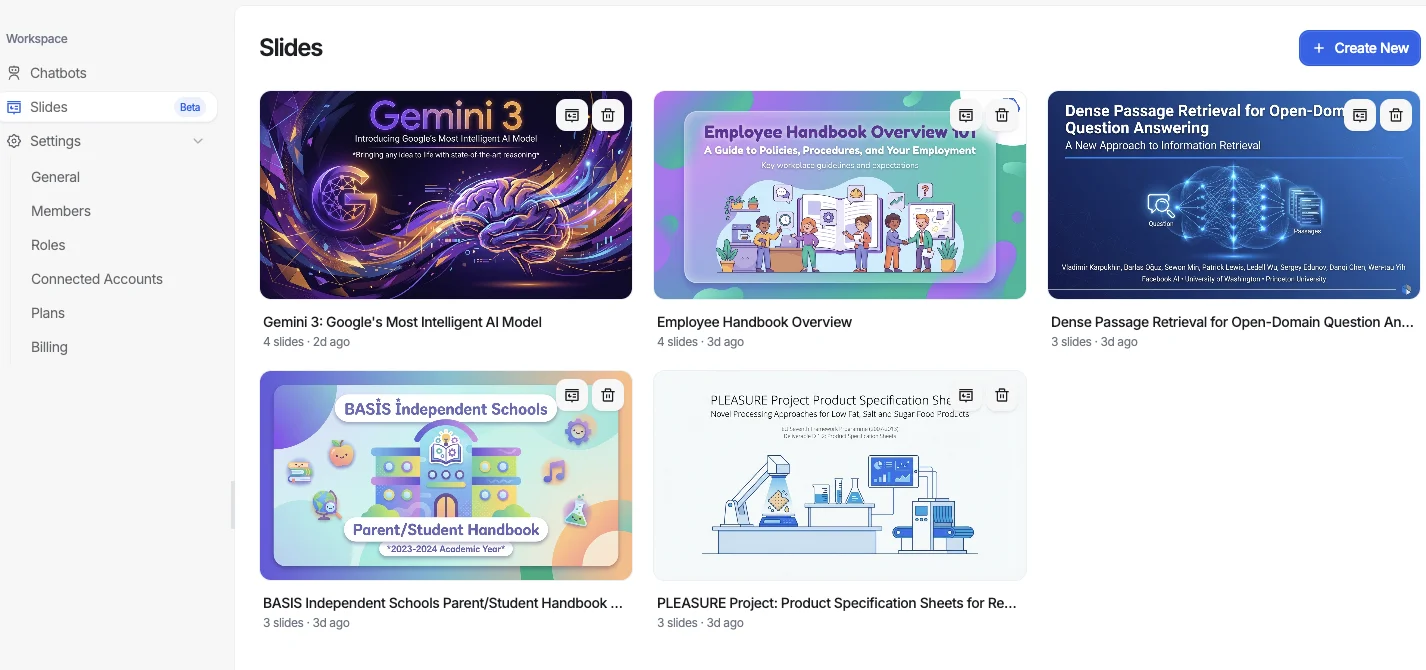
Denser AI Slides is an AI-powered presentation maker that not only generates beautiful slides from your documents but also lets you add AI-generated voice narration with just a few clicks.
How Denser AI Slides Works#
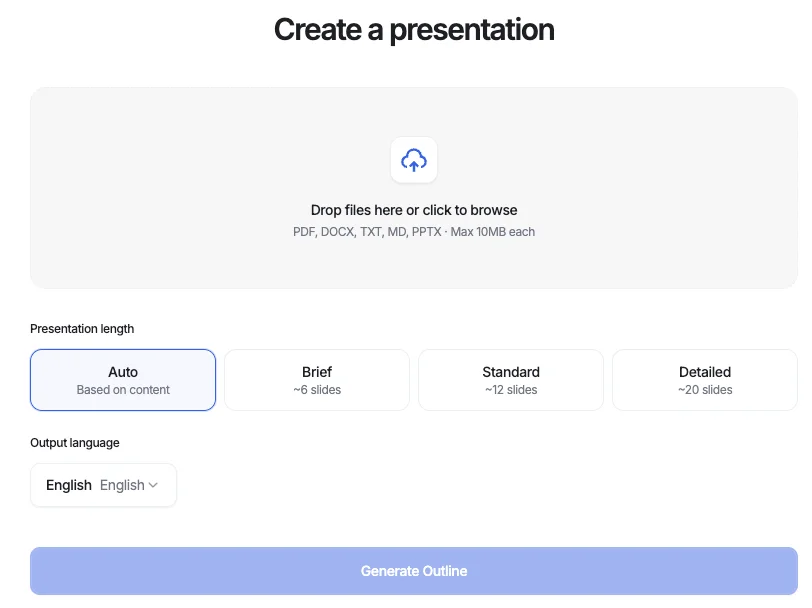
- Upload your document: PDF, Word doc, research paper, or any text document
- AI generates slides: Get a complete, professionally designed presentation in seconds
- Add voice narration: Click to add AI-generated voice narration automatically
- Share with or without audio: Choose how you want to share with your team
Key Benefits Over Google Slides and PowerPoint#
| Feature | Google Slides | PowerPoint | Denser AI Slides |
|---|---|---|---|
| Built-in recording | No | Yes (complex) | AI-generated |
| AI voice narration | No | No | Yes |
| Per-slide setup | Manual | Manual | Automatic |
| Document to slides | Manual creation | Manual creation | Instant AI conversion |
| Sharing with audio | Limited | File size issues | Seamless streaming |
| Voice toggle for sharing | No | No | Yes |
Adding Voice Narration in Denser AI Slides#
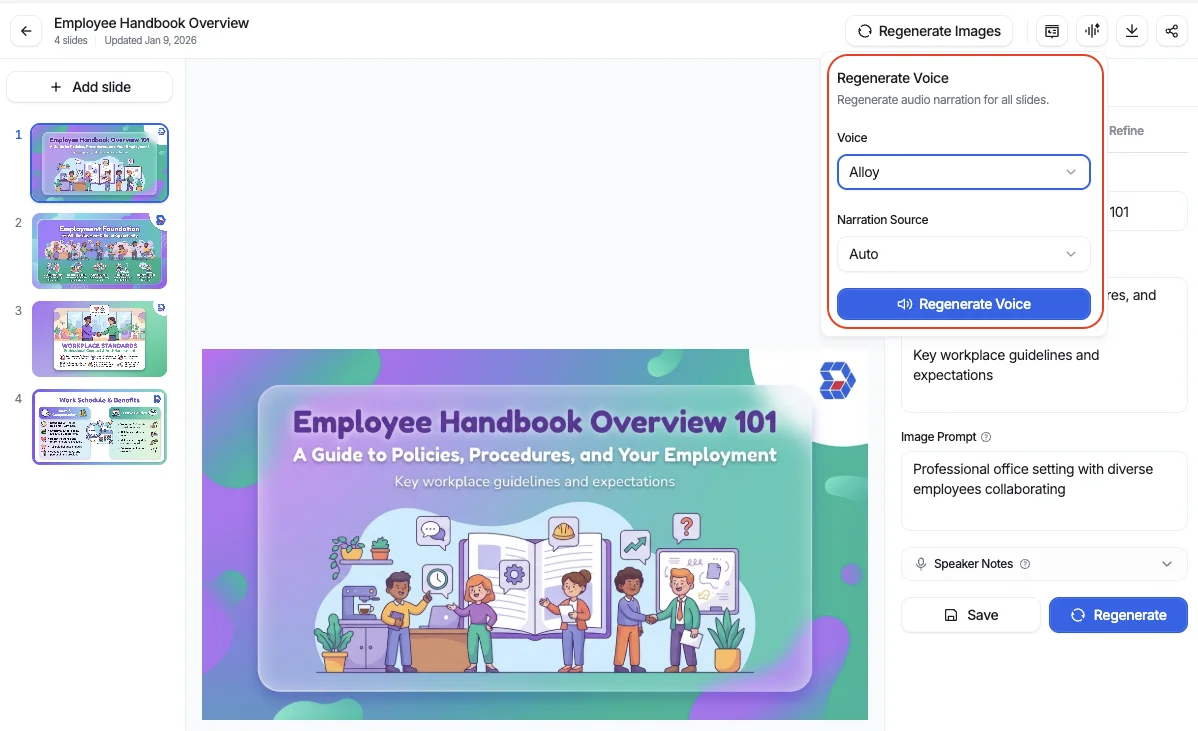
Here's how simple it is to add voice to your presentation with Denser AI:
- Open your presentation in Denser AI Slides
- Click the Voice Narration button
- Select your preferred AI voice
- Click Generate - done!
The AI analyzes your slide content and creates natural-sounding narration automatically. No external software, no recording equipment, no manual work.
Presenting with Voice Over#
Once your narration is ready, you can:
- Present live: Play the slideshow with voice narration for your audience
- Share for async viewing: Send the link to coworkers who can watch on their own time
- Toggle audio on/off: Share the same presentation with or without voice narration
- Export options: Download your presentation in various formats
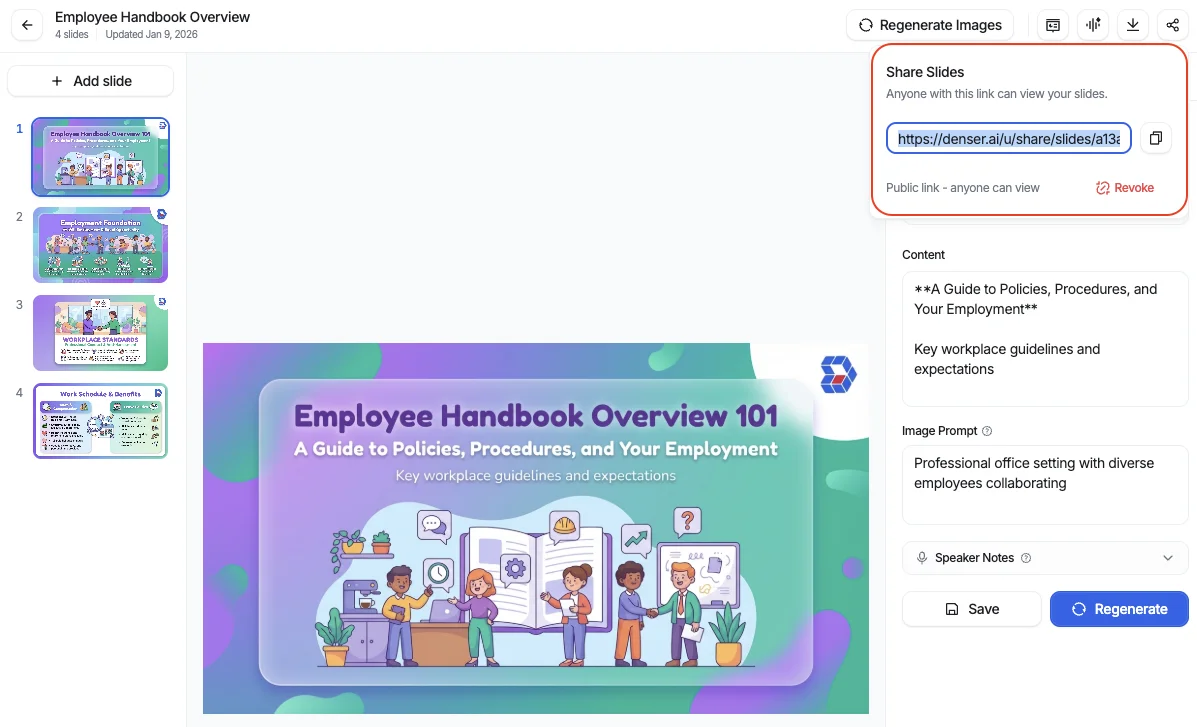
Sharing Options#
Denser AI Slides makes collaboration easy:
- Share with voice: Recipients hear your narration as slides advance
- Share without voice: Send just the visual presentation
- Viewer controls: Recipients can pause, rewind, or skip narration
- No account required: Anyone with the link can view
When to Use Each Option#
Use Google Slides + Audio When:#
- You already have a Google Slides presentation
- You only need audio on a few slides
- You're comfortable with the manual upload process
- Your organization requires Google Workspace tools
Use PowerPoint + Audio When:#
- You already have a PowerPoint presentation
- You need advanced audio editing features
- You're presenting offline without internet
- Your organization uses Microsoft 365
Use Denser AI Slides When:#
- You're creating a new presentation from documents
- You want voice narration throughout
- You need to create presentations quickly
- You want AI-generated voice without recording
- You need flexible sharing with or without audio
- You want to avoid file size and compatibility issues
Getting Started with Denser AI Slides#
Ready to create presentations with voice narration the easy way?
- Visit denser.ai/features/ai-slides
- Upload your document or start from scratch
- Let AI generate your slides
- Add voice narration with one click
- Share with your team
No credit card required to get started. Create your first AI-powered presentation with voice narration in minutes.
Conclusion#
Adding audio to Google Slides requires a tedious multi-step process involving external recording and Google Drive uploads. PowerPoint offers built-in recording but comes with complexity and file size issues.
For occasional use on existing presentations, the traditional methods work fine. But if you regularly create presentations and want voice narration, Denser AI Slides offers a dramatically faster workflow.
With AI-generated narration and flexible sharing options, you can go from document to narrated presentation in minutes instead of hours.
Try Denser AI Slides free and experience the difference.
FAQ#
Can you add audio to Google Slides on mobile?#
Yes, but with limitations. On the Google Slides mobile app, you can play presentations with existing audio, but adding new audio files must be done on desktop through Google Drive.
What audio formats does Google Slides support?#
Google Slides supports MP3 and WAV audio files uploaded through Google Drive.
Can you record audio directly in Google Slides?#
No, Google Slides doesn't have built-in audio recording. You need to use external software to record, then upload the file to Google Drive.
How do I make audio play automatically in Google Slides?#
After inserting audio, click the audio icon, go to Format options > Audio playback, and select "Automatically" under "Start playing."
Can I add different audio to each slide in Google Slides?#
Yes, but you need to repeat the upload and insert process for each slide individually.
What audio formats does PowerPoint support?#
PowerPoint supports MP3, WAV, WMA, M4A, and several other audio formats.
How do I record audio directly in PowerPoint?#
Go to Insert > Audio > Record Audio, or use Slide Show > Record Slide Show to record narration for your entire presentation.
Why is my PowerPoint file so large after adding audio?#
Audio is embedded directly in the file, which increases size significantly. Consider compressing media (File > Info > Compress Media) or using Denser AI Slides for streaming audio that doesn't bloat file size.
Does Denser AI Slides work with existing presentations?#
Denser AI Slides is optimized for creating new presentations from documents. For existing Google Slides or PowerPoint files, you would need to export content and recreate in Denser AI.
Can I export Denser AI Slides to PowerPoint format?#
Yes, Denser AI Slides supports exporting to multiple formats including PDF and PPTX.