
Getting Started With Denser AI: What to Expect in Your First 30 Minutes

When teams start evaluating an AI chatbot platform, the biggest question usually isn't about the technology behind it. What most people really want to know is much simpler:
What actually happens after I sign up?
How long does setup take? What do I need to connect? And how quickly will the chatbot start answering real questions?
This guide walks through what the first 30 minutes with Denser AI typically look like, from creating an account and connecting your data to testing your chatbot and adding it to your website.
Step 1: Create Your Denser AI Account and Open the Dashboard#
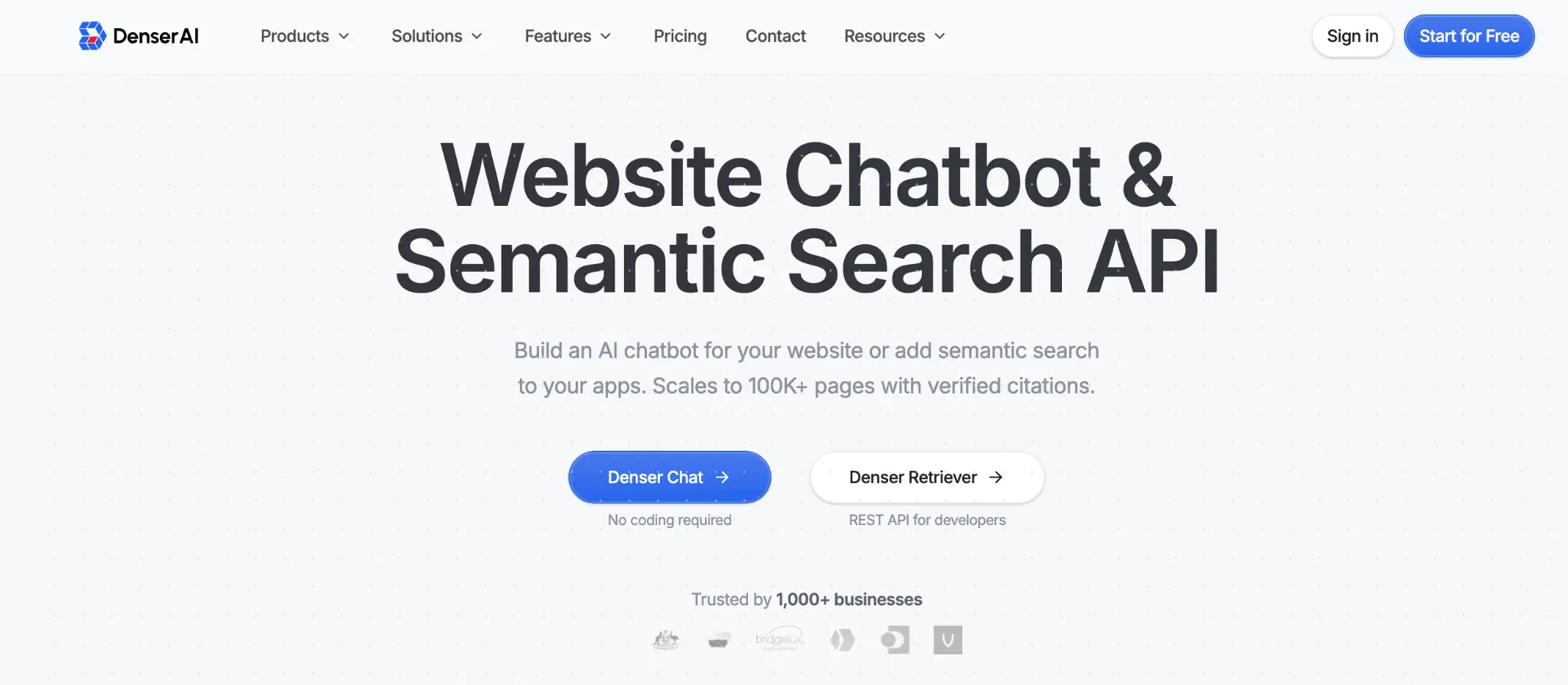
Visit denser.ai and click Start for Free. You can create an account using just your email address.
After registering, you'll enter the Denser AI dashboard.
The interface is intentionally simple:
- The left side displays your chatbot list (the free plan allows one chatbot).
- The right side contains the configuration panel where you connect data and adjust settings.
Step 2: Connect Your Website So the Chatbot Can Learn Your Content#
This is the most important step in the entire process. The quality of your chatbot's answers depends directly on the data you connect.
Let Denser AI Import Pages From Your Website Automatically#
Inside the dashboard, enter your website URL and start the data import process.
Denser AI will automatically crawl your site and collect information from:
- product pages
- help center articles
- blog posts
- policy pages
You don't need to manually select pages or copy content.
The crawling time depends on the size of your site:
- Websites with dozens of pages usually complete in a few minutes.
- Websites with hundreds of pages may take ten minutes or more.
You can monitor the crawling progress directly inside the dashboard.
Add Documents, Google Drive Files, or Databases if Needed#
If your business has more information beyond the website, you can connect additional sources.
PDF or Word documents Upload documents such as product manuals, employee handbooks, technical documentation, or contract templates. The system extracts the content and adds it to your knowledge base.
Google Drive Connect your Drive account so the system can read the documents stored there.
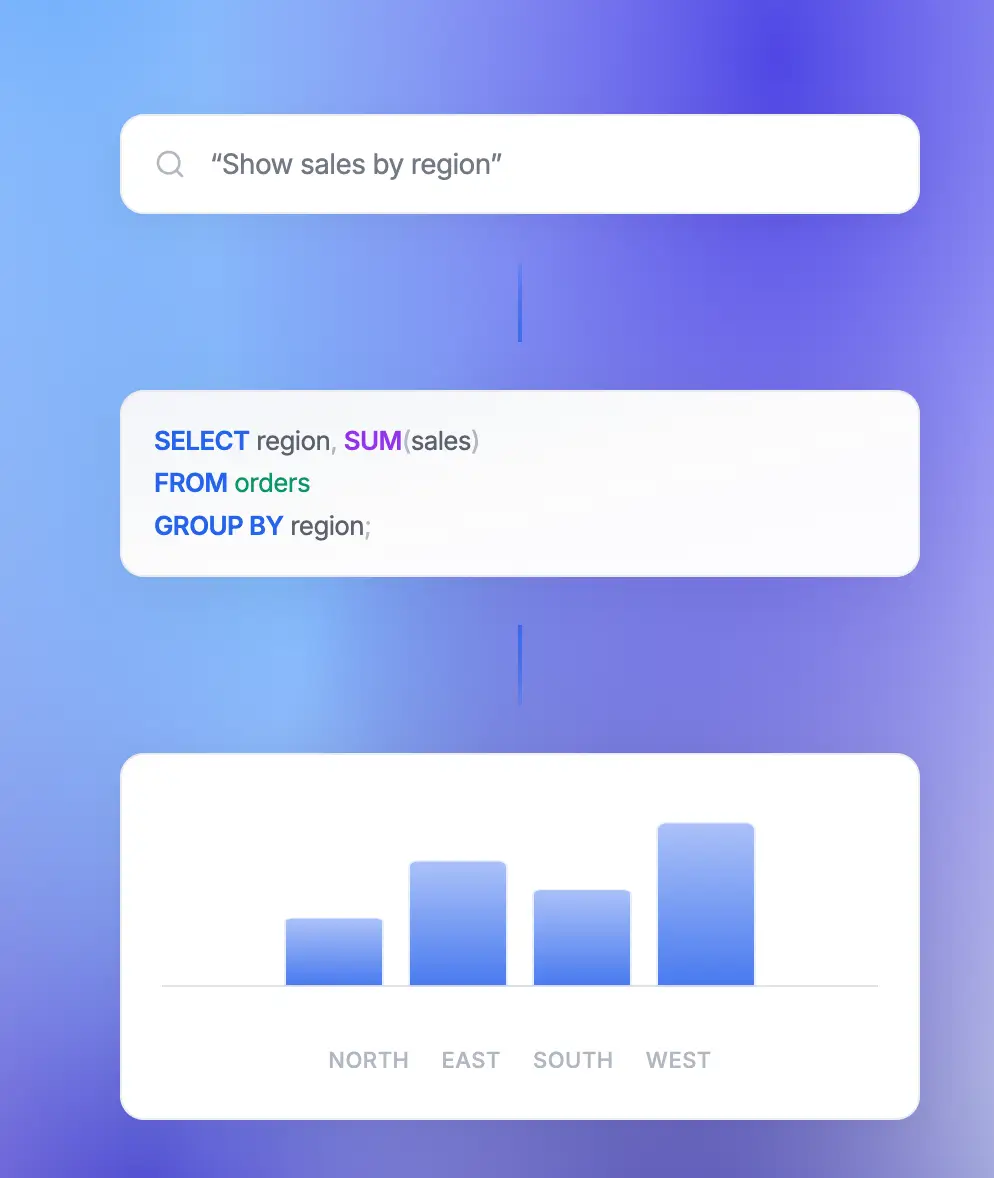
Databases Standard plans and above support connections to databases such as MySQL, PostgreSQL, Oracle, and SQL Server. After connecting a database, the chatbot can answer real-time queries, such as checking an order status.
All connected sources are merged into a single knowledge base.
You can read more about supported data sources in What Is Denser AI.
A Simple Tip for Your First Setup: Start With Your Website Only#
When using Denser AI for the first time, start by connecting only your website.
This allows you to evaluate the chatbot's responses based solely on your existing site content.
Once you understand how well the system performs, you can decide whether adding documents or databases would improve the answers.
This approach makes it easier to see how each data source affects response quality.
Step 3: Make the Chatbot Look and Sound Like Your Brand#
After connecting your data, you can configure your chatbot's settings.
No programming is required. Everything is handled through a visual interface.
Adjust the Chatbot's Appearance So It Matches Your Website#
Adjust the chatbot's color, icon, and placement so it matches your website's branding. A chat window that looks out of place can feel distracting to visitors.
Set a Welcome Message and Suggested Questions for Visitors#
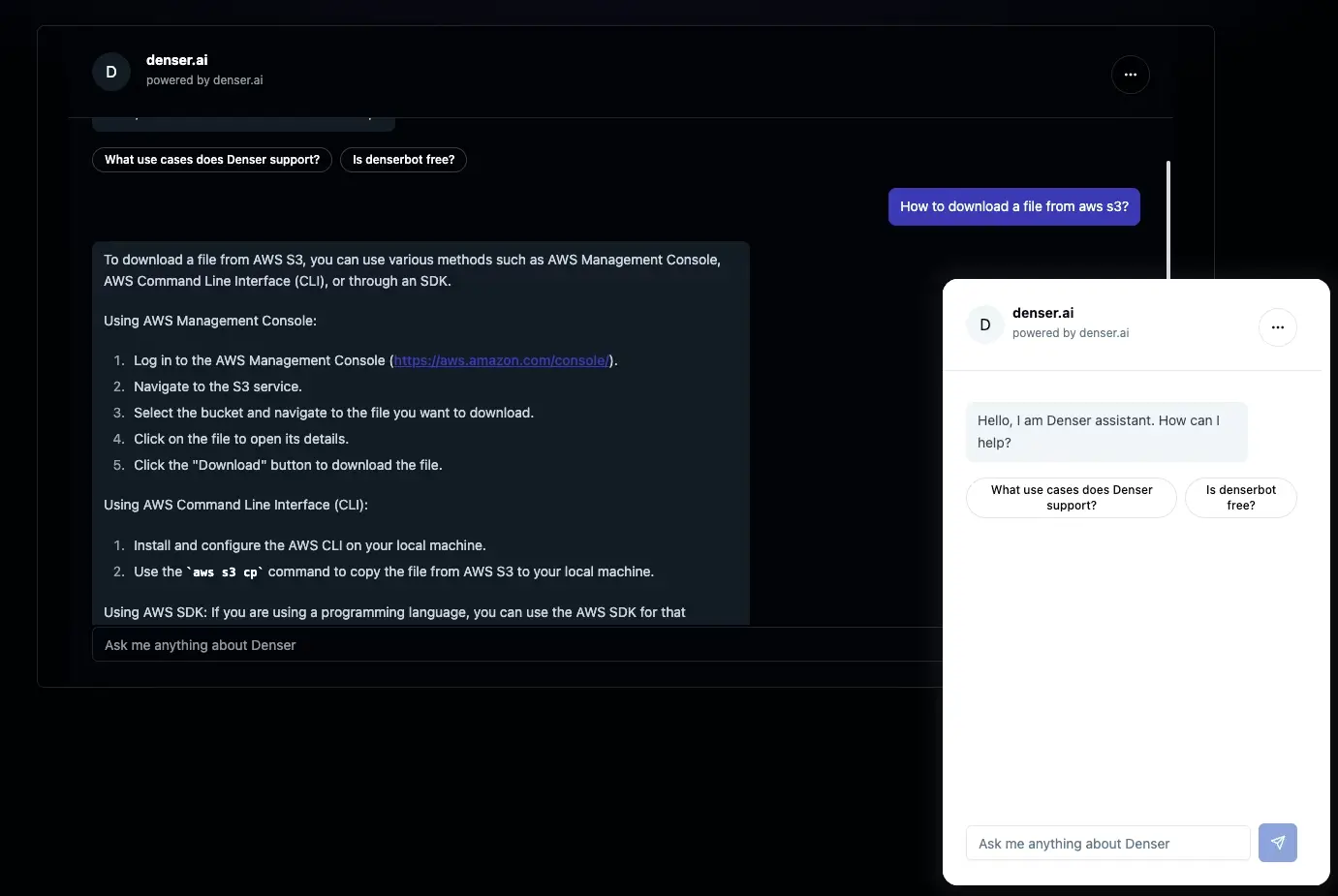
You can define the chatbot's welcome message and create several suggested questions that appear when visitors first open the chat.
These suggested questions help guide visitors into starting a conversation. The most effective approach is to include the questions your customers ask most frequently.
Choose the Tone of Voice for Your Chatbot's Answers#
You can choose the chatbot's tone of voice, whether responses should sound formal, friendly, concise, or more detailed.
This setting influences how the chatbot generates responses and communicates with visitors.
Decide When the Chatbot Should Hand Off to Human Support#
You can also configure when the chatbot should transfer a conversation to a human agent.
For example:
- when a customer expresses frustration
- when the chatbot has low confidence in its answer
- when a user explicitly asks to speak with a human
Step 4: Test How the Chatbot Responds Before Going Live#
Before adding the chatbot to your live website, you can test it inside the built-in testing environment.
Try Real Customer Questions Instead of Test Prompts#
Instead of inventing questions yourself, use real questions your customers have already asked.
Open your customer support inbox and take the last ten customer inquiries. Enter them into the chatbot and see how it responds.
Check Whether the Answers Are Accurate and Properly Cited#
Compare the chatbot's response with the correct information. If there is a mismatch, it usually means the relevant information on your website or documentation is unclear or incomplete.
Every response should include a source link. Open the links to confirm that they lead to the correct page or section.
See How the Chatbot Handles Questions It Cannot Answer#
Ask questions that you know are not covered in your data. The chatbot should respond with something like "I don't have enough information to answer that," rather than generating an incorrect answer.
This behavior is critical in business environments.
Improve Answer Quality by Updating Your Source Content#
In most cases, response quality issues are not caused by the AI itself, but by gaps in the source data.
For example:
- the website may not include content covering a specific topic
- a policy page may not explain something clearly
Instead of trying to "train" the AI, improve the original content. Once the source data is updated, the chatbot's answers will automatically improve.
Step 5: Add the Chatbot to Your Website#
Once you are satisfied with testing, you can deploy the chatbot on your live website.
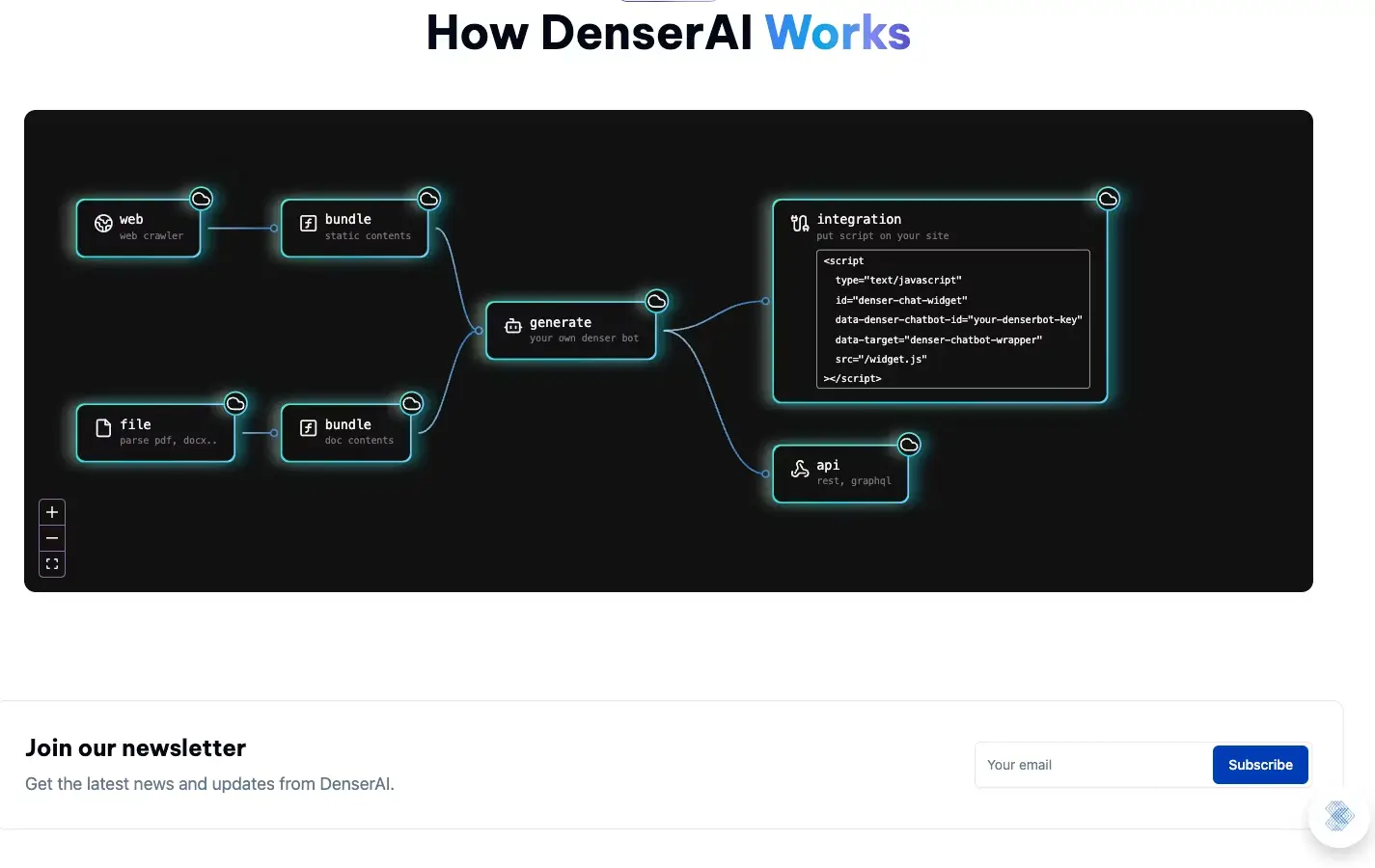
The dashboard generates one line of embed code. Copy that code and paste it into your website's HTML, usually just before the closing </body> tag. Save the file, and the chatbot will appear on your website.
Platforms That Work With Denser AI (WordPress, Shopify, and More)#
Denser AI works with nearly all website platforms, including:
- WordPress
- Shopify
- Wix
- Squarespace
- custom-built websites
- most CMS platforms
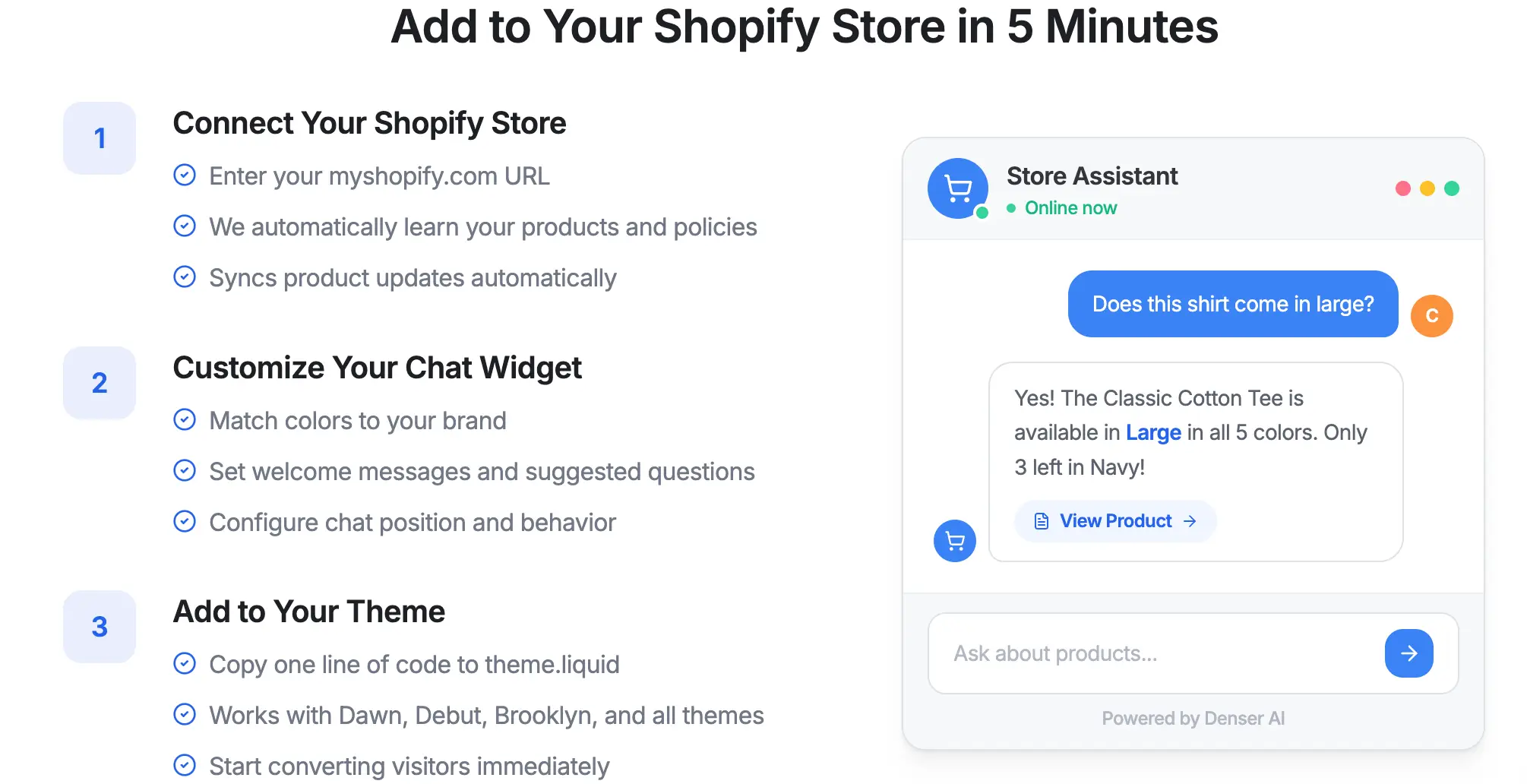
For Shopify stores, you can paste the code directly into the theme.liquid file in your theme editor. It works with themes such as Dawn, Debut, Brooklyn, and custom themes.
More details are available on the Website Chatbot Feature Page and the Shopify Chatbot Solution Page.
Will the Chatbot Affect Website Speed?#
The chatbot loads asynchronously, which means it does not slow down page loading or affect your Core Web Vitals metrics.
After Launch: What You Should Monitor in the First Weeks#
After the chatbot goes live, the analytics dashboard will begin recording all conversations. During the first two weeks, it's helpful to focus on several key signals.
What Questions Customers Ask Most Often#
Review the questions customers ask most often. These insights reveal what customers care about most and which information on your website may be difficult to find.
Questions Your Chatbot Still Cannot Answer#
These indicate areas where additional content may be needed. If the same question appears frequently but the chatbot cannot answer it, it usually means the information is missing from your site or documentation.
When Conversations Need to Be Escalated to Human Support#
Look at which conversations end up being transferred to your support team. If certain types of questions repeatedly trigger escalation, consider whether better data or adjusted escalation rules could allow the chatbot to handle them automatically.
Whether Chatbot Conversations Lead to Higher Conversions#
For ecommerce businesses, it's useful to monitor whether visitors who interact with the chatbot show higher conversion rates.
Common Setup Questions in the First 30 Minutes#
"The website crawling process is slow." If your site contains hundreds or thousands of pages, crawling naturally takes longer. You don't need to wait for it to finish; you can begin testing with the pages already processed while the system continues crawling in the background.
"Some chatbot answers are slightly inaccurate." Check the source citation first. If the original page itself is unclear, the chatbot's answer will reflect that. Improving the source content usually fixes the issue.
"The chatbot says it doesn't know the answer." This means the topic is not covered in your data. In many cases, this is actually positive; it prevents the chatbot from inventing incorrect information.
"I want the chatbot to sound more professional." Return to the chatbot settings and adjust the brand voice configuration.
What Your Website Will Have After the First 30 Minutes#
After completing the setup process, your website will have a chatbot that:
- retrieves answers directly from your business content
- includes source citations for every response
- operates 24/7 without time-zone limitations
- escalates to human support when necessary
Within 30 minutes, you can already see how it performs using your own business data.
Try Denser AI With Your Own Website#
Sign up for Denser AI and connect your website.
Within 30 minutes, you can launch your chatbot and test it using real questions from your business.
Denser AI Setup FAQ#
Do I need a credit card to sign up?#
No. The free plan only requires an email address and includes one chatbot with a basic query allowance.
What data should I connect first?#
Start with your website only, then add documents or databases later if needed.
Does the chatbot require ongoing maintenance?#
The chatbot updates automatically when your content changes, but reviewing conversation logs regularly helps improve performance.
What if the chatbot answers incorrectly?#
Check the source citation first. In most cases, inaccurate answers are caused by unclear or incomplete source content.
What website platforms does Denser AI support?#
Denser AI supports WordPress, Shopify, Wix, Squarespace, custom-built sites, and most CMS platforms.