
How We Built a Browser Skill to Power Real-Time Web Search in Denser Chat

When a user asks our chatbot "summarize the denser.ai website," the chatbot needs to actually visit the site, read the content, and synthesize a response. This isn't retrieval from a pre-indexed knowledge base — it's real-time web browsing.
We built this capability into Denser Chat by extending agent-browser, an open-source browser automation CLI designed for AI agents. In this post, we'll explain what agent-browser is, how to use it, and the production-grade additions we built on top of it — turn-aware prompts, S3 artifact uploads, search pre-fetching, and more.
The Problem#
Denser Chat is a RAG-powered chatbot platform. Users upload documents, and the chatbot answers questions from that knowledge base. But users frequently ask questions that require information beyond their uploaded files:
- "What does denser.ai do?" (requires visiting the website)
- "Compare our pricing with competitor X" (requires browsing competitor sites)
- "Summarize this article: https://example.com/post" (requires fetching and reading a URL)
We needed a way for the chatbot to browse the web on demand, without pre-indexing every possible website.
agent-browser: The Foundation#
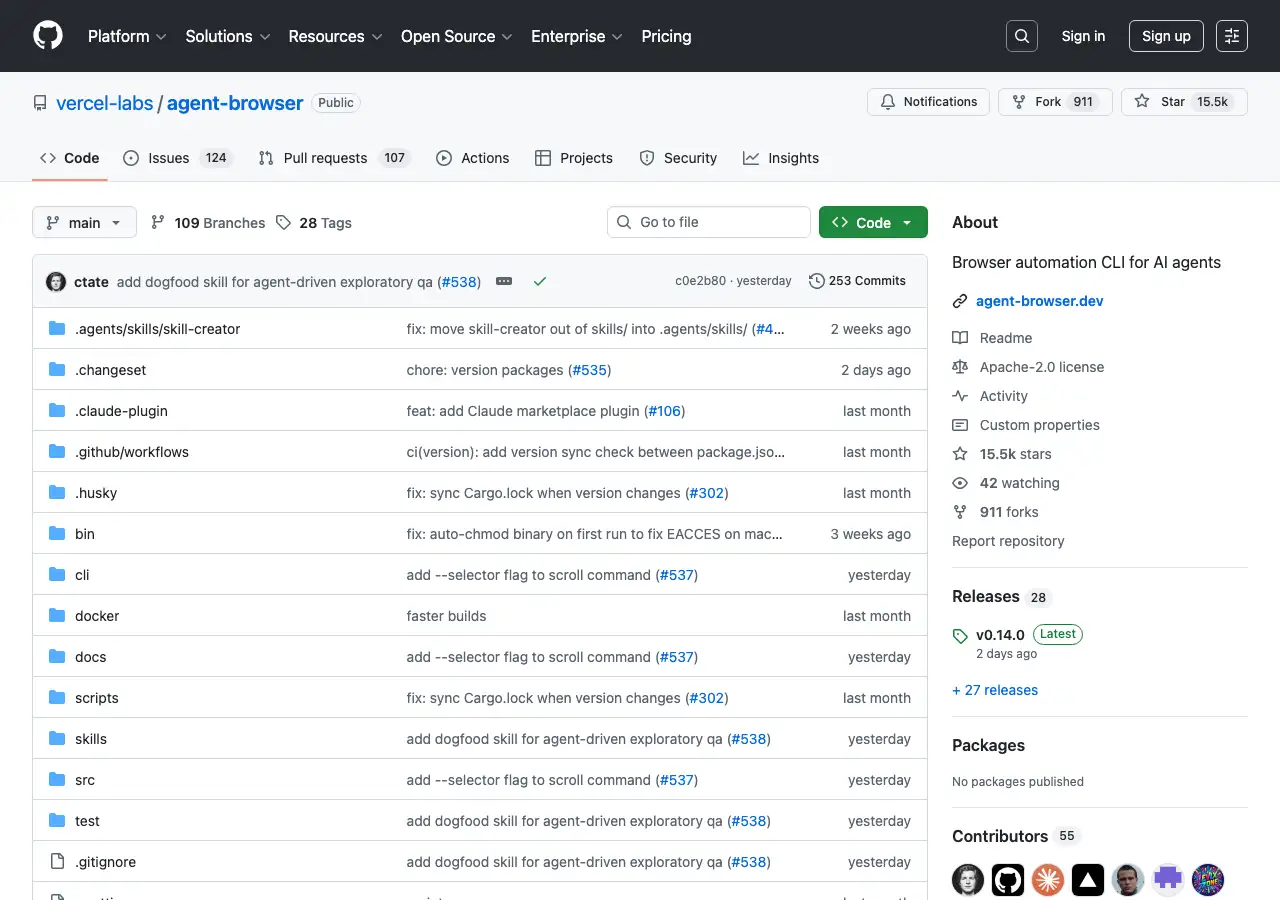
agent-browser is a headless browser automation CLI built by Vercel Labs, specifically designed for AI agents. With 15K+ GitHub stars and 59K+ installs on skills.sh, it's the most popular browser automation skill in the ecosystem. (For background on the agent skills ecosystem, see our guide to agent skills.)
The key idea is snapshot-based element referencing. Instead of asking an AI to parse raw HTML or CSS selectors, agent-browser provides a compact accessibility tree with refs like @e1, @e2 — dramatically reducing token usage:
# Traditional approach: ~3000-5000 tokens
Full DOM/HTML → AI parses → CSS selector → Action

# agent-browser approach: ~200-400 tokens
Compact snapshot → @refs assigned → Direct interaction
Installing agent-browser#
Install the skill into any compatible AI coding agent:
npx skills add vercel-labs/agent-browser
Or install the CLI directly:
npm install -g agent-browser
Basic Usage#
The core workflow follows four steps: open → snapshot → interact → re-snapshot.
# 1. Navigate to a page
agent-browser open https://example.com

# 2. Take a snapshot to see interactive elements
agent-browser snapshot -i
# Output:
# @e1 [input type="email"] placeholder="Email"
# @e2 [input type="password"] placeholder="Password"
# @e3 [button] "Sign In"

# 3. Interact using refs
agent-browser fill @e1 "user@example.com"
agent-browser fill @e2 "password123"
agent-browser click @e3

# 4. Re-snapshot after navigation
agent-browser snapshot -i
For data extraction, eval with targeted JavaScript is more efficient than full-page text extraction:
agent-browser open https://example.com
agent-browser eval 'JSON.stringify({
  title: document.title,
  text: document.body.innerText.substring(0, 5000)
})'
Commands can be chained for efficiency:
# Open, wait, and screenshot in one call
agent-browser open https://example.com && agent-browser screenshot page.png
The CLI also supports screenshots, PDF export, form filling, parallel sessions, state persistence, and JavaScript evaluation. The full command reference is in the skill's documentation.
What We Built on Top#
agent-browser gives you the browser automation primitives. But running it in a production chatbot — where thousands of users send unpredictable queries — requires significant additional work. Here's what we added.
Architecture Overview#
Our browser skill wraps agent-browser in a multi-turn execution loop powered by an LLM:
User Query
  → LLM selects browser_automation tool
  → BrowserSkillTool builds context + performance rules
  → SkillExecutor runs multi-turn LLM session
  → LLM generates agent-browser commands, we execute them
  → Artifacts uploaded to S3 with CloudFront URLs
  → Response streamed back to user
The key components:
- Tool Selection: The LLM decides whether a query needs web browsing (vs. knowledge base search or other tools)
- BrowserSkillTool: Our wrapper that orchestrates the browser session with skill documents, performance rules, and search pre-fetching
- SkillExecutor: Manages the multi-turn LLM loop — the model generates commands, we execute them, feed results back, repeat
- agent-browser CLI: The actual browser automation layer
Turn-Aware Prompt Engineering#
Our biggest optimization. The initial implementation was slow — 10+ turns and 100+ seconds per query. The LLM would take screenshots of every page, wait for network idle after every navigation, and make separate API calls for each piece of metadata.
The root cause: agent-browser's default SKILL.md teaches thorough, careful browser usage. That's great for general automation, but in production we need speed. We injected additional rules into the system prompt that address three areas:
- Skip unnecessary waits: Modern sites load content immediately after navigation. Waiting for network idle hangs on sites with analytics, websockets, or long-polling.
- Minimize tool calls: Combine multiple data extractions into a single eval call instead of separate commands. A typical page visit should take 2 turns: open then eval.
- Turn budgeting: Each tool call counts as one turn, with a maximum of 30. The LLM must plan its work to stay within budget — typically 2-3 turns per page, with turns reserved for writing the output file.
This combination — explicit anti-patterns, efficient patterns, and a budget — cut execution from 10 turns/100s to 4 turns/80s on average.
S3 Artifact Upload for Frontend Display#
agent-browser produces files locally — text extracts, screenshots, JSON data. In a web chatbot, the user needs to see these artifacts in the browser. We built a pipeline that automatically uploads all output files to S3 and returns CloudFront URLs alongside the inline text content. The response includes both: URLs for images and files that render directly in the chat UI, and text content that the LLM uses to generate its final answer.
This means when a user asks "take a screenshot of denser.ai," the screenshot appears as an image in the chat — not as a text description of what the page looks like.
Search Pre-Fetching with Serper#
Headless browsers get blocked by Google, Bing, and DuckDuckGo CAPTCHAs. Instead of navigating to search engines, we pre-fetch Google results via the Serper.dev API and inject them into the skill context as a list of titled URLs. The LLM then navigates to these URLs directly, avoiding the CAPTCHA problem entirely.
When a user asks "what is the latest news about AI agents?", the model gets real Google results and visits the top links directly — no search engine navigation required.
Session Isolation#
Each browser session gets a unique ID, passed to every agent-browser --session command. This ensures concurrent users don't interfere with each other. Sessions are always cleaned up after execution — even on failure — preventing leaked Chromium processes from accumulating on the server.
User-Controlled Web Search Toggle#
Not every query needs web access. We added a toggle in the chat UI that lets users enable or disable web search per conversation:
- Toggle OFF (default): The browser_automation skill is excluded from tool selection. The LLM can only use knowledge base tools.
- Toggle ON: The browser skill becomes available. The LLM decides whether to use it based on the query.
This gives users control over when the chatbot can access the web, keeping behavior predictable for knowledge-base-only use cases.
How a Typical Query Flows#
Here's what happens when a user asks "summarize the denser.ai website" with web search enabled:
Turn 1: The LLM selects the browser_automation tool with url: "https://denser.ai" and task: "Extract the main content and summarize what this company does".
Turn 2: The SkillExecutor starts. The LLM generates:
agent-browser --session browser_a1b2c3d4 open https://denser.ai
Turn 3: The LLM extracts content with a single eval call:
agent-browser --session browser_a1b2c3d4 eval "JSON.stringify({
  title: document.title,
  meta: document.querySelector('meta[name=description]')?.content,
  text: document.body.innerText.substring(0, 5000)
})"
Turn 4: The LLM writes results to a file, closes the session, and calls task_complete:
agent-browser --session browser_a1b2c3d4 close
The text content is uploaded to S3 and returned inline to the LLM, which generates the final summary for the user. Total: 4 turns, ~80 seconds.
What Users Can Do#
With the browser skill enabled, Denser Chat handles queries that were previously impossible:
Website Summarization
"Summarize the denser.ai website" The chatbot visits denser.ai, extracts content from key pages, and provides a structured summary.
Competitive Research
"What features does competitor X offer?" The chatbot browses the competitor's website and extracts feature lists, pricing, and positioning.
URL Content Extraction
"What does this article say? https://example.com/blog/post" The chatbot visits the URL, extracts the article text, and provides a summary.
Screenshot Capture
"Take a screenshot of our landing page" The chatbot captures a screenshot, uploads it to S3, and displays it as an image in the chat.
Multi-Site Research
"Compare pricing between Intercom and Zendesk" The chatbot visits both sites, extracts pricing information, and presents a structured comparison.
Lessons Learned#
1. Eval beats full-page text extraction. The get text body command returns raw HTML noise. Using eval with targeted JavaScript (document.body.innerText.substring(0, 5000)) gives cleaner, smaller results that the LLM can work with more effectively.
2. Turn budget matters. Without a budget, the agent explores every link on a site. Setting a maximum turn count (we use 4 for typical queries, up to 30 for complex tasks) keeps execution fast and focused.
3. The prompt IS the product. The quality of the performance rules injected into the system prompt directly determines how well the browser agent performs. We iterated on these rules dozens of times. Each rule addresses a specific failure mode we observed in production.
4. Graceful degradation is essential. CAPTCHAs, timeouts, and blocked requests happen frequently with headless browsers. The skill instruction explicitly says "do NOT retry — switch strategy immediately" when CAPTCHAs appear.
5. Separate the primitive from the orchestration. agent-browser provides excellent browser primitives. Our value-add is the orchestration layer: turn-aware prompts, artifact uploads, search pre-fetching, and session management. Keeping these layers separate makes both easier to maintain and upgrade.
The browser skill demonstrates the power of the agent skills pattern: start with an open-source primitive like agent-browser, add production-grade orchestration, and you get a capability that handles real user queries every day.
Denser Chat is an AI chatbot platform that combines knowledge base retrieval with agentic skills like web browsing. Try it at denser.ai.
FAQ#
What is agent-browser?#
agent-browser is an open-source headless browser automation CLI built by Vercel Labs, designed specifically for AI agents. It uses snapshot-based element referencing (@e1, @e2) to let LLMs interact with web pages using minimal tokens. Install it with npx skills add vercel-labs/agent-browser or npm install -g agent-browser.
How does the Denser Chat browser skill work?#
We wrap agent-browser in a multi-turn execution loop. When a user asks a question that requires web access, the LLM selects the browser tool, our SkillExecutor runs a session where the model generates agent-browser commands, and the results (text, screenshots, files) are uploaded to S3 and returned to the user.
What did you build on top of agent-browser?#
Five key additions: (1) turn-aware performance rules that cut execution from 10 turns to 4, (2) S3 artifact upload pipeline so users see screenshots and files in the chat, (3) Serper.dev search pre-fetching to avoid CAPTCHA blocks, (4) session isolation for concurrent users, and (5) a user-facing web search toggle.
Is the web browsing feature enabled by default?#
No. Web browsing is disabled by default. Users can enable it with a "Search" toggle in the chat input. When disabled, the chatbot only uses the knowledge base. When enabled, the LLM can choose to browse the web if the query requires it.
How fast is the browser skill?#
A typical web browsing query completes in about 80 seconds and 4 execution turns. Simple URL visits take 2-3 turns. Complex multi-page browsing tasks may take more turns but are capped at a maximum of 30 to prevent runaway execution.
What happens if a website blocks the headless browser?#
The skill is designed to degrade gracefully. If CAPTCHAs or blocks are detected, the agent switches strategy immediately rather than retrying. For search queries, we pre-fetch Google results via Serper.dev API to avoid search engine CAPTCHAs entirely.